



Follow the below steps to update the private nameservers for the Domains in SeekaHost,
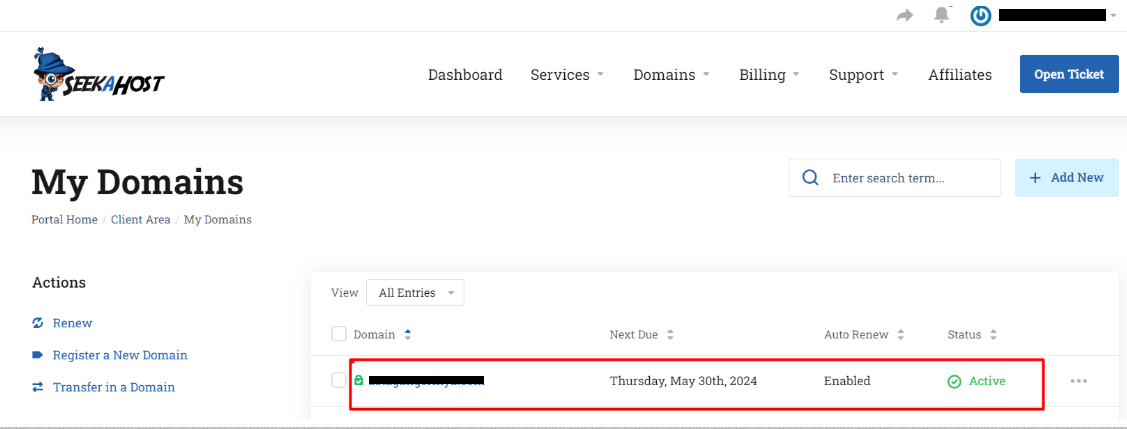
Step 1. Login to your client area portal at SeekaHost and select the domain you want to update the nameservers.
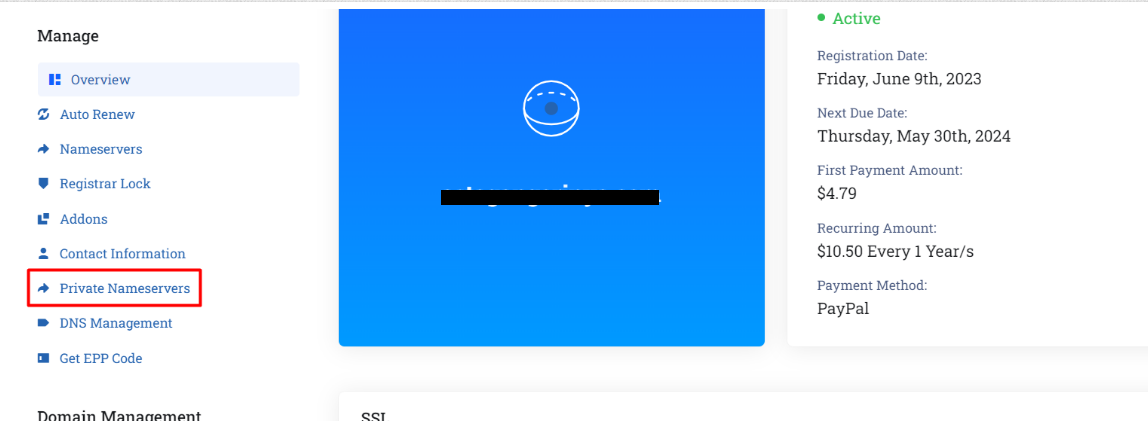
Step 2. Select the Private Nameservers option under the chosen domain.
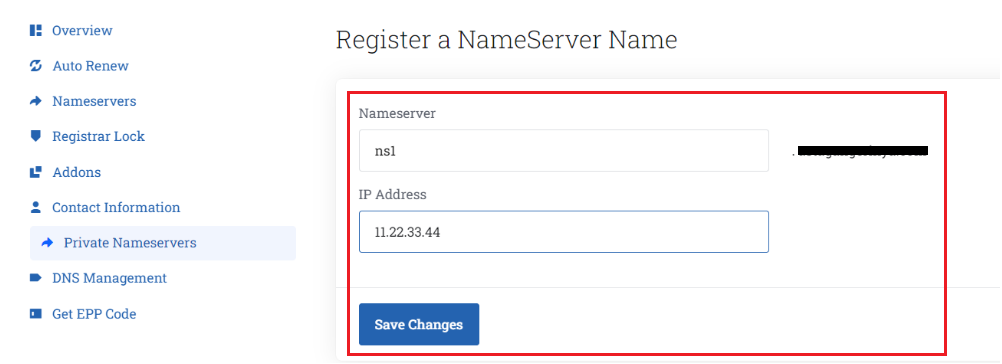
Step 3. Enter the nameserver IP given to the chosen domain and click save changes.
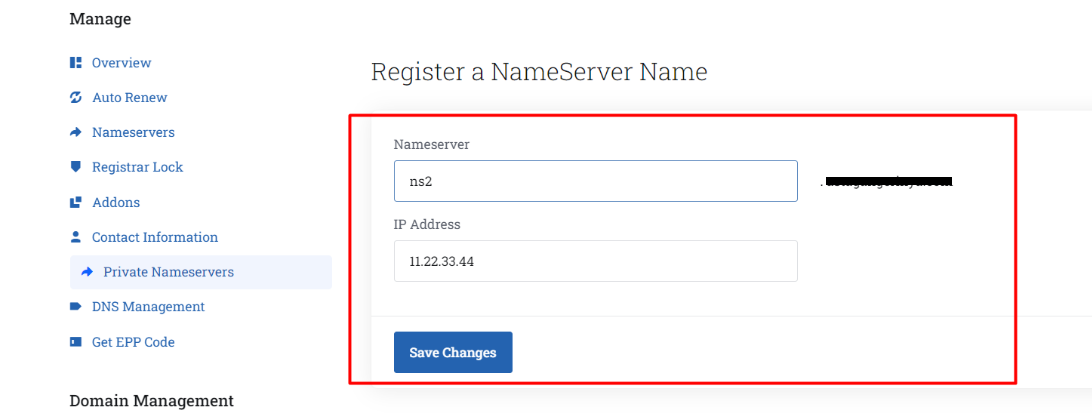
Step 4. Click on the Nameserver option shown in the below screenshot, and choose custom nameservers add Nameserver 1 -> ns1.domainname, Nameserver 2 -> ns2.domainname
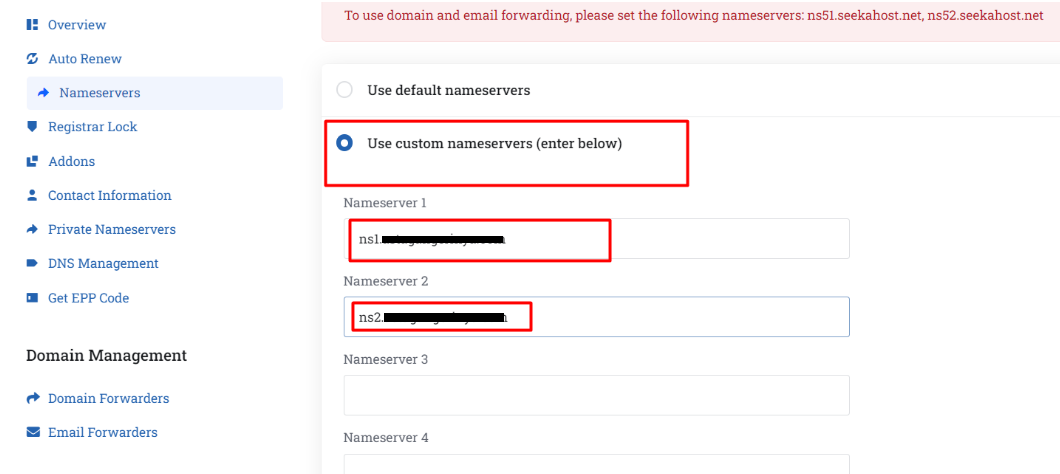
Once nameservers are updated, you can access your site using the cPanel details provided to you.
NOTE: Nameserver updation may take a propagation time maximum of 24 hours to reflect the changes globally.


