



With a few simple steps, you can enable automatic payments for all your services in the SeekaHost Client Area.
There are 2 payment methods available for this automatic process. Below are the steps for each payment method.
1. Enable the Automatic payment using a card.
- Log in to your SeekaHost Client area.
- In the dashboard, navigate to Billing -> Payment methods section
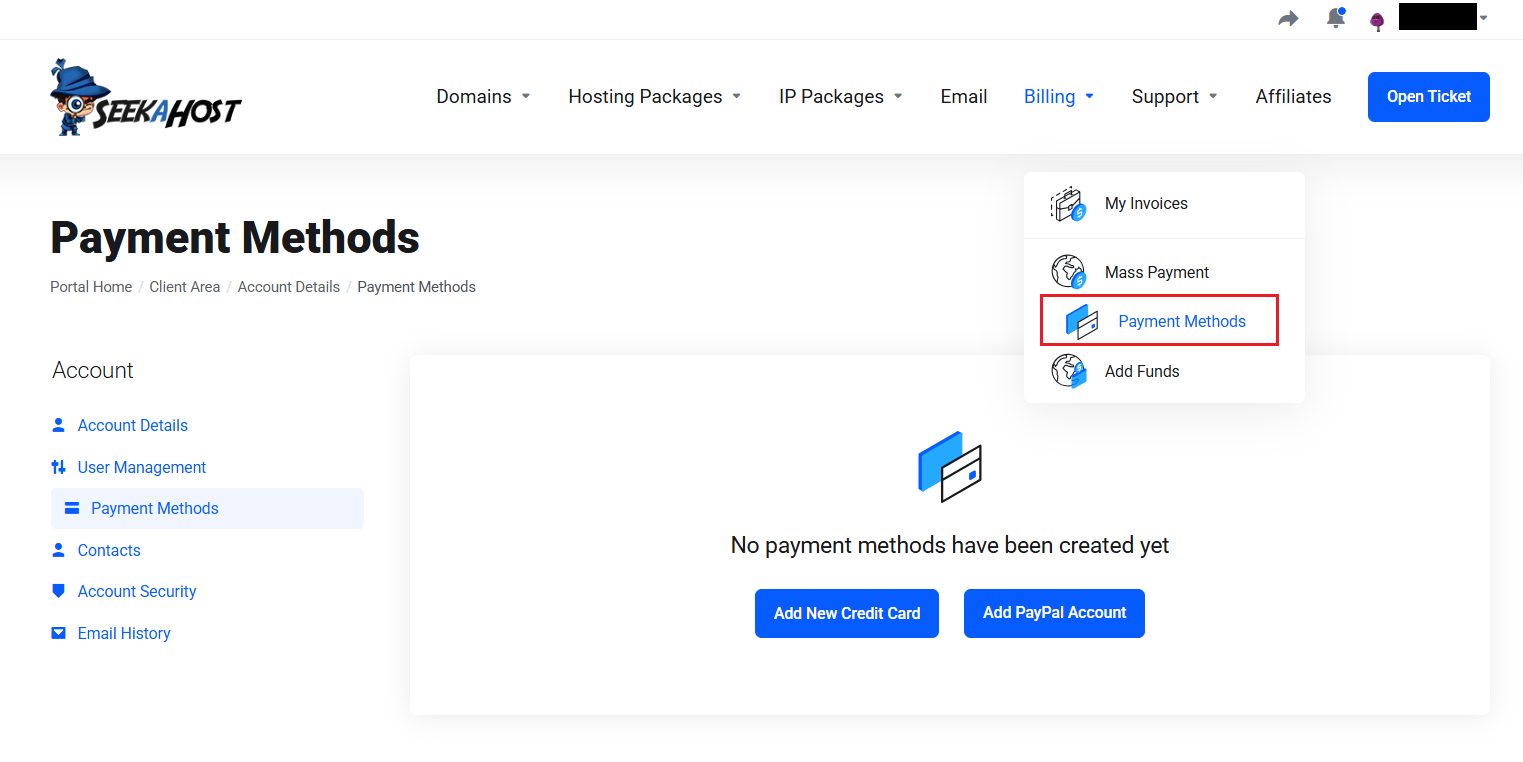
- To configure Automatic Card Payment, select the "Add New Credit Card" option.
- Enter the required card details in the fields, and you will receive an OTP for verification
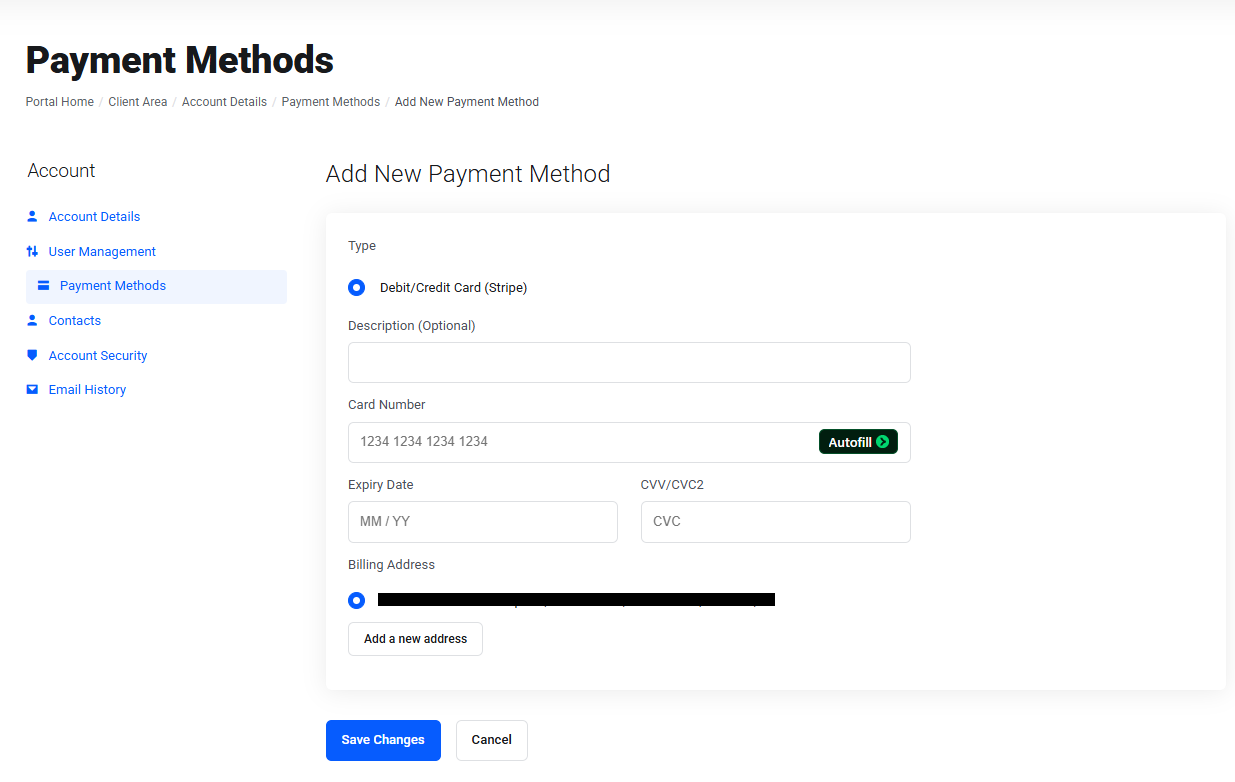
- Once the verification is completed, your card details have been successfully added.
- For all your services, this added card will be set as deafult payment method.
2. Enable the Automatic payment using PayPal.
- Log in to your SeekaHost Client area.
- In the dashboard, navigate to Billing -> Payment methods section
- To configure Automatic Card Payment, select the "Add PayPal Account" option.
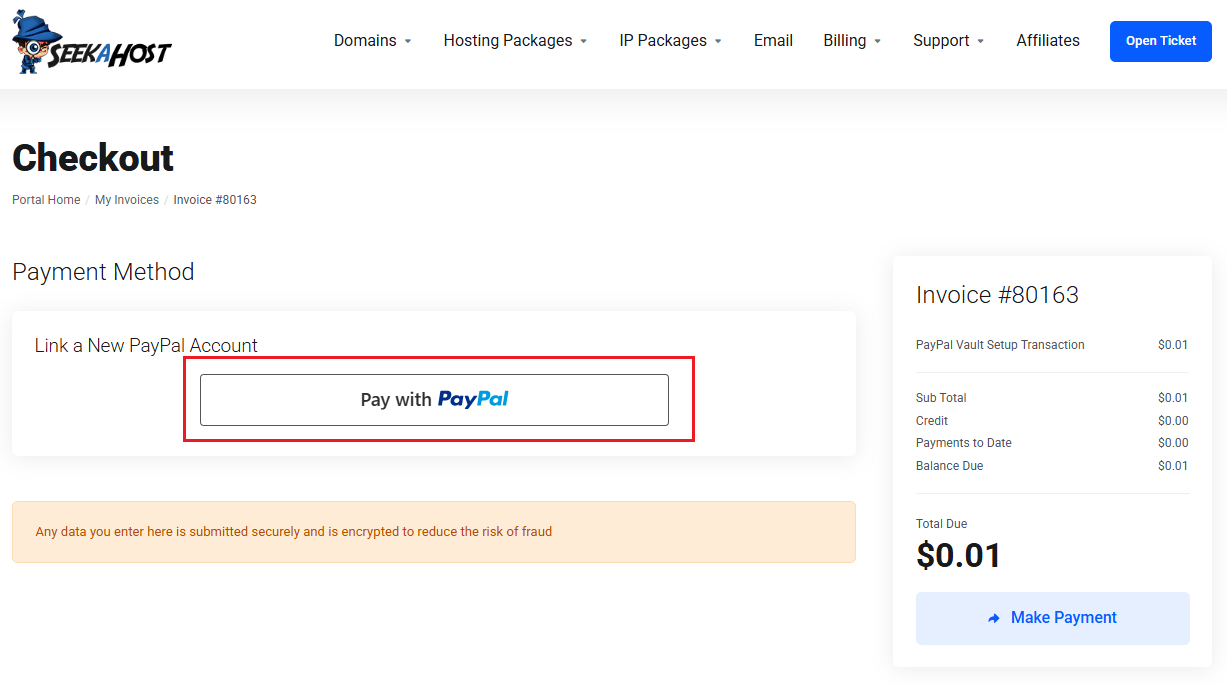
- The Invoice will be created for an amount of $0.01(based on your currency), and you have to make the payment by clicking the "Pay with PayPal" option.
- Once the invoice has been paid, the PayPal account will be successfully added to your account.
- The paid amount will be added to your credit balance.
If you added both Card and PayPal to the account, then you will see the option to choose the default payment method on the same page.
Important Note:
- The clients can able to delete or update the added payment method at any time.
- The clients can use the same Payment method while ordering new services with us.
- If you want to cancel the automatic payment for any particular package, then you can apply for cancellation for that. After that, the invoice will not be created, and the package will be moved to the termination process.
- If you want to cancel the automatic payment for domain renewal, please contact our support team. They will help you with the process.


