



Taking full backup of the site is more important and easy. Because if you lose your content or your website is hacked, then you can restore the backup of your site.
You can follow the steps as mentioned below to take full backup of your website in cPanel.
STEP 1: Login
Firstly, log in to your cPanel
STEP 2: Backup Wizard
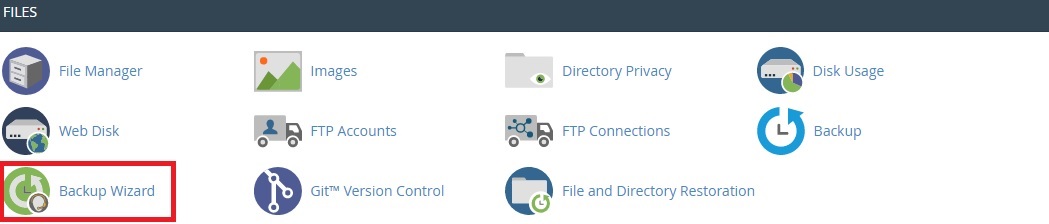
Under the ‘Files’ section, click on the ‘Backup Wizard’ option
STEP 3: Backup
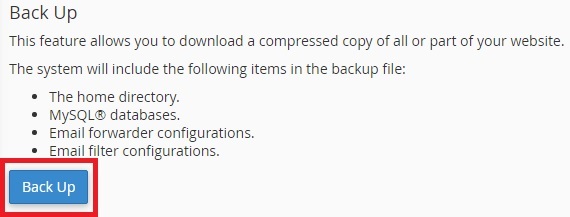
To take a full backup of your website, click on the ‘Backup’ option. To restore the data for your website, click on ‘Restore’.
STEP 4: Full Backup
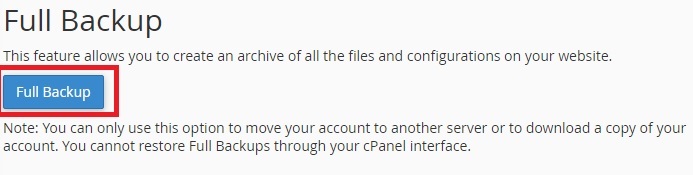
Click on ‘Full Backup’ to download your full website files under a compressed folder. You can also even take partial backup such as
- Home Directory
- MySQL Databases
- Email forwarding & Filters
Click on the required file in which you wanted to take backup.
STEP 5: Generate Backup
To start generating a backup, click on ‘Generate Backup’. Also, you can choose the destination, in which you want to download the full backup.
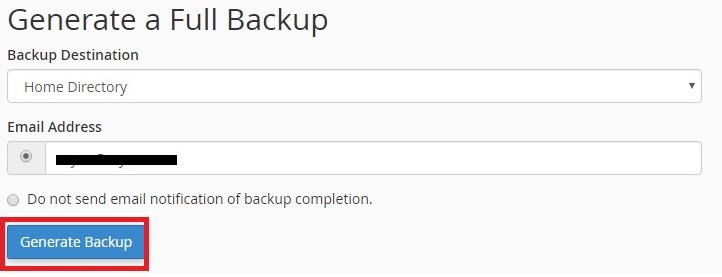
After clicking on ‘Generate Backup’, you will be notified through the email id mentioned as the backups will be available for download. if you click on it, the full backup of your website will be downloaded.


