
 SeekaHost.com Client Area
  SeekaHost.app
  SeekaHost.co.uk
  SeekaHost.in
How To Change or Remove Howdy in WordPress

By Aravind
Table of Contents
Why Change or Remove ‘Howdy Admin’?
When a user signs into the WordPress dashboard, they are welcomed by the word “Howdy” trailed by their display name.
For example, If your display name is admin, then you will see the display name as “Howdy, admin”.
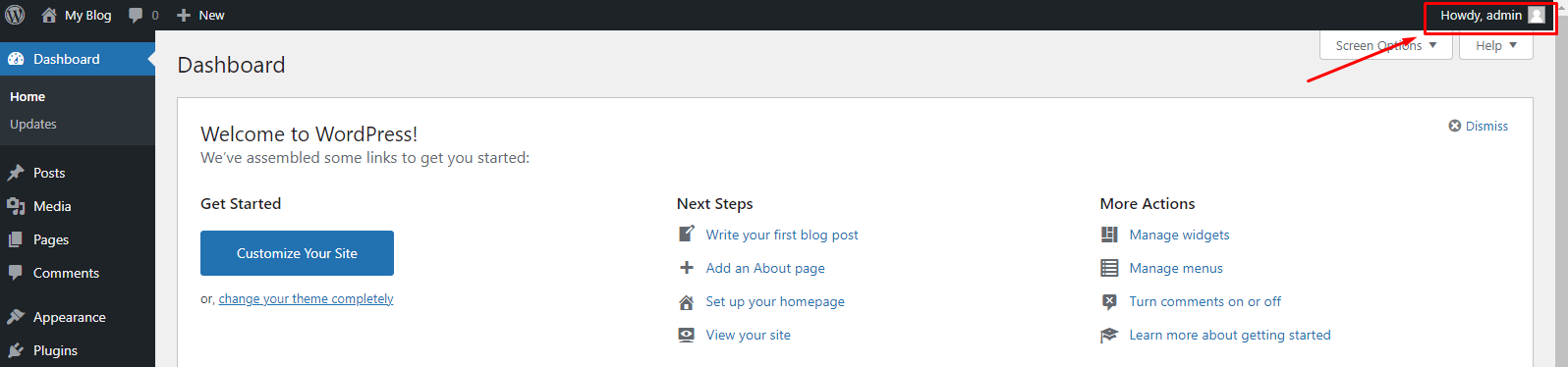
The greeting of Howdy will not sound good to some people. ‘Howdy’ is the short form of ‘How do you do?’, Many English Speakers never use the word ‘Howdy’. It could sound out of place, Outdated, or a bit annoying.
Fortunately, Users will be able to change the greetings to more familiar sounds (like Welcome, Hello, Hi, Hey) or leave them out entirely. Also there are different roles and capabilities to assign for a user in WordPress which you should carefully assign.
Three Methods to Remove Howdy in WordPress:
Method 1: Remove Howdy in WordPress Using Admin Trim Interface
Method 2: Change Howdy Admin Using Admin Customizer
Method 3: Change or Remove ‘Howdy Admin’ Using Code
Method 1: Remove Howdy in WordPress Using Admin Trim Interface
In this method, We are going to see How to remove ‘Howdy Admin’ using Admin Trim Interface Plugin. Before that, install WordPress and login to the WordPress dashboard to follow the steps.
Step 1: Go to Plugin -> Add new. Search Admin Trim Interface in search Bar.
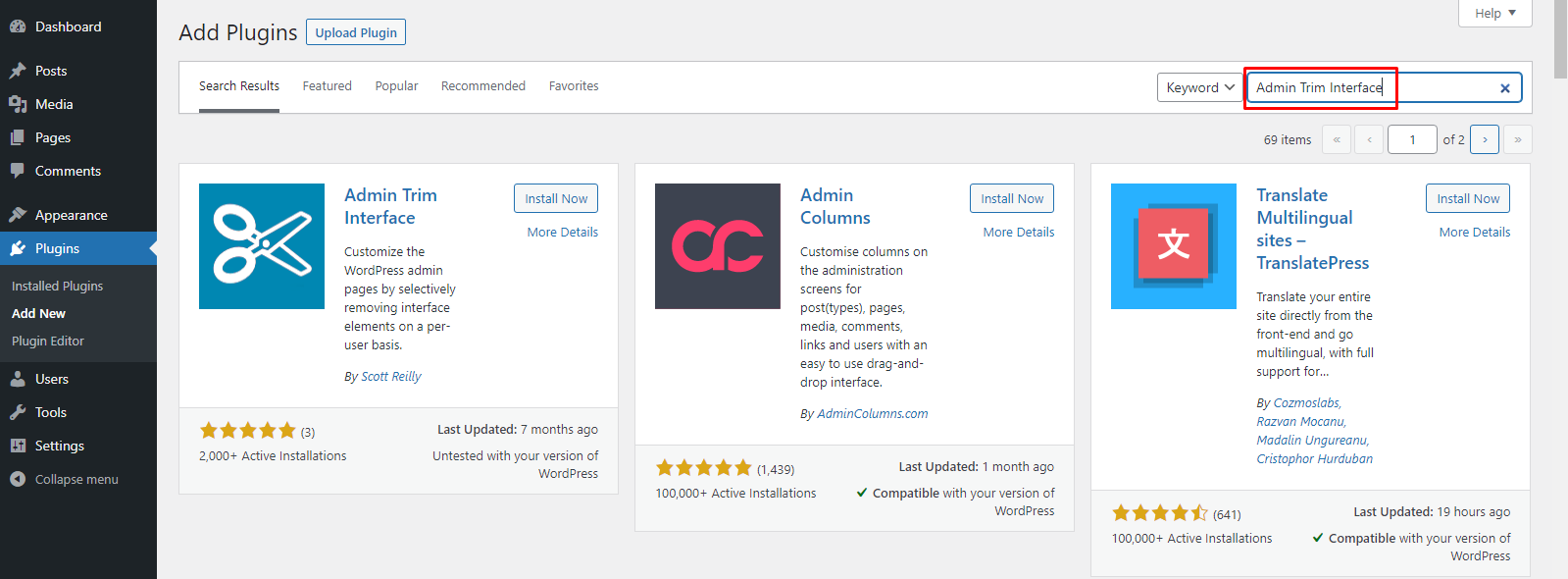
Install and activate Admin Trim Interface Plugin.
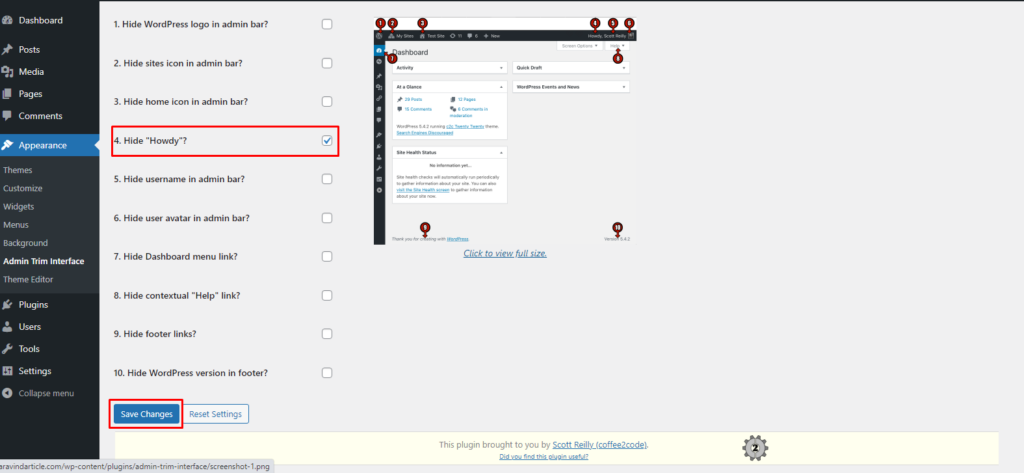
Step 2: Go to Appearance -> Admin Trim Interface.
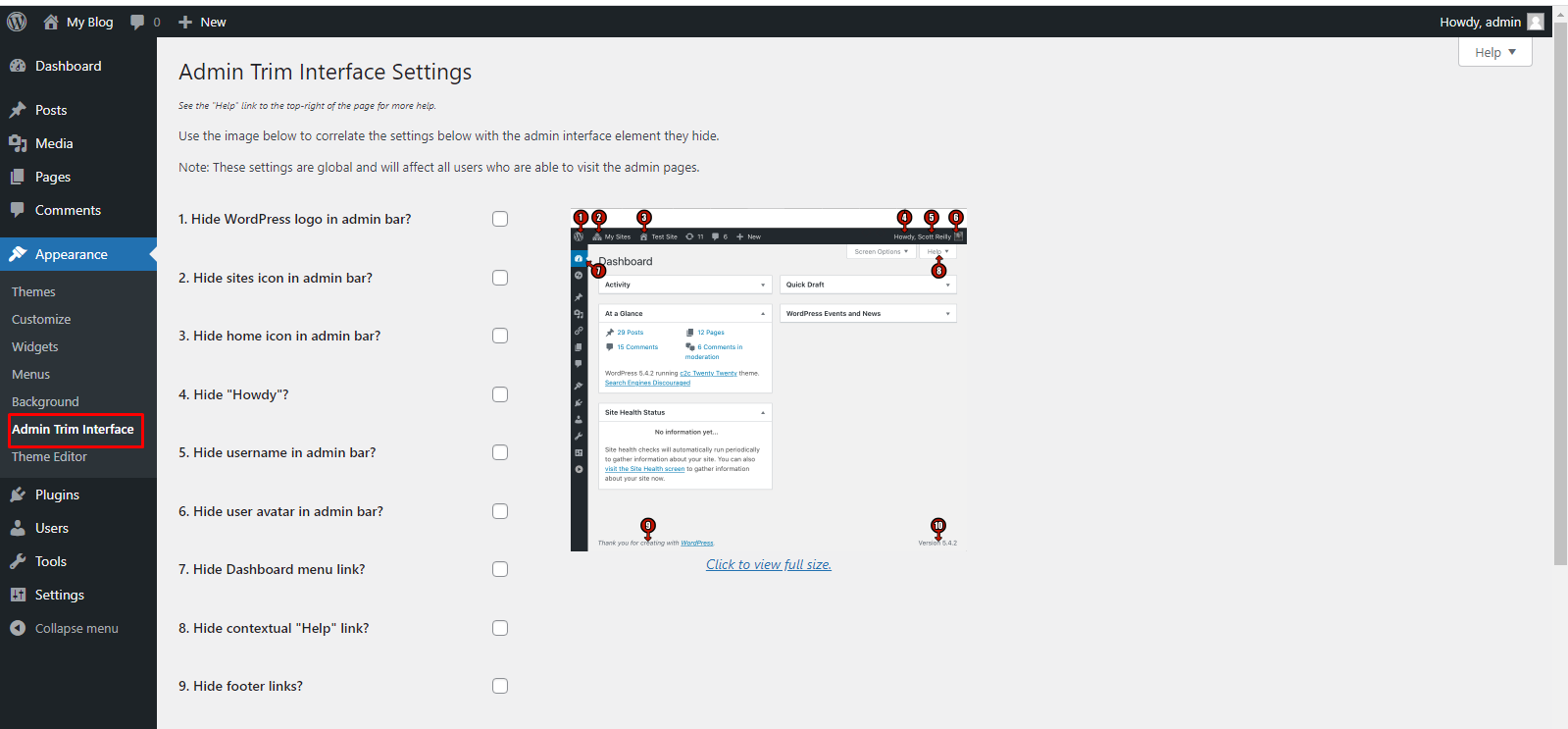
Step 3: Click the Hide “Howdy” checkbox and afterward click the Save Changes button.
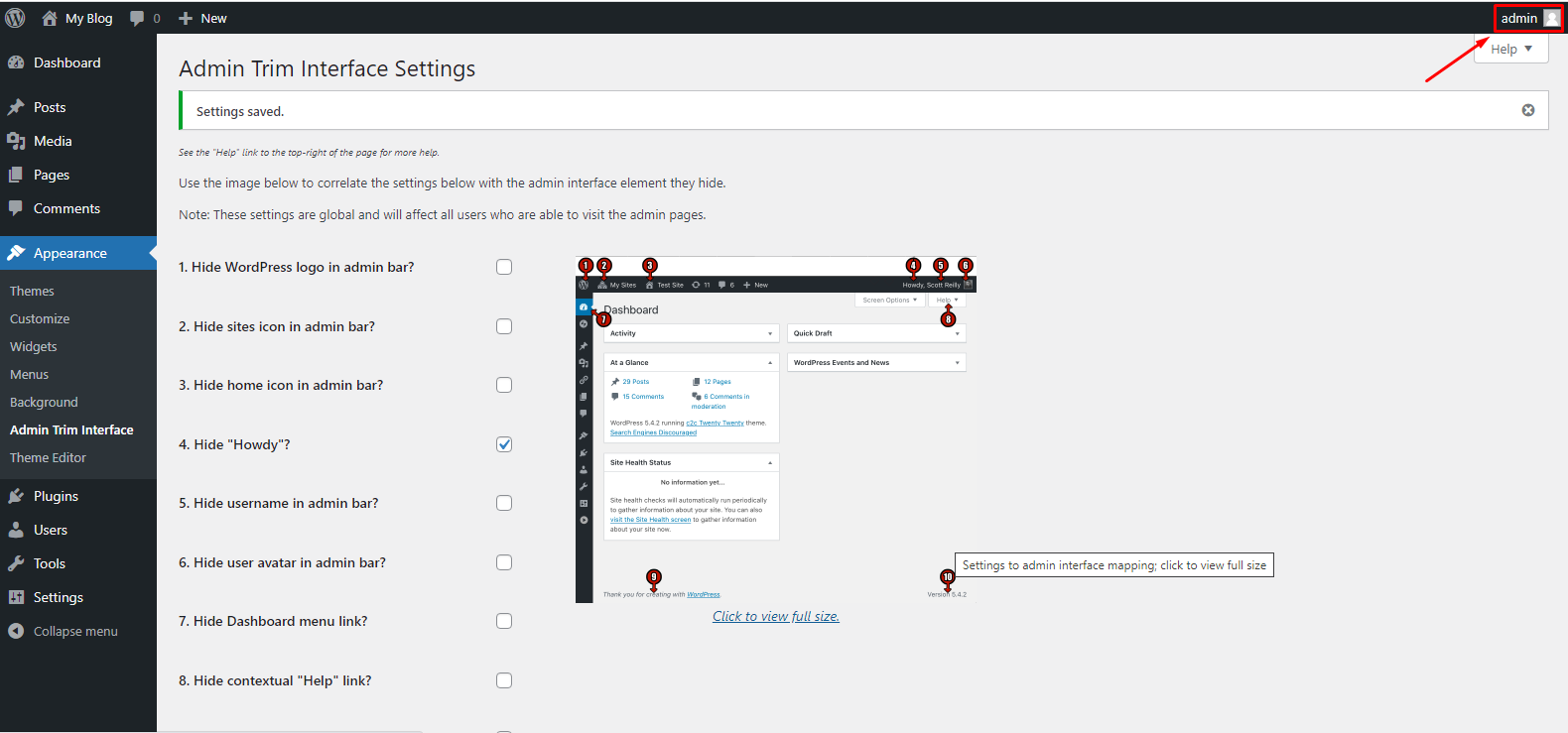
Step 4: After Saving, you will see that the ‘Howdy’ greeting has been removed.
Method 2: Change Howdy Admin Using Admin Customizer
Here, We will see How to change the ‘Howdy Admin’ using Admin Customizer Plugin.
Step 1: Go to Plugin-> Add new. Search Admin Customizer in the search bar.
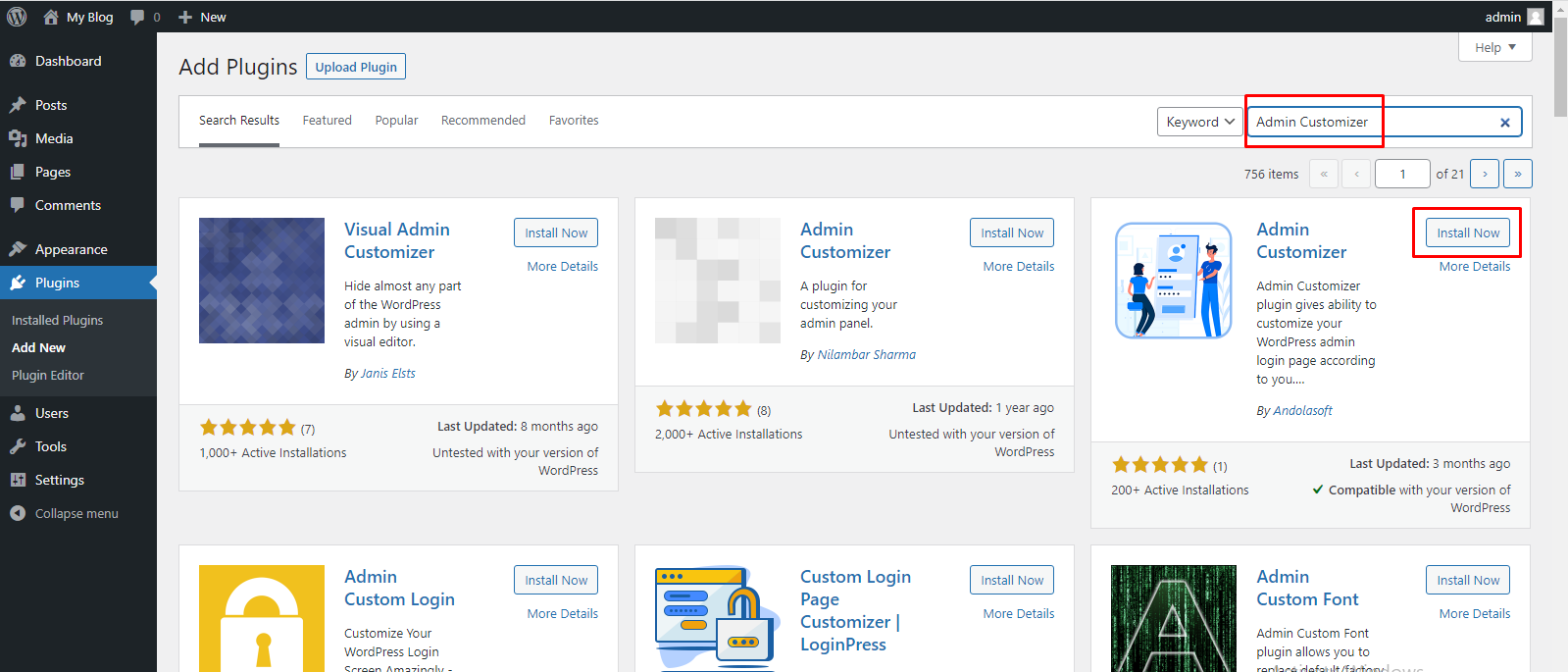
Install and activate Admin Customizer Plugin.
Admin Customizer Plugin allows you to customize your WordPress login screen and admin region, including changing the word ‘Howdy’ to something else.
Step 2: Go to the Settings -> AS Admin Customizer. Click on the Dashboard Section button to change the greetings.
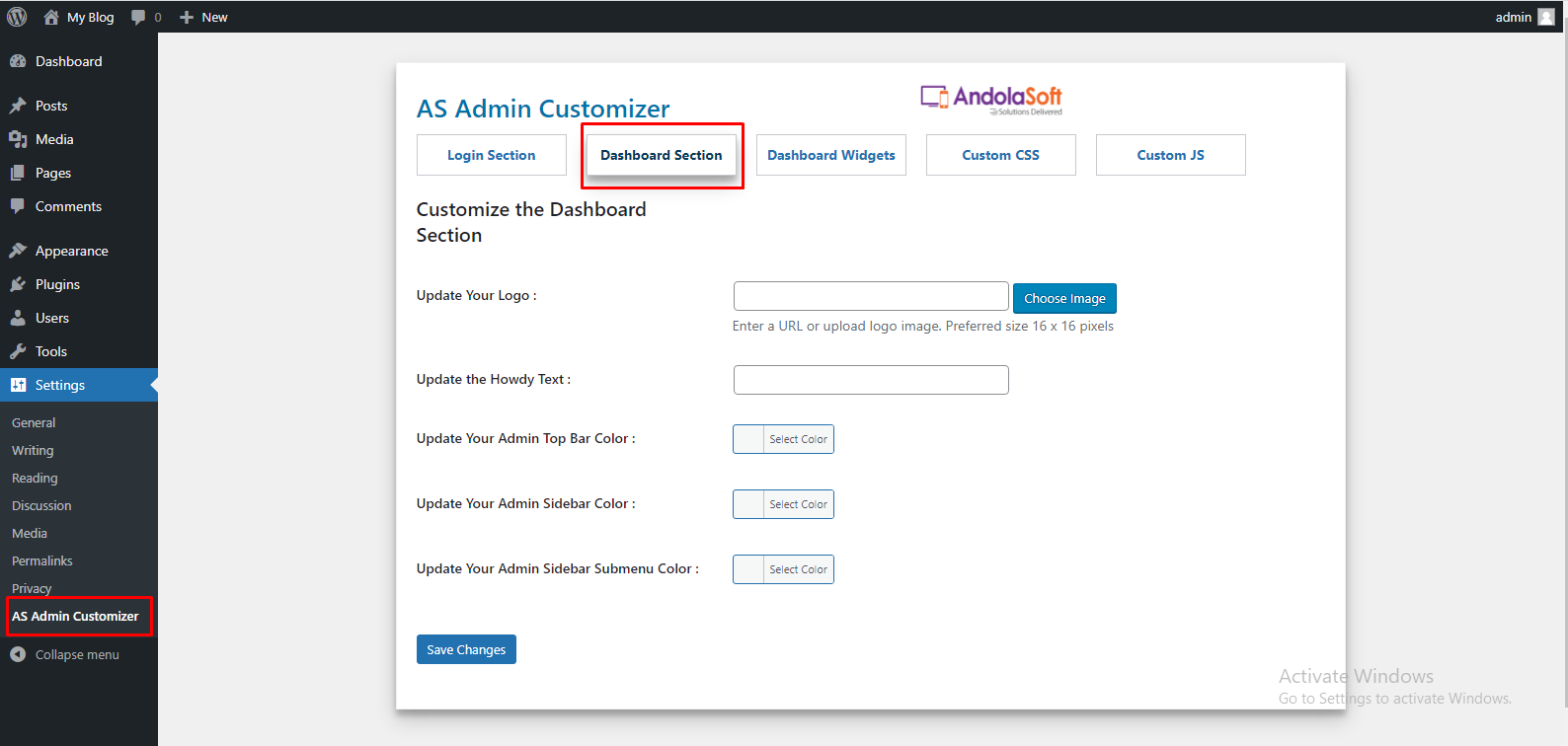
Step 3: Type your greeting in the Update the Howdy text box and click the Save Changes button. We used the greeting as ‘Hello’.
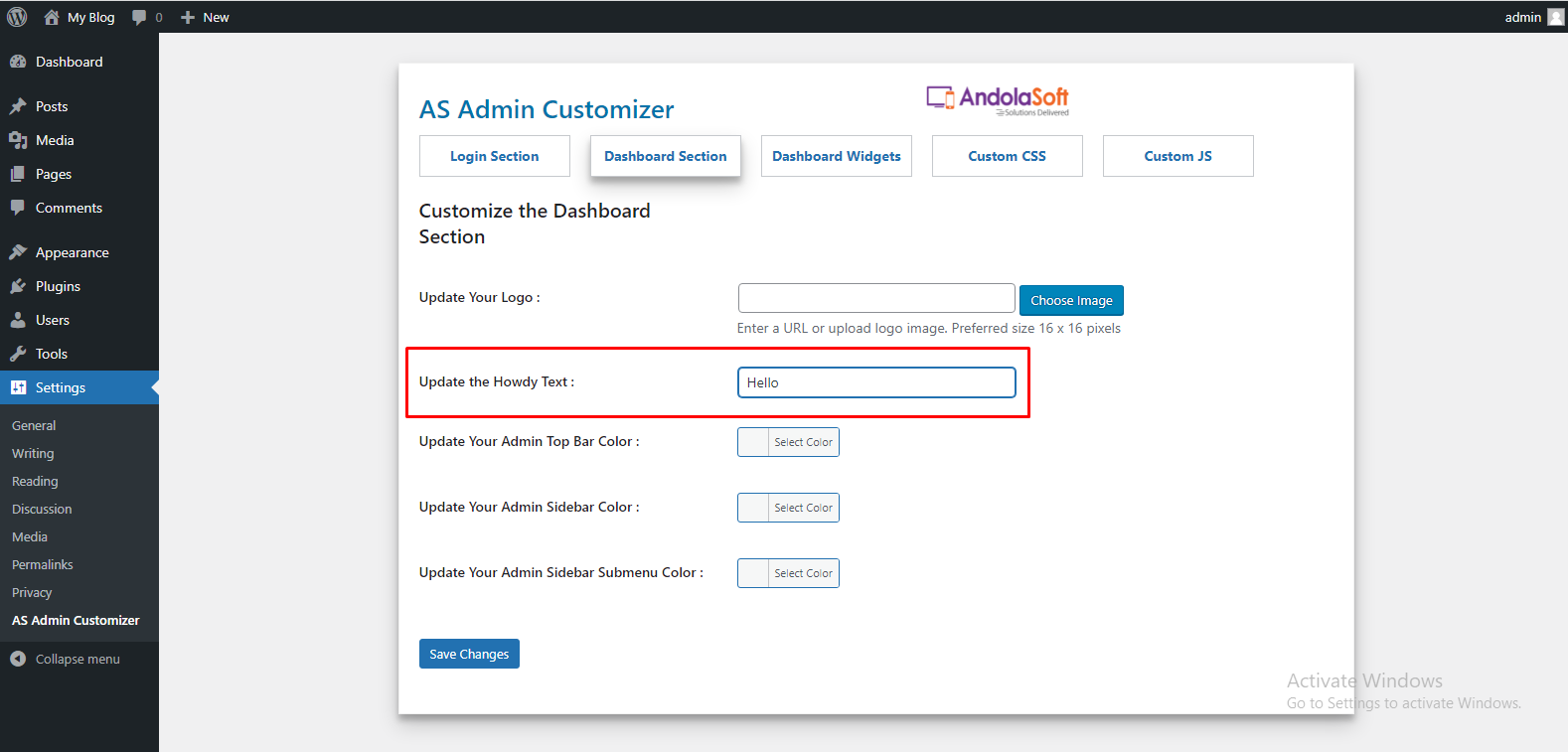
After saving the Dashboard Settings you can see the changes.
Method 3: Change or Remove ‘Howdy Admin’ Using Code
In this method, you can Change or Remove ‘Howdy Admin’ using WordPress Snippets code.
Step 1: Search Code Snippets in plugin Search Bar.
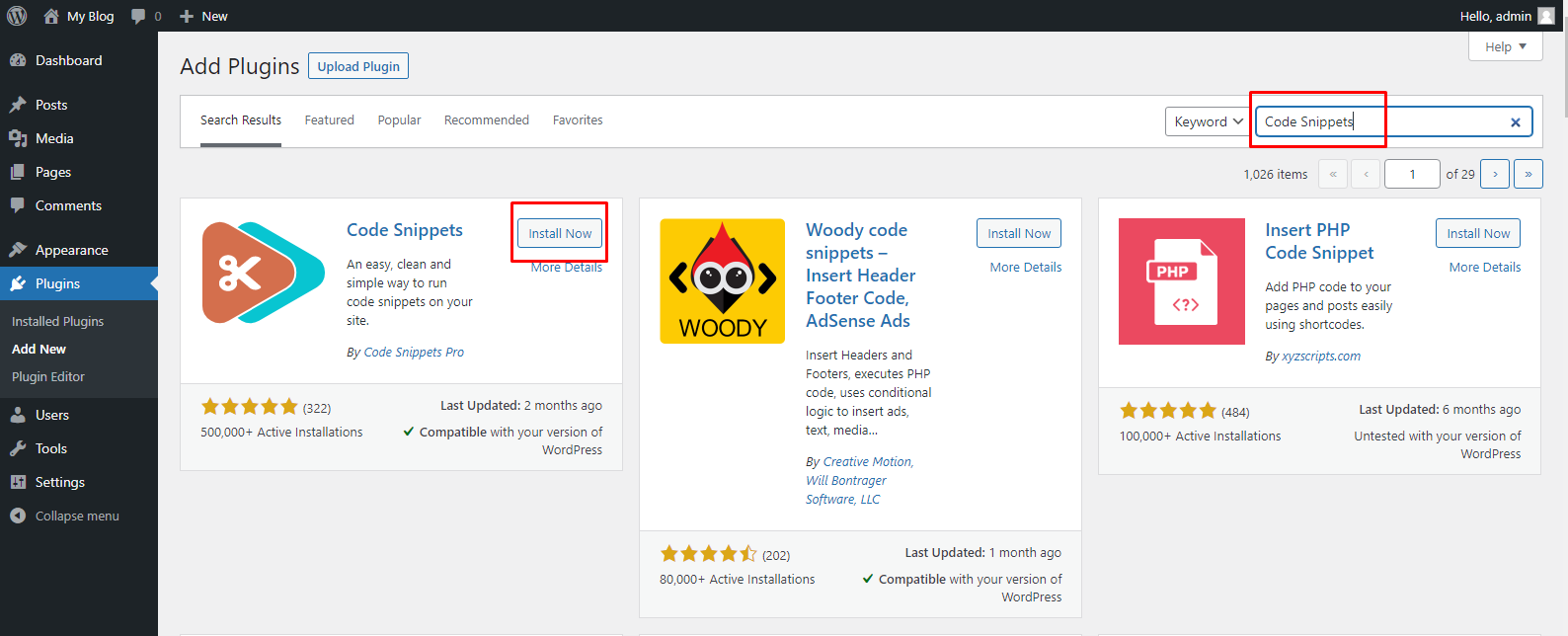
Install and activate Code Snippets Plugin.
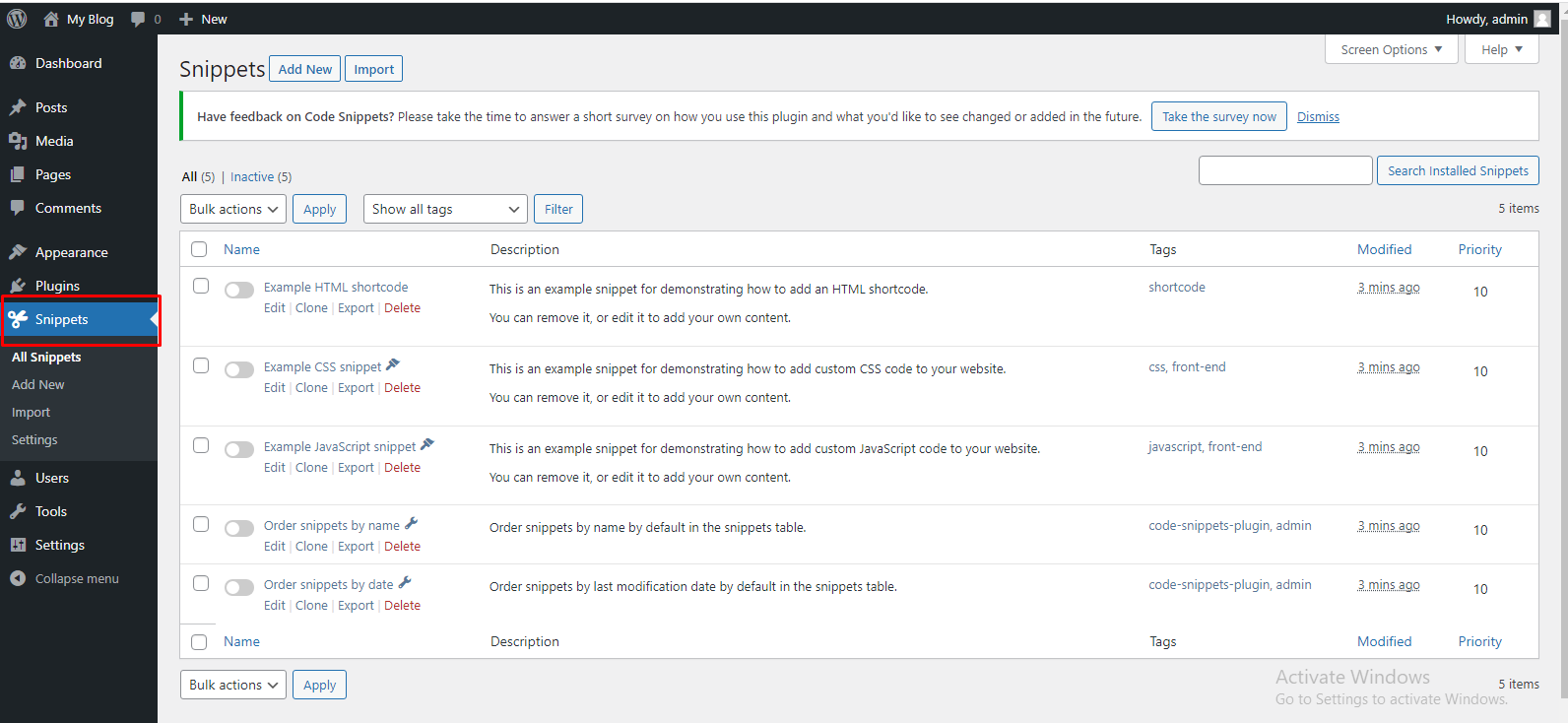
Step 2: In this plugin add another thing Snippets in Menu Section. Click on the Snippets.
Step 3: Click on the Add New option to add your first custom code bit in WordPress.
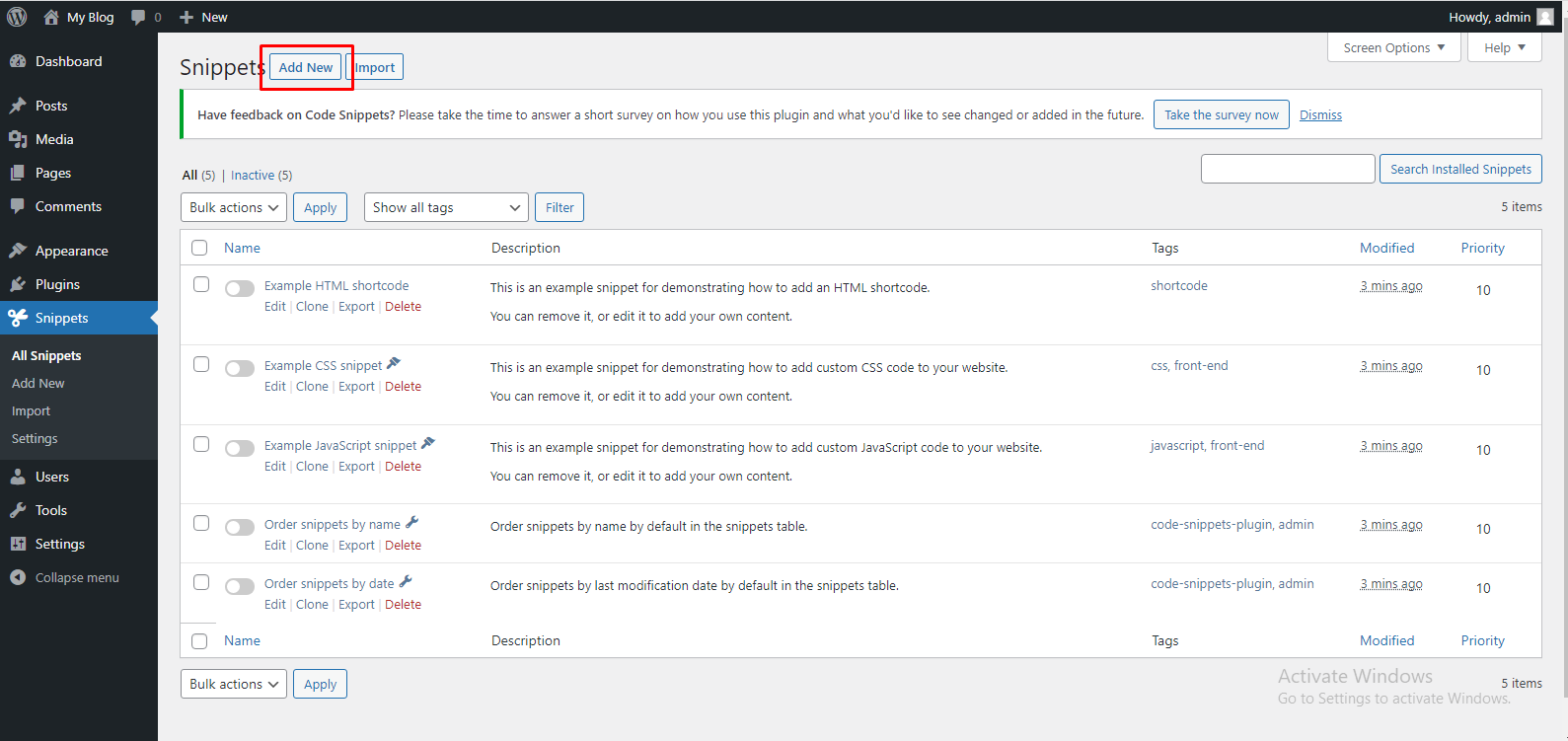
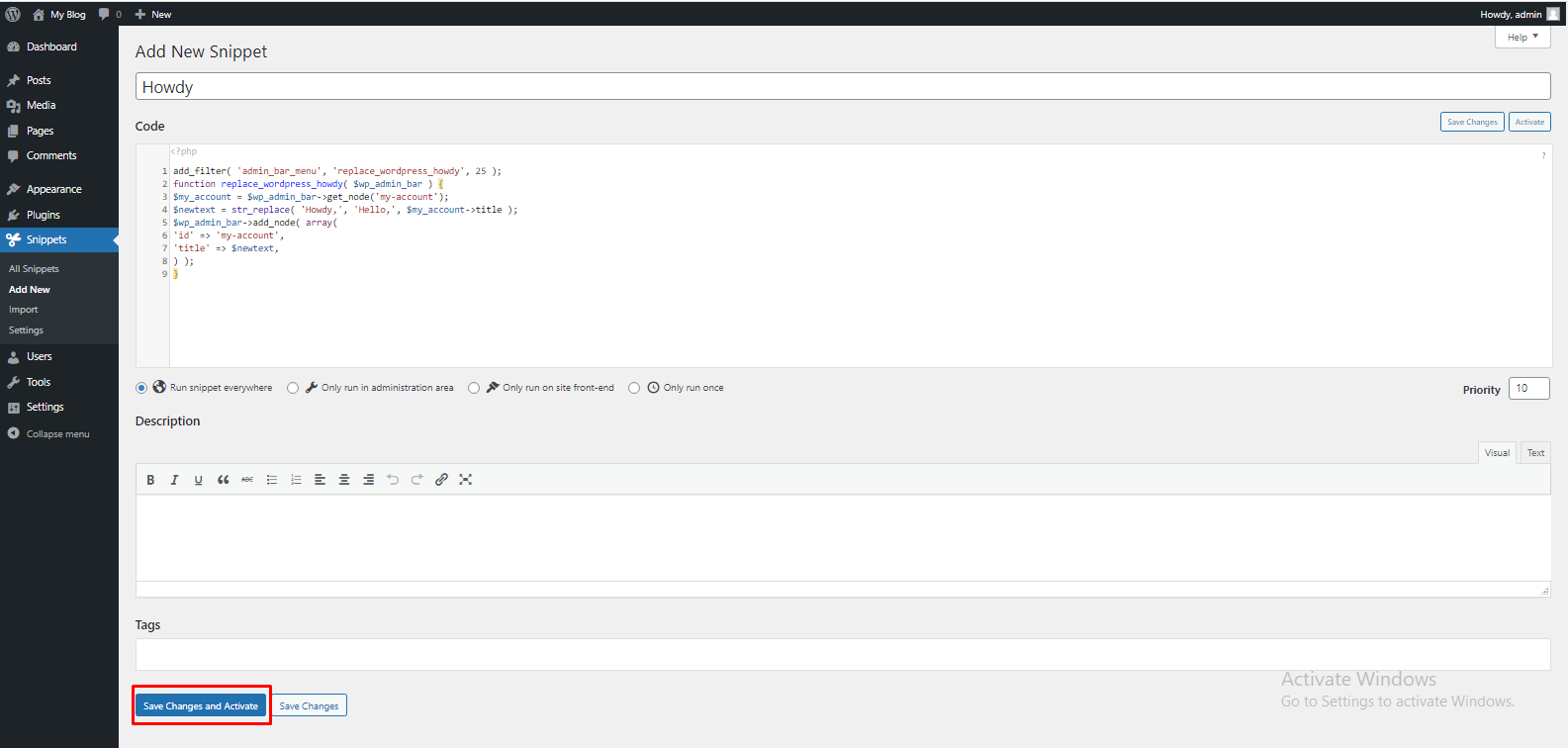
You will redirect to ‘Add New Snippet’ page. There you can enter the below code.
add_filter( 'admin_bar_menu', 'replace_wordpress_howdy', 25 );

function replace_wordpress_howdy( $wp_admin_bar ) {

$my_account = $wp_admin_bar->get_node('my-account');

$newtext = str_replace( 'Howdy,', 'Hello,', $my_account->title );

$wp_admin_bar->add_node( array(

'id' => 'my-account',

'title' => $newtext,

) );

}
Step 4: Enter the code and click Save Changes and Activate Option.
That’s it. Hope you can able to Change or Remove Howdy in WordPress through the mentioned three methods.