
 SeekaHost.com Client Area
  SeekaHost.app
  SeekaHost.co.uk
  SeekaHost.in
How To Exclude Specific Pages From WordPress Search Results?

By Robert Mills
Table of Contents
Do you know that you can Exclude Specific Pages From WordPress Search Results? By default, it includes all posts and pages in the search results.
In this article, we will show you how to exclude easily a specific page, posts, authors, and more from WordPress search results.
Why We Have to Exclude Pages from WordPress Search?
The default WordPress search feature shows results from all WordPress posts, pages, and custom post types. It is acceptable and does not affect WordPress SEO. However, if you have an online store, then you might not want some pages to appear in search results. For example, the checkouts page, my account page, etc.
Also if you are using a membership website or a plugin related to it, then you must need to Exclude Specific Pages or custom post types from the search result.
Optimizing your website search by excluding unwanted items gives a better user experience and improves the website’s usability.
Different Types to Exclude from WordPress Search Result:
Type 1: Exclude Specific Pages, Posts, and Custom Post
Type 2: Exclude Category, Tag, Custom Taxonomy
Type 3: Exclude Specific Author
Type 4: Exclude only the pages but not blog posts.
Type 1: Exclude Specific Pages, Posts, and Custom Post
Before starting with the process, ensure you have installed the WordPress for the website.
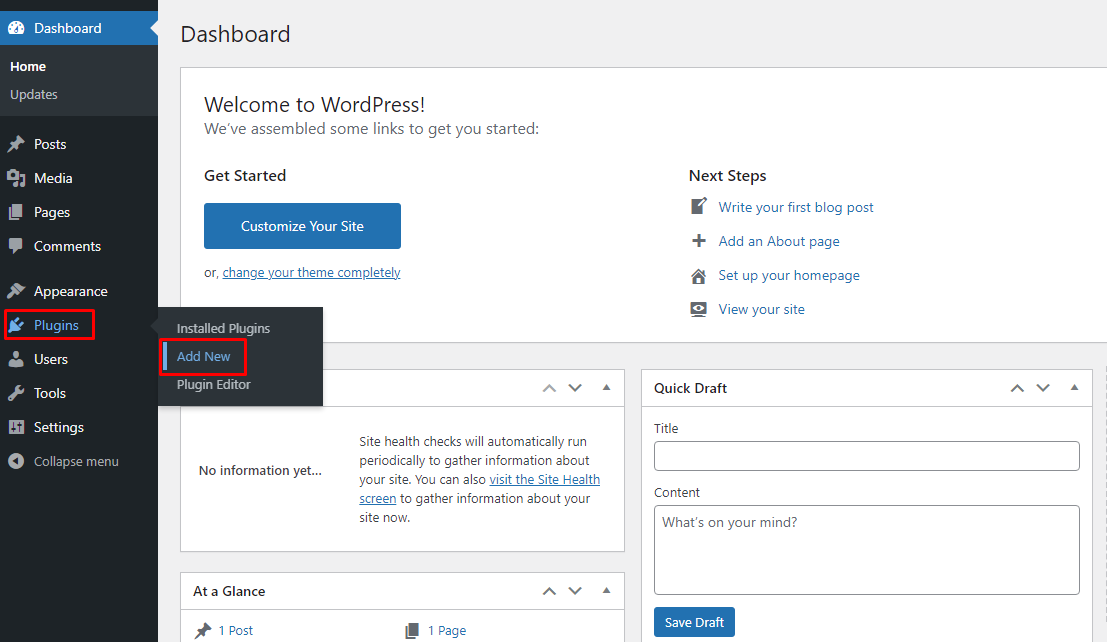
Step 1: Login to WordPress dashboard -> Plugin -> Add new -> Install and activate the plugin “Search Exclude”.
Step 2: After activation, click Edit of any of the post, page, or custom post types that you want to Exclude Specific Pages from the search result.
On the right side of the edit screen, Enable the checkbox – “exclude from search result” box.
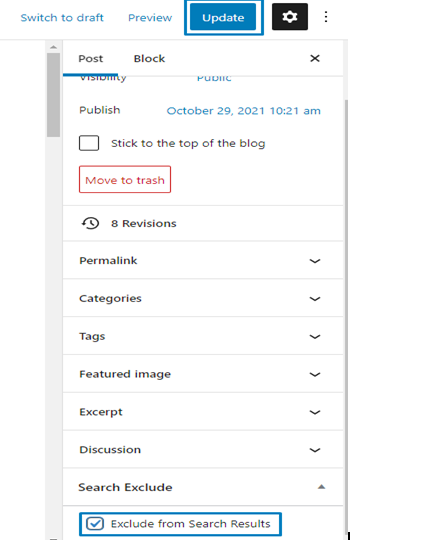
Once done, click update. Now, it will not be appearing in the WordPress search result.
Step 3 -> To view all excluded items, Go to settings » Search Exclude
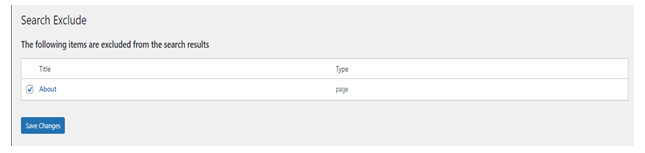
If you want to remove that restriction, just uncheck the box to add back and click save changes.
Type 2: Exclude Category, Tag, Custom Taxonomy
For this method, you need a code snippet plugin. So, install the plugin and follow the steps.
Step 1: Find the category ID that you want to exclude.
Step 2: Add the following code in your active theme’s function.php file at the end of the code.
function wpb_search_filter( $query ) {
if ( $query->is_search && !is_admin() )
$query->set( ‘cat’,’-7, -10, -21′ );
return $query;
}
add_filter( ‘pre_get_posts’, ‘wpb_search_filter’ );
NOTE: Don’t forget to replace 7, 10 and 21 with the ID of category you want to exclude.
Here, I have added multiple ID (7, 10, and 21) for excluding separated by commas. You can add just only one if you want to exclude only one.
Exclude Specific Tags:
If want to exclude posts filed under specific tag, then use the following code.
function wpb_search_filter( $query ) {
if ( $query->is_search && !is_admin() )
$query->set( ‘tag’,’-19′ );
return $query;
}
add_filter( ‘pre_get_posts’, ‘wpb_search_filter’ );
Don’t forget to replace 19 with the ID of tag you want to exclude.
Excluding Specific Terms in a Custom Taxonomy:
If want to exclude a term in a custom taxonomy from WordPress search results, then use the following code.
function wpb_modify_search_query( $query ) {
global $wp_the_query;
if( $query === $wp_the_query && $query->is_search() ) {
$tax_query = array(
array(
‘taxonomy’ => ‘genre’,
‘field’ => ‘slug’,
‘terms’ => ‘action’,
‘operator’ => ‘NOT IN’,
)
);
$query->set( ‘tax_query’, $tax_query );
}
}
add_action( ‘pre_get_posts’, ‘wpb_modify_search_query’ );
Don’t forget to replace ‘genre’ with the custom taxonomy and ‘action’ with the term you want to exclude.
Type 3: Exclude Specific Author
If the author has only few posts and also will not be adding any more posts, then use the Type 1 method in this article to exclude.
For lot of posts to exclude for the author, then use the following code to exclude all of them from WordPress search results.
function wpb_search_filter( $query ) {
if ( $query->is_search && !is_admin() )
$query->set( ‘tag’,’-19′ );
return $query;
}
add_filter( ‘pre_get_posts’, ‘wpb_search_filter’ );
Note: Don’t forget to replace 24 with the user ID of the author you want to exclude.
Type 4: Exclude only the pages but not blog posts.
If you want to exclude all the pages but only display the blog posts, use the following code in function.php file:
function tg_exclude_pages_from_search_results( $query ) {
if ( $query->is_main_query() && $query->is_search() && ! is_admin() ) {
$query->set( ‘post_type’, array( ‘post’ ) );
}
}
add_action( ‘pre_get_posts’, ‘tg_exclude_pages_from_search_results’ );
In this case, all we want to show is content from our blog posts, not our pages.
To exclude specific blog posts from WordPress search results, follow the same steps above. Just the name shows “post” instead of “page”.