
 SeekaHost.com Client Area
  SeekaHost.app
  SeekaHost.co.uk
  SeekaHost.in
Edit PHP Settings with MultiPHP INI Editor

By Robert Mills
Table of Contents
Need to Edit PHP Settings for your website without editing configuration files manually? The MultiPHP INI Editor in cPanel provides a simple way to update important PHP directives through an easy-to-use interface. Whether you need to increase the memory limit, allow larger file uploads, or adjust execution settings, you can make the required changes in just a few clicks.
This guide walks you through configuring essential PHP options such as memory_limit, upload_max_filesize, post_max_size, and more to optimize your website’s performance.
What is MultiPHP INI Editor?
The MultiPHP INI Editor is a cPanel feature that lets you modify PHP configuration settings for your website without manually editing the php.ini file. It provides an easy interface to update common PHP directives such as memory_limit, upload_max_filesize, post_max_size, and max_execution_time.
This makes it simple to customize your PHP environment to meet your website’s performance and application requirements.
Different Methods to Edit PHP Settings:
Method 1: Use Basic Mode
Basic Mode is the recommended choice for most website owners. It provides a simple graphical interface with text fields and toggle switches for the most common PHP directives.
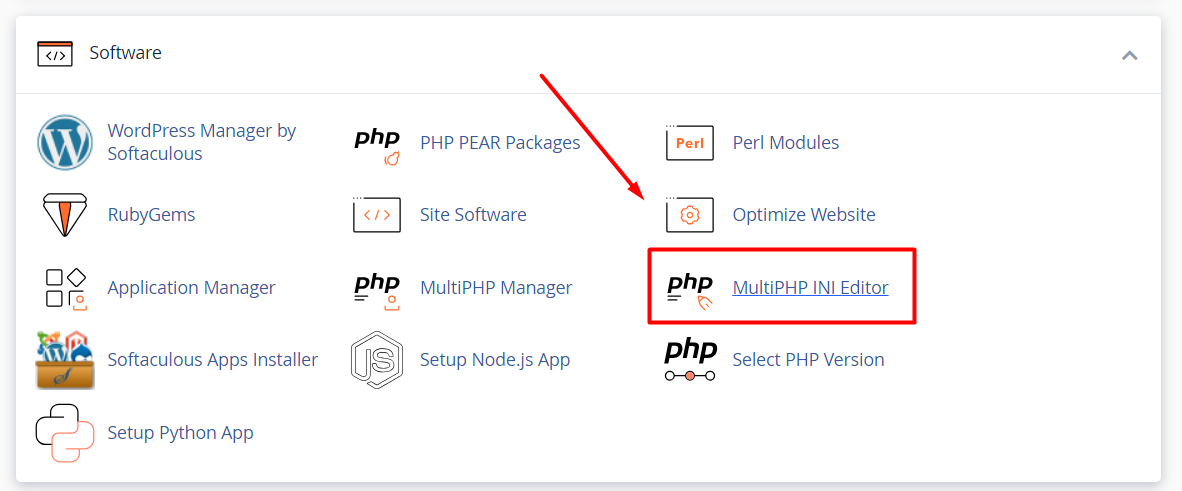
Step 1: Locate the MultiPHP INI Editor
1. Log in to your cPanel.
2. Search “MultiPHP INI Editor” and click it.
Step 2: Choose Your Domain
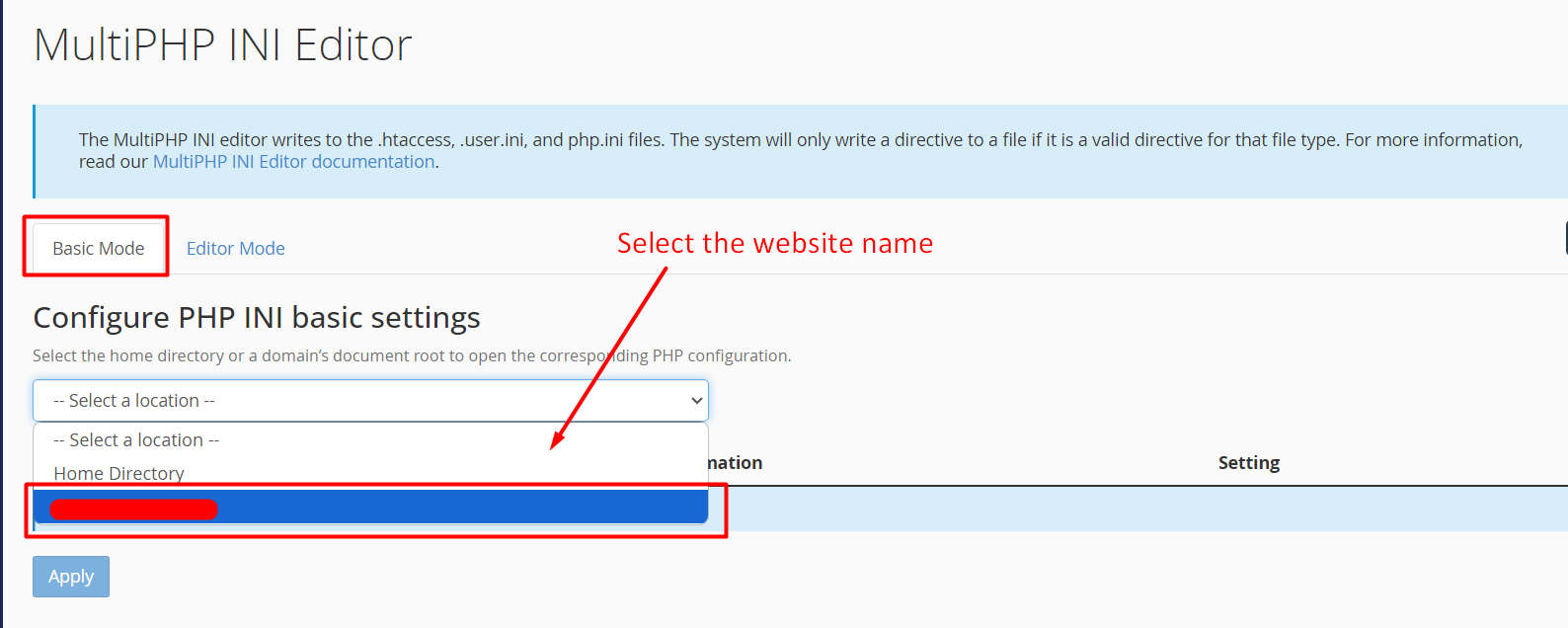
1. Make sure you’re on the “Basic Mode” tab.
2. Click the dropdown menu.
3. Choose the specific domain which you want to edit and apply the changes. (Note: To apply changes to all domains in your account, select Home Directory)
Step 3: Modify Values and Apply
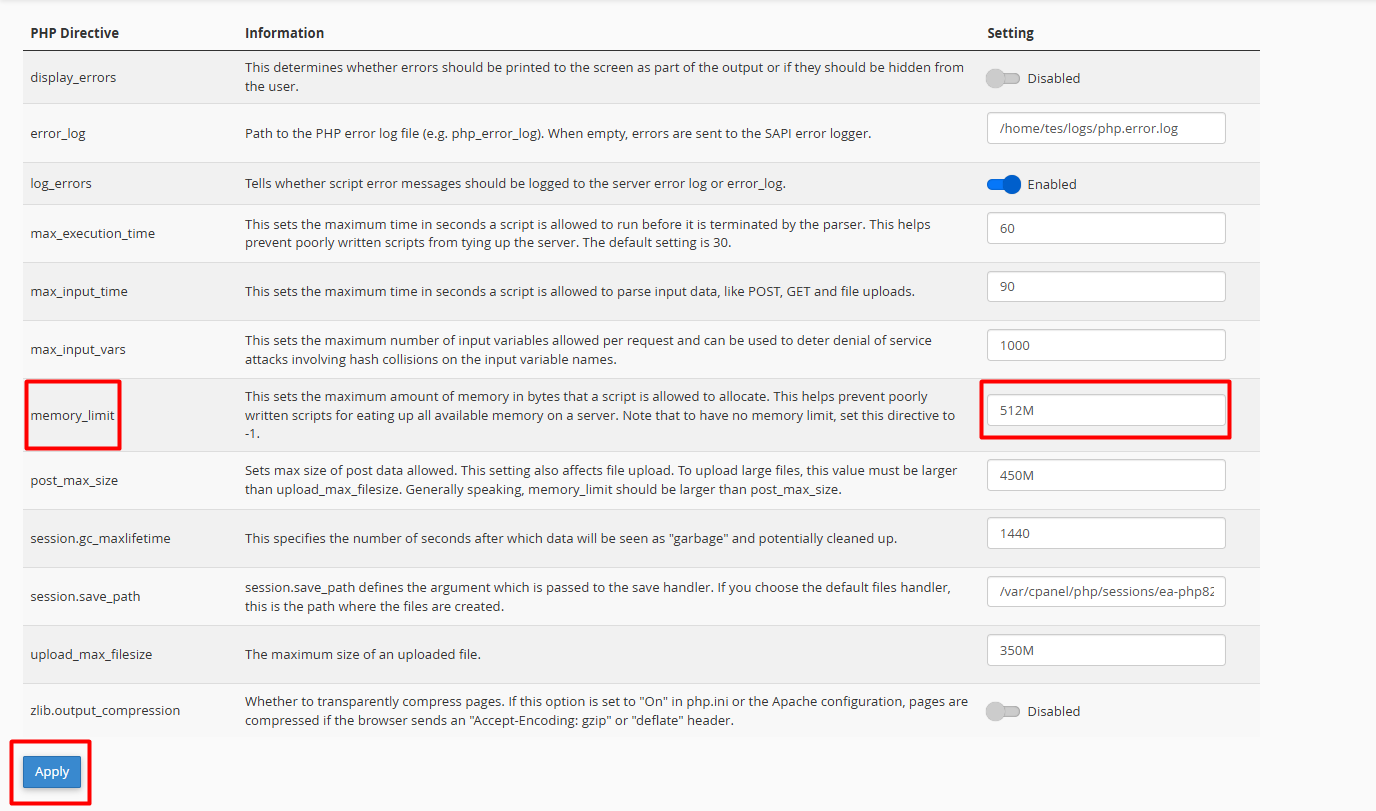
You can see the list of PHP directives to Edit PHP Settings values. In the ‘memory_limit’ directive, enter the maximum limit that your site needs.
Note: Ensure that memory_limit is greater than post_max_size, and post_max_size is greater than upload_max_filesize.
Finally, click “Apply” to save the changes.
Method 2: Using Editor Mode (Advanced)
If you need to add custom PHP rules that aren’t listed in Basic Mode, you’ll need to use Editor Mode. This method loads the raw code in your configuration file.
Step 1: Switch to Editor Mode
Inside the MultiPHP INI Editor interface, click the “Editor Mode” tab at the top and choose the domain.
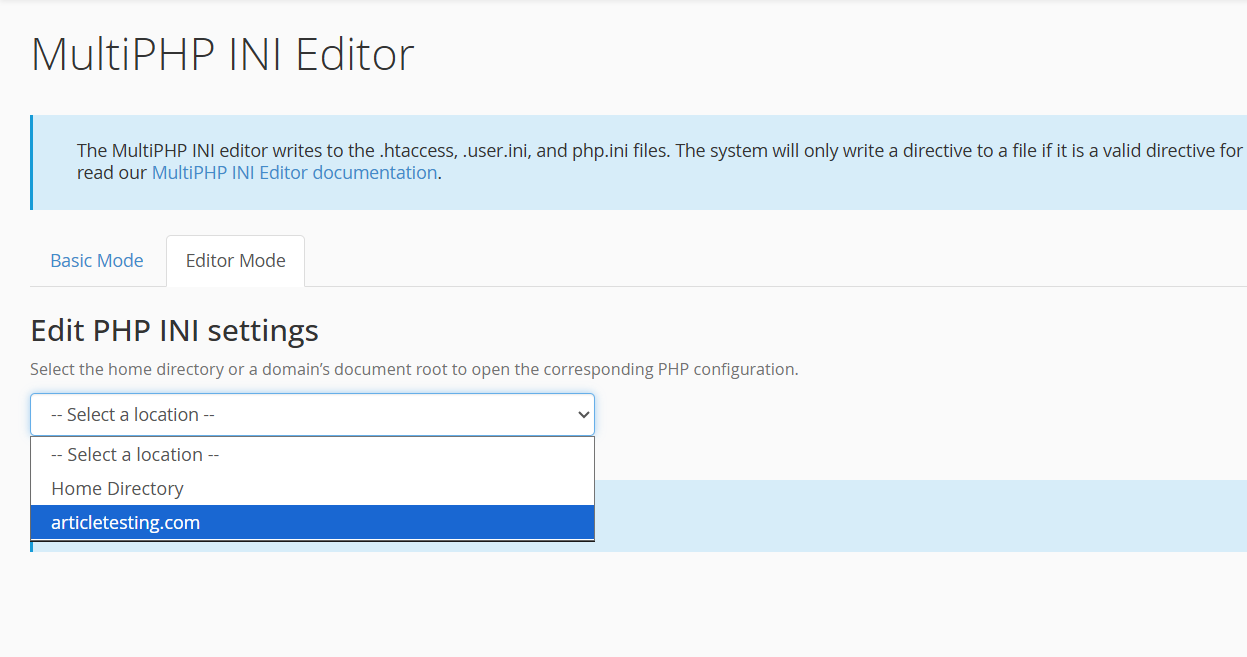
Step 2: Edit the php.ini Text
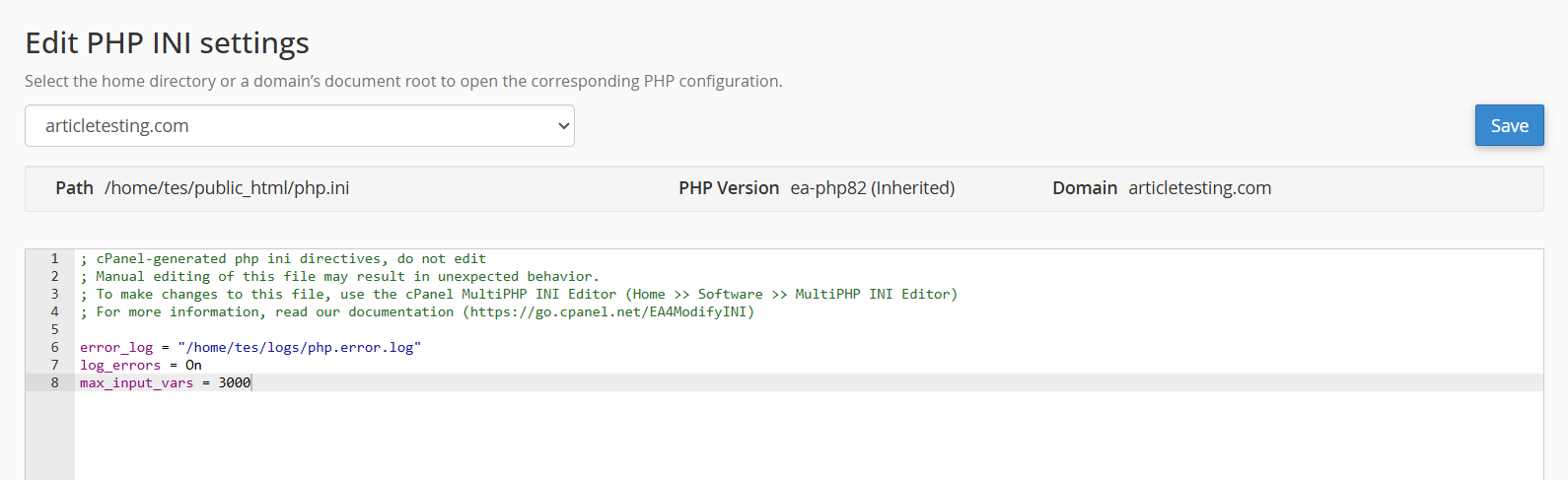
1. A text editor window will appear on your screen with the server text.
2. Scroll to find the rule you want to change, or add a new line at the bottom.
3. Type your custom directive in standard PHP syntax (e.g., max_input_vars = 3000).
4. Click the Save button in the top-right corner.
Common PHP Directives You May Need to Change
Here are the most common settings developers adjust to prevent site errors and improve performance:
- memory_limit: The maximum memory a single PHP script can use (e.g., 512M).
- post_max_size: The maximum size of POST data that PHP accepts, including form fields and uploaded files.
- upload_max_filesize: The maximum file size allowed for uploads such as themes, videos, or plugins.
- max_execution_time: The maximum time, in seconds, a PHP script can run before it is terminated.
- max_input_vars: The maximum number of input variables PHP accepts in a single request. This is important for large forms and complex menu structures.
- display_errors: Controls whether error messages appear on the live site. Turn this off for production security.
- log_errors: Save script error messages to a specific file path for cleaner debugging.
- error_log: Specifies the file path where PHP error messages are saved when log_errors is enabled.
Important sizing rule: When configuring file limits, always follow this strict hierarchy:
memory_limit > post_max_size > upload_max_filesize
Only raise these parameters to the exact limit your site needs. Setting them unnecessarily high can expose your server to performance bottlenecks and security vulnerabilities.
Conclusion:
Edit PHP settings with the MultiPHP INI Editor is a quick and effective way to optimize your website without manually editing configuration files. By following the steps in this guide, you can Edit PHP Settings such as memory limits, upload sizes, and execution time to match your website’s requirements and improve overall performance.