
 SeekaHost.com Client Area
  SeekaHost.app
  SeekaHost.co.uk
  SeekaHost.in
How to Change The Default WordPress Login URL?

By Frank Carson
Table of Contents
You can reach the Default WordPress Login URL by adding default WordPress URL’s at the end of your website’s URL. While installing the WordPress, if you created on a subdirectory (www.yoursite.com/wordpress/) adding one of the above three methods at the end of your website URL such as www.yourdomain.com/wordpress/wp-login.php.
If you want to change the WordPress login URL, this article is for you.
Ways to connect default login page:
/admin
/login
/wp-admin
/wp-login.php
/wp/wp-login.php
Reasons to Change WordPress Login URL:
- Anyone can easily find the default login page.
- Hackers will gain an advantage if they find the login page and use a brute force attack with possibilities of all username and passwords and hack your site.
Security Measures to take before making changes:
- Have a Strong Username and Password and keep a note of it.
- Always take a backup before changing the login URL with or without a plugin or for any changes before you make if in case any error or mistakes are made after that to ensure the website safety and its content.
- Limit Login Attempt. So that, when hackers try to log in using different usernames and passwords, the login page will block that IP address after a specific number of wrong attempts.
Methods to Change WordPress Login URL:
Method 1: Edit Wp-login.php File
Method 2: With a Plugin
Method 1: Edit Wp-login.php File
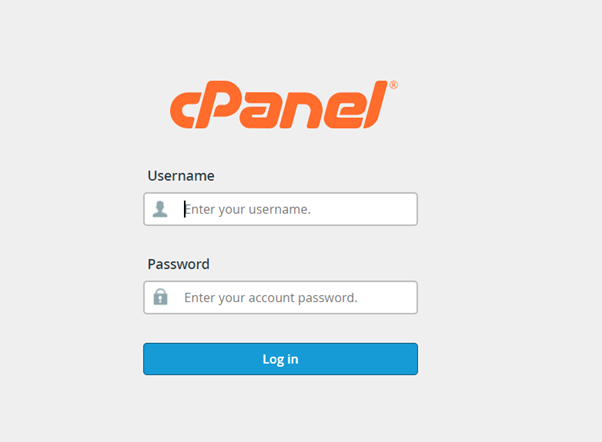
Step 1: Log in to cPanel of the Website.
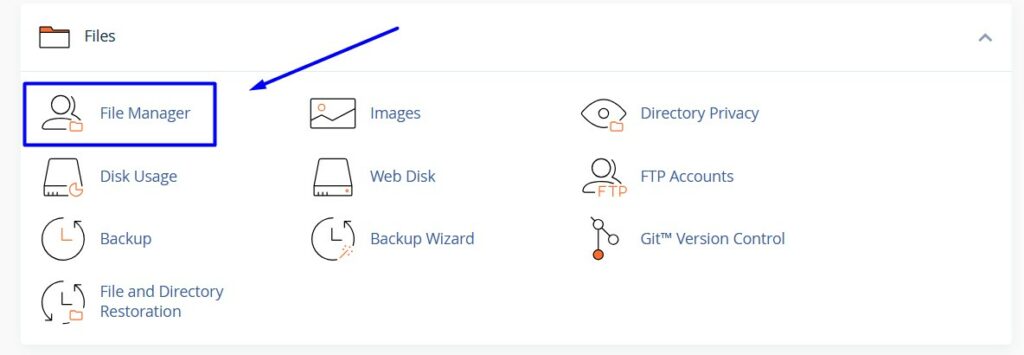
Step 2: Under the Files section, click on File Manager.
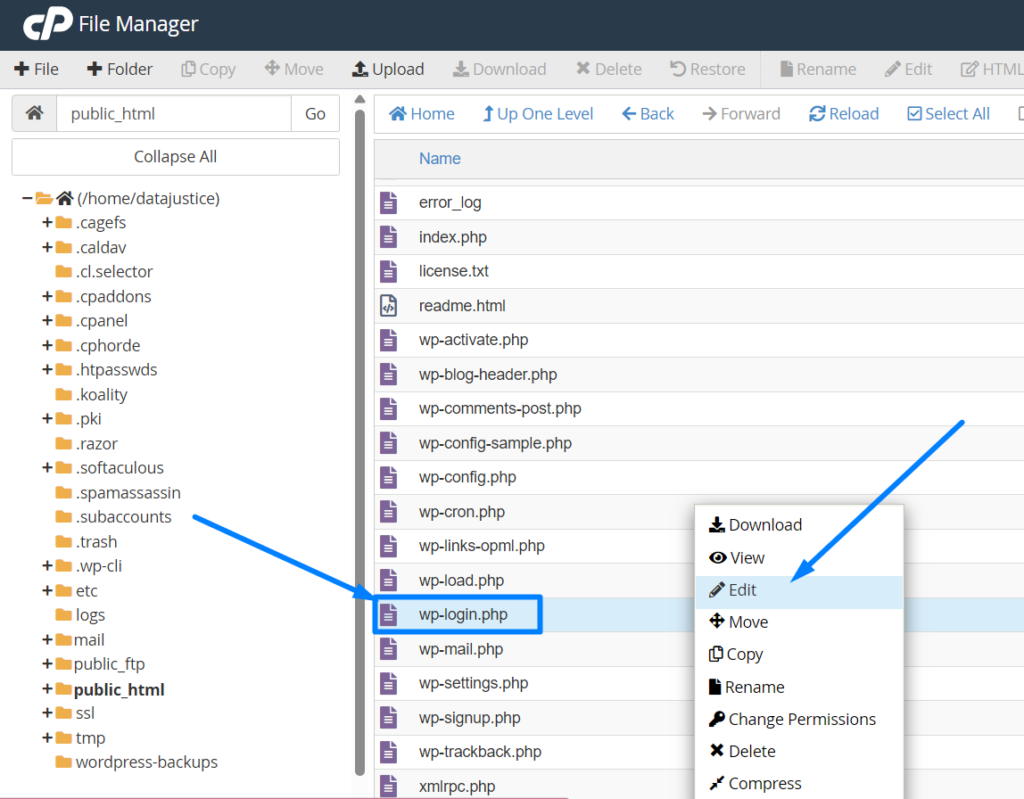
Step 3: Go to the public_html directory and right click on wp-login.php file -> click Edit
If you are using FTP, then download the Wp-login.php file and open it with Notepad or any of the software best for you to edit a file.
Step 4: Click Ctrl+H or go to the edit option -> click replace and replace the name “wp-login” with your preferred URL (e.g. “wp-newlogin”).
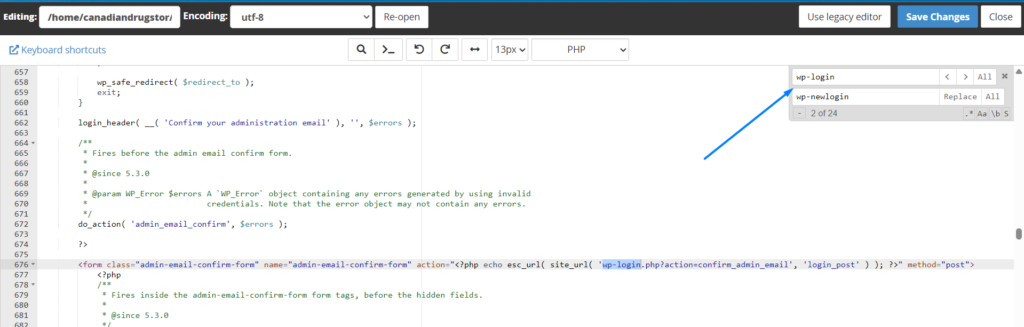
The entire name with wp-login will change to wp-newlogin now.
Step 5: Now save the file and rename the file as “wp-newlogin” or the one you have saved as. You can able to access the website admin page using URL “/wp-newlogin” after the website name.
Example: www.yourdomain.com/wp-newlogin.php.
If anyone requests to wp-login.php or wp-admin.php, it will lead to a 404 not found page.
Method 2: With a Plugin
You know, using Plugins will be the simplest and easy way to change the URL of all methods.
There are many Plugins that actually help you to change the WordPress URL without disturbing the core files.
You can find many such Plugins in Google and choose the best for your website by seeing its features. It will work only if the actual plugin is activated or if you don’t activate it, it goes to the default login page URL and leads to a hackers attack.
But we do suggest some Plugins that is best for changing the WordPress URL a below:
If you are a registered user in SeekaHost and have any queries to be clarified or issues to be sorted, you can raise a ticket through the client area dashboard or email to support@seekahost.com. For immediate interaction or guidelines, contact our support team available in Live Chat at the right bottom corner of the website.