
 SeekaHost.com Client Area
  SeekaHost.app
  SeekaHost.co.uk
  SeekaHost.in
How to Set Minimum Word Count in WordPress Posts?

By Robert Mills
Table of Contents
Does the Word Count in WordPress for Article really matter? Yes – but it’s not just about writing more. A good word count helps you cover a topic in depth, improve user engagement, and support better search engine rankings. However, quality and relevance are just as important as length.
If your WordPress site has multiple authors, setting a minimum word count helps maintain consistent, high-quality content. In this guide, we’ll show you two easy ways to set a minimum Word Count in WordPress for Article before a post can be published.
Why Need to Set Minimum Word Count in WordPress Posts?
Setting a minimum word count in WordPress helps maintain consistent content quality across your website. While word count alone doesn’t guarantee better rankings, longer, well-structured articles often cover topics more thoroughly, improve user engagement, and support the best SEO strategies to rank blog posts on Google, making it easier for search engines to understand and rank your content.
If your site has multiple authors, a minimum word count also ensures every post meets your editorial standards and provides enough value to readers. This encourages writers to create comprehensive content instead of publishing thin or incomplete articles.
Minimum Word Count set with a Plugin
The simplest way to set a minimum word count for your WordPress posts is by using a plugin like Publish Press Checklists. It allows you to set tasks for authors as must complete before publishing the content. And also you can set a minimum and maximum word count on posts and pages.
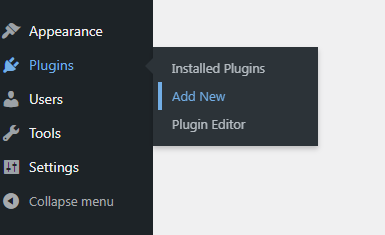
Step 1: Login to WordPress Dashboard » Plugins » Add New
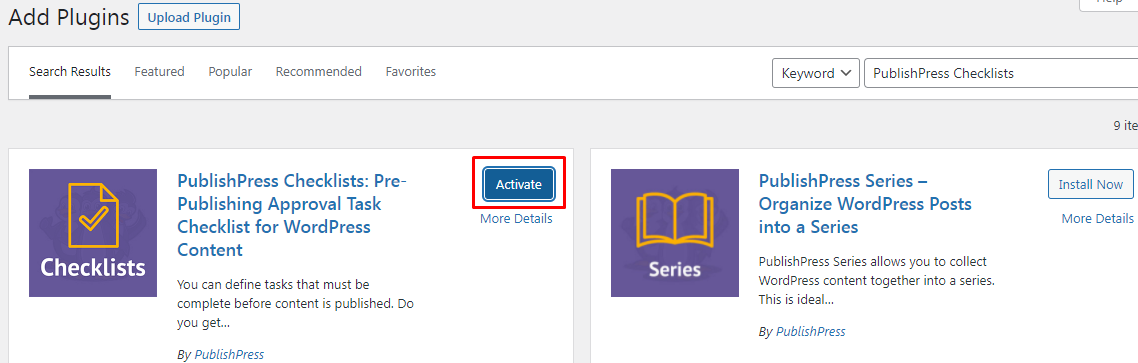
Step 2: Install Plugin “Publish Press Checklists” and activate it.
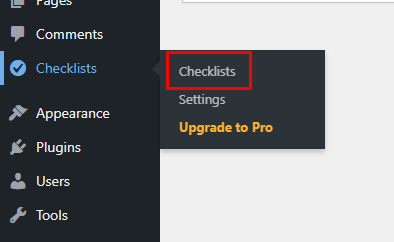
Step 3: Upon activation, in the admin area, Click “Checklists”.
Step 4: Now you can choose if you want to make the ‘Number of words in content’ option to be disabled, required, or recommended task from the dropdown menu.
Disabled – Not required
Required – Must complete this task to publish a post or shows error.
Recommended – Authors can publish posts even if they don’t meet the minimum word count.
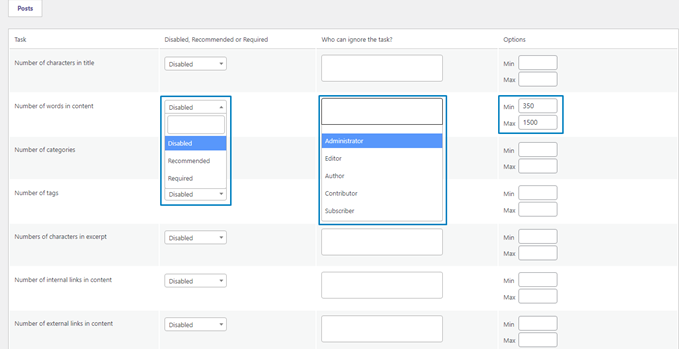
It also lets you exclude the user roles from meeting the word count requirement. Just click on the box under the ‘Who can ignore the task?’ column and select a user role. Now set the minimum and maximum word count as must meet to publish the article.
Step 5: Click Save changes and type the words in the article and publish it. If the total count is below 350 for example, it will show error as below:

Minimum Word Count set by editing function.php manually
As we are editing the WordPress theme files, create a child theme of the active parent theme. By using a child theme, you can apply modifications without affecting the parent theme files.
However, we don’t recommend editing the main theme files. As even a small mistake can block the website and show critical errors while trying to access the WordPress dashboard.
To make this process simple, we recommend “Code Snippet” to smooth the process. It won’t affect your site and also makes it easier to keep track of any snippets you add to your site.
Step 1: Install the plugin “Code Snippet” and activate it.
Step 2: Click Snippet » Add New » Paste the below code and Click “Save changes and Activate”.
function minWord($content)
{
global $post;
$content = $post->post_content;
if (str_word_count($content) < 350 ) //set this to the minimum number of words
wp_die( __(‘Error: your post is below the minimum word count. It needs to be longer than 350 words.’) );
}
add_action(‘publish_post’, ‘minWord’);
If you want to set the minimum word count as 350 for example, then change in both lines of the code.
Now, if you try to publish the post below 350 words, then the following error page will show.
