
 SeekaHost.com Client Area
  SeekaHost.app
  SeekaHost.co.uk
  SeekaHost.in
How to Add New Users in WordPress Website?

By Robert Mills
Table of Contents
WordPress comes with a built-in user management system. It gives the option to add new users and also manage the existing users. There are 5 different roles and permission levels.
In this article, we will show you how to add new users and authors to your WordPress website.
User Roles in WordPress:
1. Subscriber
The subscriber can’t add users or edit posts except creating a profile and save their details and can only leave comments.
2. Contributor
A Contributor can do the following tasks but can’t upload files or access the Plugins or Themes.
- Add their post – Need Administrator permission to publish it.
- Edit their post
3. Author
An author can edit, publish and delete their posts and also upload files/images, but can’t make changes on other posts or access features like Plugins, Themes, and settings.
4. Editor
An editor can edit, publish, manage and delete any other user’s posts/pages and also upload files/images.
But cannot access the website settings, Plugins/Themes and other features.
5. Administrator
An administrator can perform all tasks on your WordPress site. With this, they can install/change Plugins/ themes, delete posts and remove other users as well. This means complete power for all sorts of things inside the WordPress.
Methods to Add WordPress User To Your Website:
- Manually Add New Users in WordPress
- Anyone to Register for Free
- Add and Manage Users using Plugins
- Paid Membership Program
Manually Add New Users in WordPress:
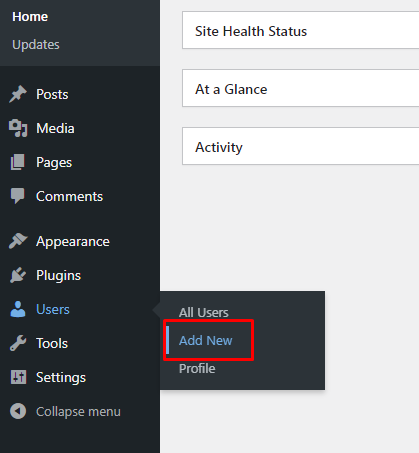
Step 1: Login to WordPress Dashboard » Users » Add New
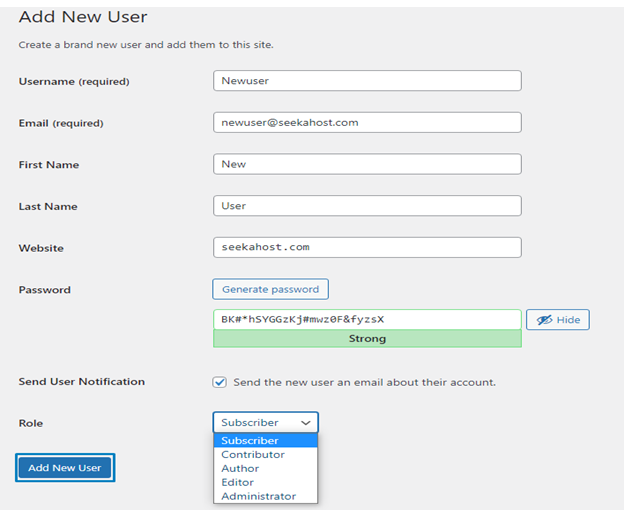
Step 2: Enter the username and email as you have.
It will be used later to change user settings by the user and also to receive mail notifications. These also will be their login details for WordPress.
Users can also leave the First and Last names with the Website URL be blank and add them later on here.
Click ‘Generate Password’ to get a new password and have a note of it.
You can choose the user role. Each role comes with a different set of capabilities and assigns a role depending on what tasks you want the user to perform on your website.
Click Add New user.
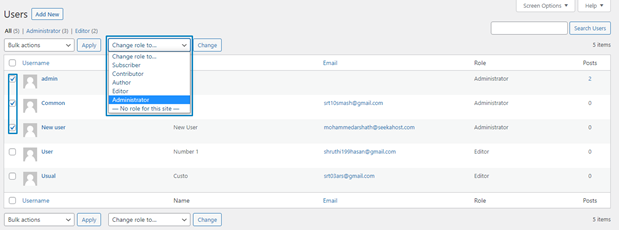
Step 3: To manage the users, Click User and can see a list of all users. If want to change the role in bulk, select the users and their role » click change.
Anyone to Register for Free:
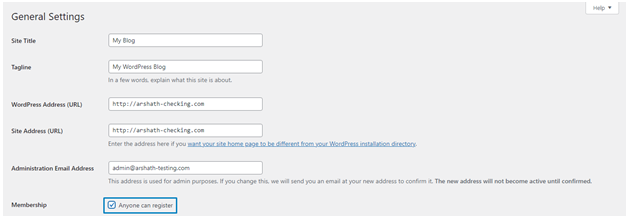
With this option, you can let the user register for free without you manually entering the details.
Step 1: Go to Settings » General
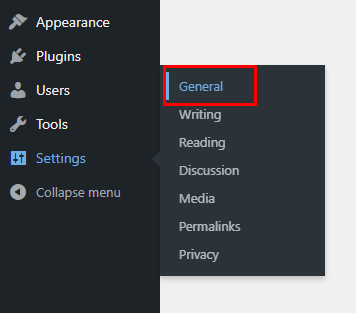
Step 2: Check the box “Anyone can register” and click Save changes.
Add and Manage Users using Plugins:
Paid Membership Program:
Another method to Add WordPress User to your site is to create a paid membership program to make users sign up for. With that, you have the option to create Bronze, Silver, and Gold plans and also create premium content or courses. For doing this, you need a WordPress membership plugin.
Below are the recommended Plugins:
- Member Press
- WP-Members Membership
- Paid Member Subscriptions
- Restrict Content Pro
- s2Member
Relevant Useful Resources:
3. Configure WordPress Settings
Hope the article helps you successfully Add WordPress User for your website in difference ways.