
 SeekaHost.com Client Area
  SeekaHost.app
  SeekaHost.co.uk
  SeekaHost.in
What is WordPress Recovery Mode and How to Use it?

By Frank Carson
Table of Contents
Have you ever experienced your website causing issues with your site functionality with a critical error which prevent you from accessing the WordPress Dashboard? Let’s regain access using WordPress Recovery Mode and fix the critical error through this article steps.
What is WordPress Recovery Mode?
WordPress Recovery Mode has been launched in WordPress version 5.2 as one of core features in order to regain access to admin panel when you face any critical error which prevent you from login.
If you see any error that denies you access to your WordPress website, it means your website has entered into the WordPress Recovery mode. It is because your website plugins/themes might cause the issue. The WordPress recovery mode will temporarily disable the plugins/themes that are causing the issue, and allow you to troubleshoot it.
WordPress has launched the Recovery mode option in version 5.2 version. Please note that if you’re using the old version, you will not get the option. Update your WordPress to the latest version to achieve it.
Read More: WordPress Safe Mode
What causes the WordPress Recovery Mode?
Plugins Compatibility – When you update the plugins to the latest version, and it is vulnerability to each other, or the WordPress version is not compatible with.
Plugins and Themes compatibility – You could notice that when you update any plugins/themes, it will have an issue because they are not compatible with each other.
Website code modification – If you have updated the code in the themes or modified, if the mentioned code is not compatibility with current WordPress or plugins it will cause the issue.
Website Hack: If your website has hacked or injected by malware files
Methods in Recovery Mode:
Method 1: Mail Recovery Link
Your might experience an below error like this before on your white screen error page.

Go to your Administrator email account, You will have the information where your website issue is facing.
Below is WordPress Recovery mode information,
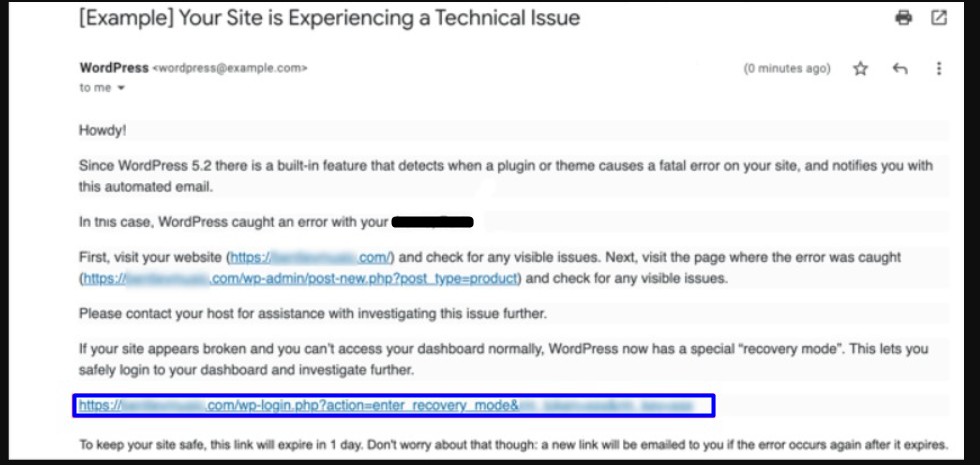
You will get to see the information in the mail which plugins/themes is causing the issue, so you can easily take the action.
Click the WordPress Recovery Mode link provided in the email to access the Recovery Mode dashboard, then go to the Plugins section and disable the problematic plugin mentioned in the email notification to restore your website.
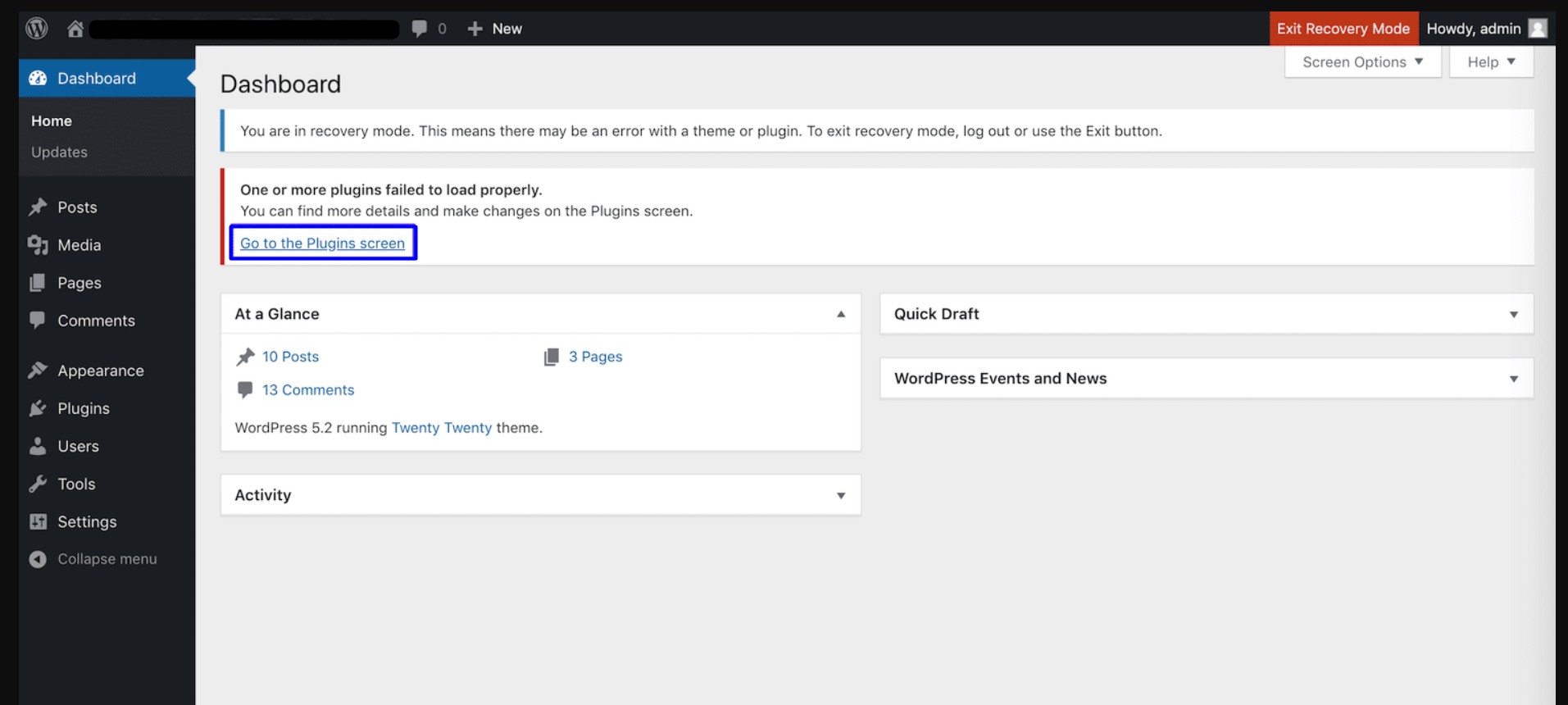
If you see the issue with Theme, go to appearances and change the problematic theme to default one.
If the mail has not mentioned any plugins/themes, then disable all the plugins and enable one by one until you found which plugin is causing the issue.
You can find an alternative plugins, or fix the plugin by getting the support from plugin developer.
Method 2: Without the Email Link
With the above Recovery mode method, you can able to login to your WordPress recovery mode and fix the issue
testsite.com/wp-login.php?action=entered_recovery_mode
Note: In the place of testsite.com change your own domain name.
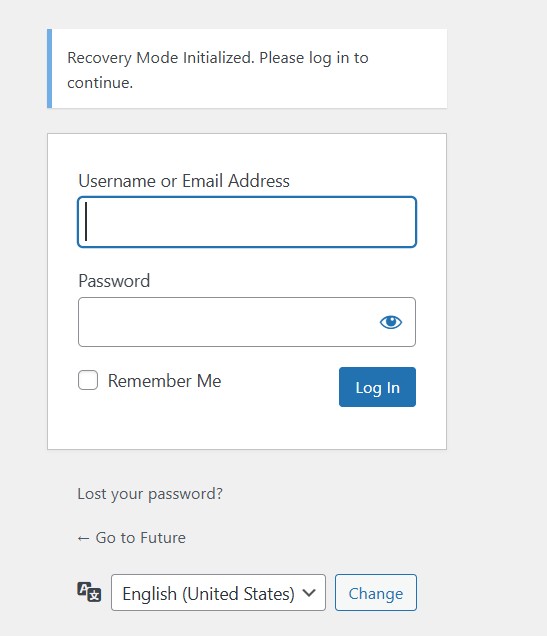
With this method, your WordPress website will initialized into recovery mode, please keep in mind that, it will not show the plugins/themes which causing the issue you have to figure out and workaround by yourself.
To found out the specific plugin, you can enable the plugins by one by one manually to check until you found an faulty plugin and fix the issue.
Related Articles:
I hope with this article, you have learn on how to fix your WordPress website by entering into two different recovery mode option.