
 SeekaHost.com Client Area
  SeekaHost.app
  SeekaHost.co.uk
  SeekaHost.in
How to Enable Remote Desktop (RDP) on Windows Server

By Aravind
Table of Contents
On Windows Server 2016 to 2025, you can enable remote desktop which allows you to access your device remotely using the Remote Desktop Protocol (RDP), enabling assistance with or control of a device without physically visiting its location.
For security purposes, Remote Desktop is usually turned off by default. You can turn it on from the Remote Desktop settings in Windows Server.
Access Your Windows VPS:
After receiving your Windows Server VPS login details, you can access your VPS through the Virtualizor panel by following these steps,
1. Log in to the Seekahost Client Area.
2. Go to Services.
3. Click Manage for the Windows VPS you want to access.
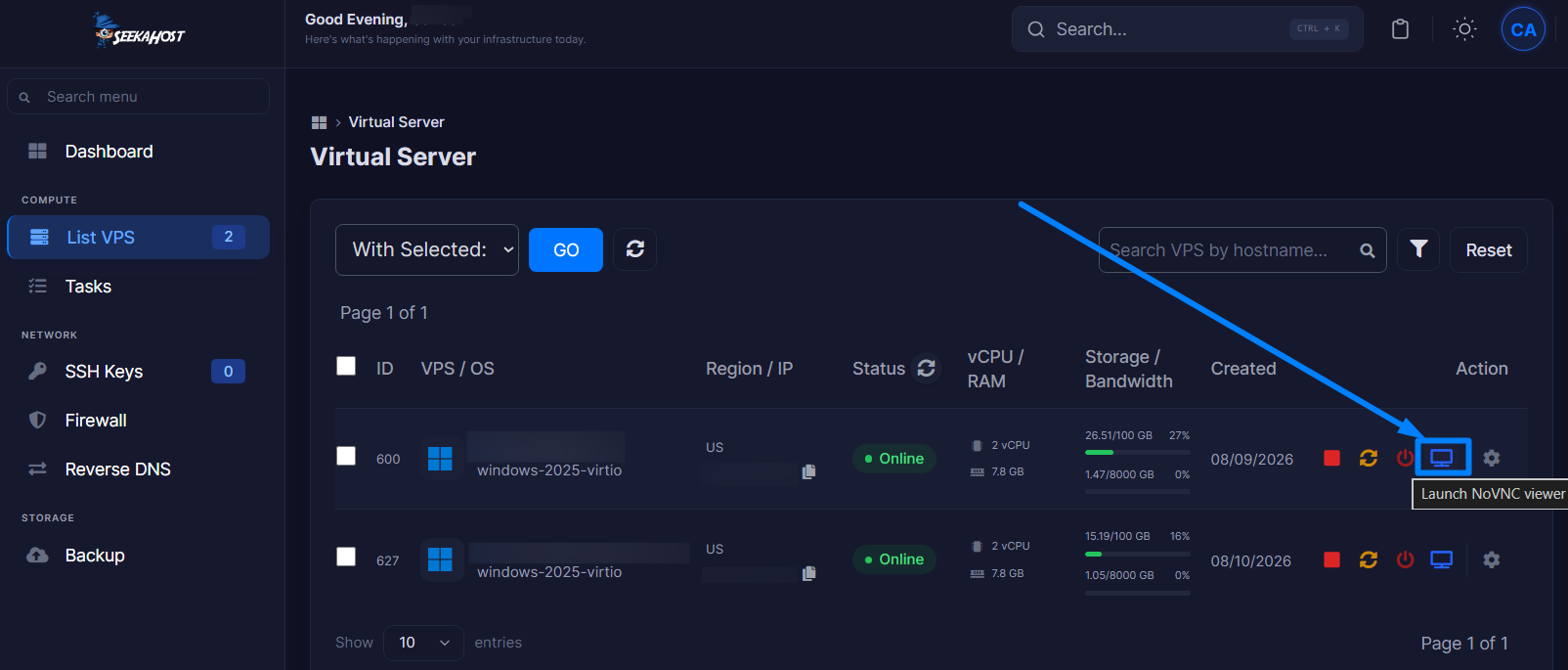
4. Under the Virtualizor section, Click Enduser Panel to open the Virtualizor VPS management panel.
The Virtualizor Enduser Panel provides access to various VPS management options. You can use this panel to manage your VPS and access the Windows Server console.
In the Status Menu, click Launch No VNC viewer.
Steps to Enable Remote Desktop on Windows Server:
Step 1: Log in to the server using an administrator account by selecting the “Ctrl Alt Del” option to unlock the screen
.
Enable Remote Desktop on Windows Server using Server Manager.
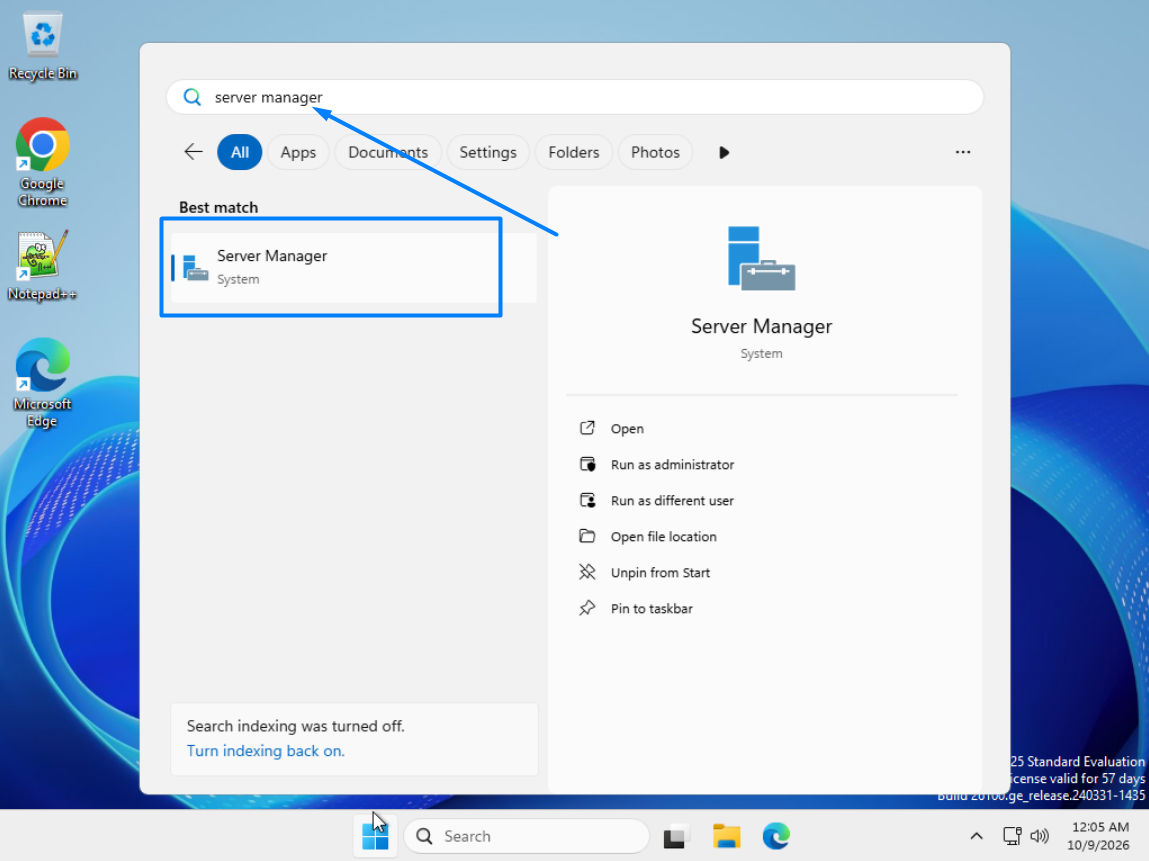
Step 2: Open Server Manager from the Start menu.
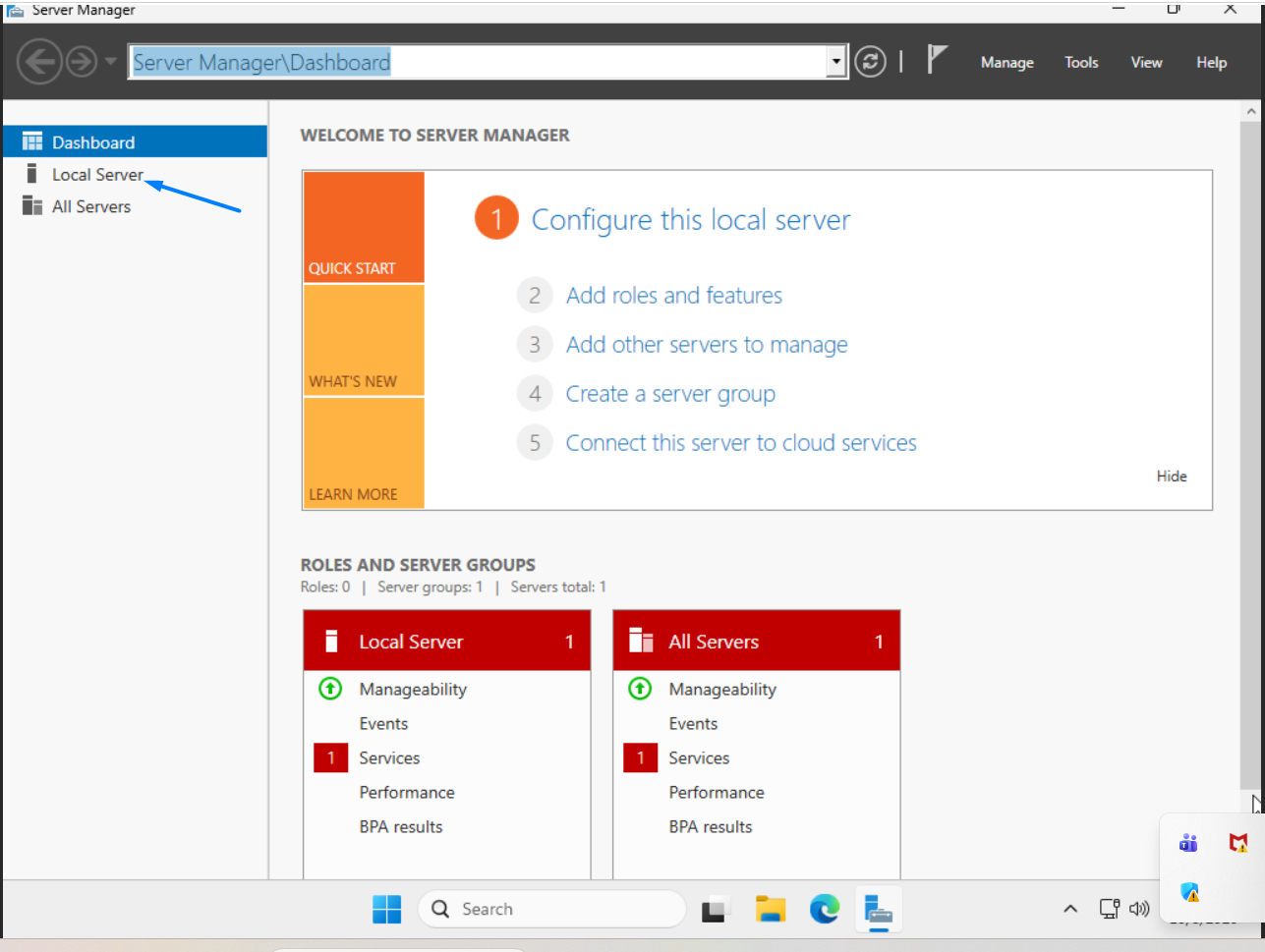
Step 3: In Server Manager, click Local Server from the left-side menu.
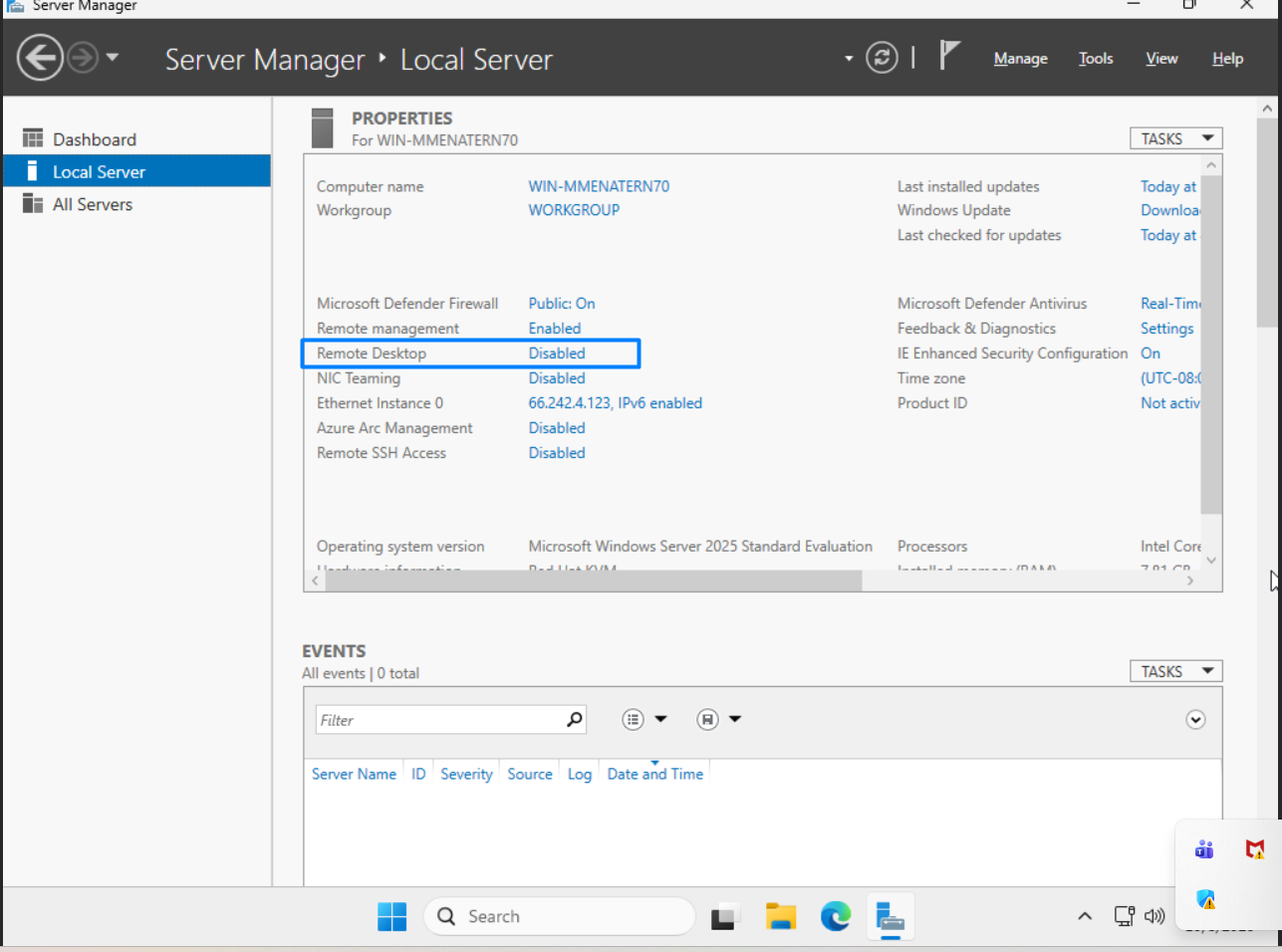
Step 4: Find Remote Desktop on the right side and click Disabled.
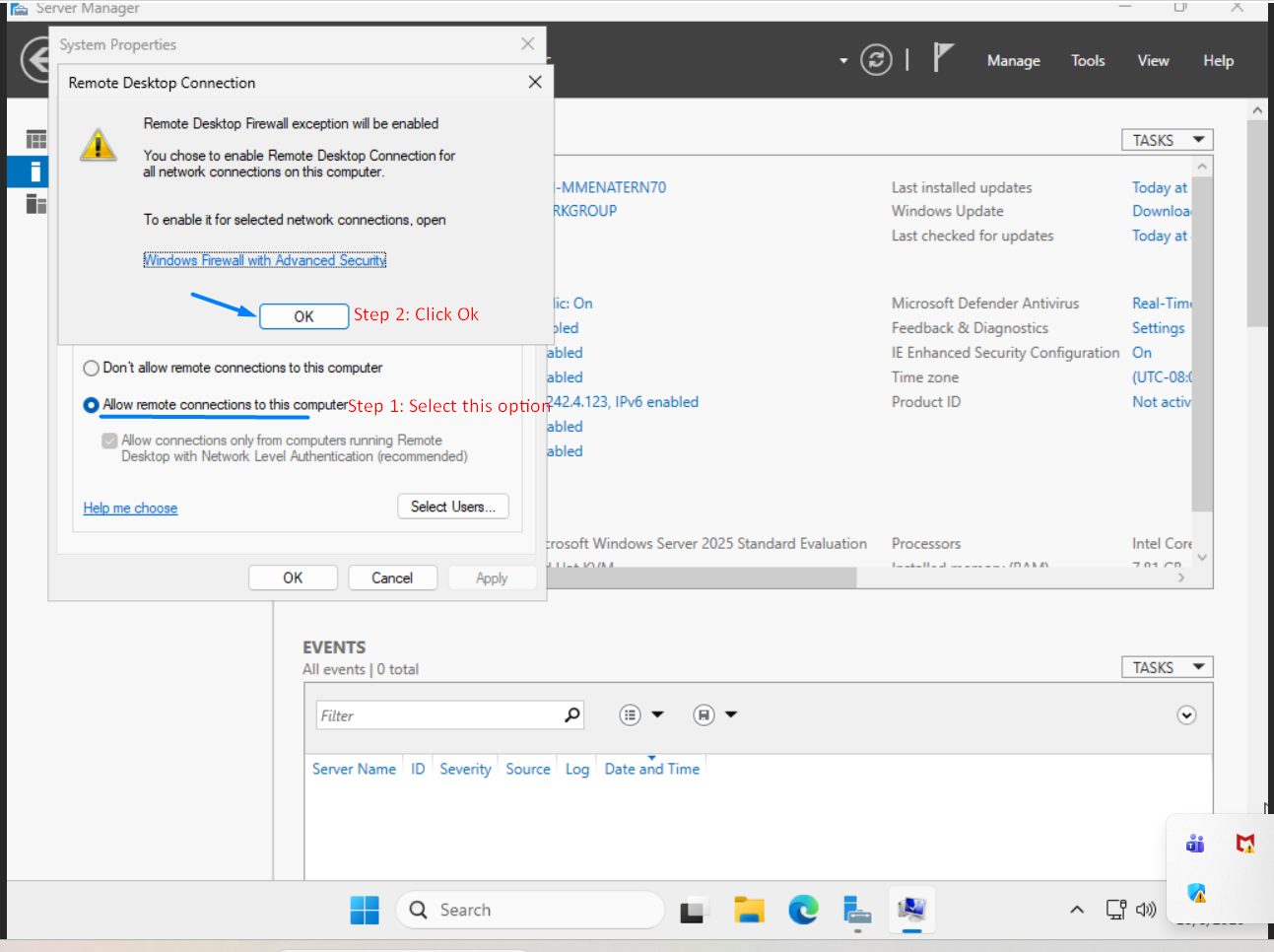
Step 5: Select Allow remote connections to this Computer in your System properties.
At this point, you can optionally add other users by clicking on the “Select Users” button to define specific users or groups that have permission to connect via remote desktop.
The following warning message will appear, advising that this will create the required firewall rules to allow remote desktop traffic in from any source address; select OK to proceed.
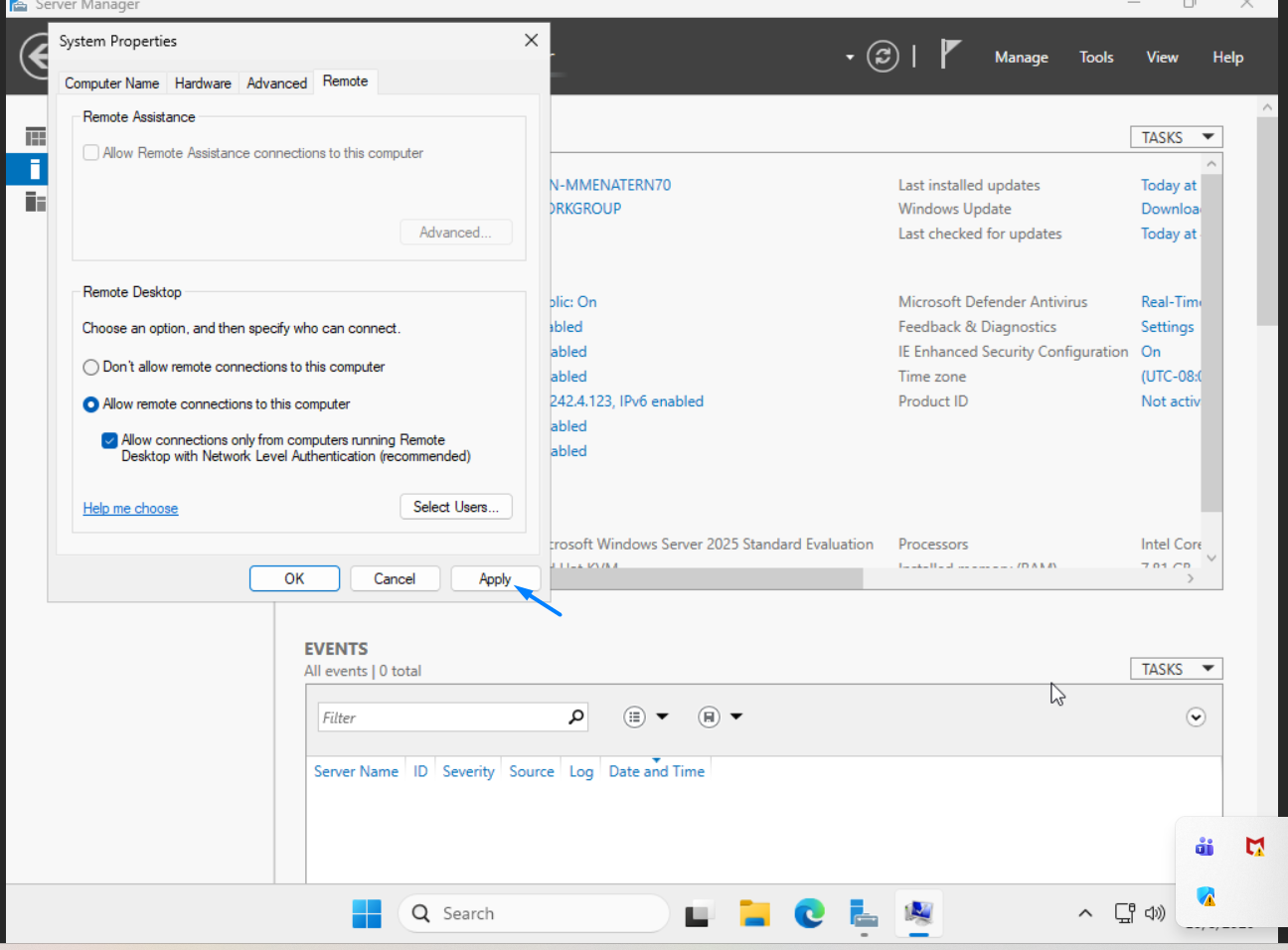
Step 6: Click Apply, then OK.
Relevant and Useful Article:
To Enable Remote Desktop on Windows Server makes it easy to access and manage a VPS from anywhere. Using the Virtualizor panel and Server Manager, RDP can be enabled quickly and securely. Proper user permissions, strong passwords, and firewall settings should always be used to keep the server safe.