
 SeekaHost.com Client Area
  SeekaHost.app
  SeekaHost.co.uk
  SeekaHost.in
Imunify360 Compromised Account Login Prevention – WordPress

Table of Contents
Imunify360 Compromised Account Login Prevention is a security feature designed to protect WordPress user accounts from potentially compromised credentials and suspicious activities. This feature helps hosting administrators improve WordPress security and reduce the risk of unauthorized access.
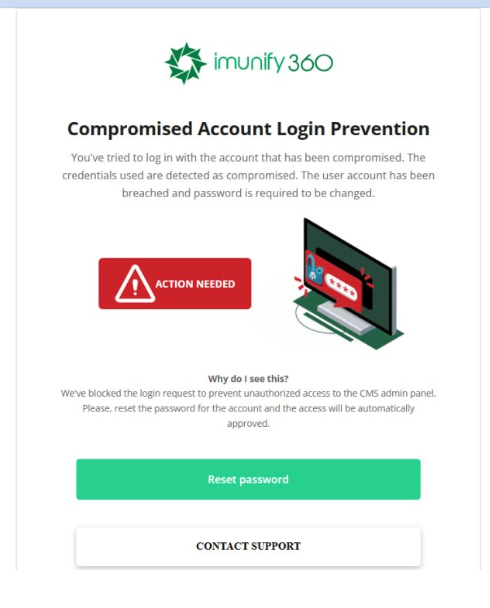
The warning usually does not appear when visitors open the website’s homepage. When a user attempts to access the WordPress administration dashboard through wp-admin or the login page through wp-login.php, Imunify360 may trigger a security check and display a warning if the account has been identified as potentially compromised.
How Does Imunify360 Compromised Account Login Prevention Work?
Imunify360 provides server-level security mechanisms to help protect websites against various threats, including brute-force attacks, suspicious activities, and potentially compromised user accounts.
Hosting administrators can configure security policies to restrict unauthorized login attempts and protect WordPress websites. They may also use ModSecurity rules to provide an additional layer of protection against malicious requests.
When an account is flagged as potentially compromised, Imunify360 may redirect the user to a security notification. The user may be required to change the password before accessing the WordPress dashboard, depending on the applicable security policy.
Possible Causes of Compromised Account Detection:
Several factors may contribute to a WordPress account being flagged or a login attempt being blocked.
1. Compromised Passwords
If an account password has been exposed, leaked, or identified as potentially compromised, the security system may require the user to change it to protect the account from unauthorized access.
2. Malicious Plugins
Installing plugins from untrusted sources may introduce malicious code or create security vulnerabilities. These vulnerabilities can potentially expose WordPress accounts and website data to attackers.
3. Outdated Plugins and Theme
Older plugins and themes may contain known security vulnerabilities. If these vulnerabilities are exploited, attackers could gain unauthorized access to the website or carry out malicious actions.
4. Suspicious Activities
Unusual login patterns, potentially malicious actions, or other suspicious account activities may trigger security checks. The exact detection criteria depend on the security mechanisms and configuration used by the hosting server.
5. Brute-Force Login Attempts
Brute-force attacks refer to repeated attempts made to discover a user’s password. Imunify360 and other server-level security mechanisms can help identify and restrict suspicious login attempts to reduce the risk of unauthorized access.
How to Resolve Imunify360 Compromised Account Login Prevention Warning?
If the Imunify360 security warning appears when attempting to access the WordPress dashboard, follow the instructions provided on the security notification page to change the affected account’s password.
For administrator accounts and other affected WordPress users, create a strong, unique password by following the recommendations below.
Password Security Requirements:
1. Length
Use a password that is at least 12-16 characters long. Longer passwords generally provide better protection against password-guessing attacks.
2. Strength
Use a combination of uppercase letters, lowercase letters, numbers, and special characters, where supported by the password policy. For example, special characters may include @, #, !, and $.
3. Randomness
Avoid commonly used words, familiar phrases, predictable patterns, and easily guessed sequences. Use a randomly generated password to make it more difficult for attackers to guess.
4. Uniqueness
Use a different password for each account. This helps prevent a security breach affecting one account from compromising other accounts that use the same credentials.
5. Avoid Personal Information
Do not include easily accessible personal information, such as your name or date of birth. Avoid predictable keyboard sequences and commonly used passwords such as 123456 or qwerty.
Additional Security Recommendations
In addition to changing the password, take the following steps to improve website security:
- Update WordPress, plugins, and themes to their latest secure versions.
- Remove unused plugins and themes.
- Install plugins only from trusted sources.
- Review WordPress administrator accounts and remove unauthorized users.
- Scan the website for potential malware or suspicious files.
- Enable two-factor authentication where available.
- If you believe that an account may have been compromised, contact your hosting service provider.
These measures help reduce security risks and protect WordPress websites against unauthorized access.
Avoid Common Passwords and Variations:
- 123456789
- 123456
- admin
- Qwerty
- welcome
- Password1
- Password
- p@ssw0rd
- Qwerty123
- 1q2w3e
- Q2w3e4r5t
These passwords are predictable and may be vulnerable to automated password-guessing attempts. Replacing letters with similar-looking numbers or symbols does not necessarily make a commonly used password secure.
Also Read: Bailout Malware
Final Verification
After changing the password, attempt to log in to WordPress again and verify whether the security warning has disappeared. Refresh the browser if necessary.
If the warning persists, do not automatically assume that the new password is insufficiently secure. The account may remain flagged, or another security mechanism may be responsible for the warning.
In such cases, contact your hosting provider or server administrator and request that they review the Imunify360 security logs, verify the account’s status, and identify the reason for the restriction.