
 SeekaHost.com Client Area
  SeekaHost.app
  SeekaHost.co.uk
  SeekaHost.in
How to Add FTP Account in Plesk?

By Frank Carson
An FTP account is used for uploading and managing files in your website. Having FTP account will give fast access to your website files on the internet. When you purchased hosting, a Plesk account FTP account is automatically generated. You can use your Plesk username and password to log on it.
Let’s see how to create Ftp account in Plesk:
Step 1: Log in to your Plesk Control Panel using domain:8443 or IP:8443
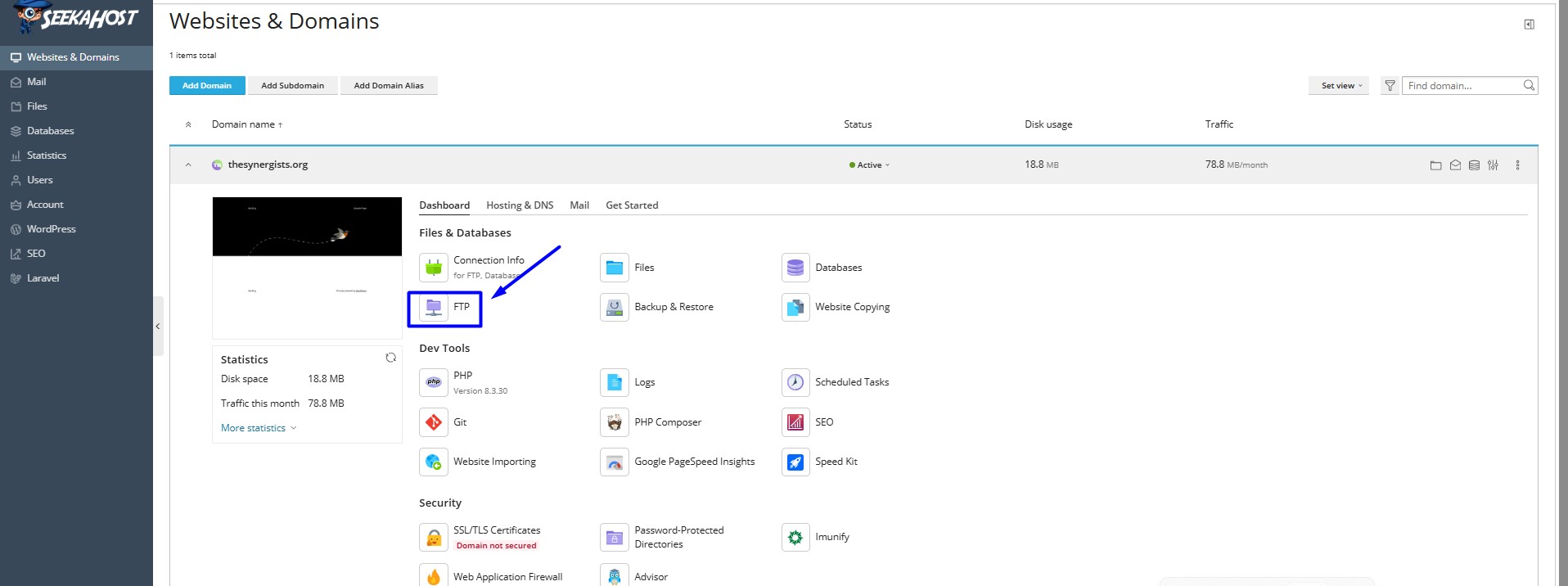
Step 2: Navigate to the dashboard of your website and click FTP option
Step 2 : Click add an Ftp account option

Step 3 : Enter the Ftp Credentials
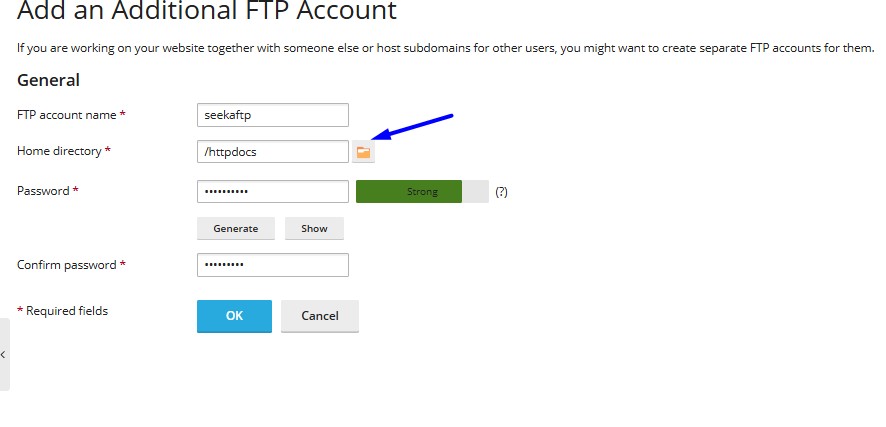
Ftp Setting :
Ftp account Name : Enter your ftp account name
Home directory: Enter your home directory path or choose the folder path from the directory
Password: Enter your ftp password
Confirm password: Enter the same password to confirm
Then click ok option to create
Step 4: Now you can you login to your FTP client with credentials
Edit the ftp Details
You can click the ftp user and change the password or location path of the ftp user

If you want to delete the ftp account, you can tick the checkbox of your appropriate ftp user account and click the remove option.