
 SeekaHost.com Client Area
  SeekaHost.app
  SeekaHost.co.uk
  SeekaHost.in
How to Add Login Logout in WordPress Menu?

By Robert Mills
Table of Contents
Have you ever been working on a website, and finished up then realize you can’t find the logout button? Adding a Login Logout in WordPress on your site’s navigation menu makes it easier to access from any page on your website.
Sometimes the developers have hidden the logout option, but for many users, this can be a frustrating moment. This can be even worse if you’re working on a public computer that you don’t want to stay logged in on.
In this article, we will certainly share the straight path to the Login Logout in WordPress, and we have explained exactly how you could add the logout link to your WordPress menu.
What is a WordPress Login Link?
A WordPress Login link allows users to access the login page of your website so they can sign in to their accounts. By default, WordPress creates a login page during installation, and users can reach it using the following URL:
yourwebsite.com/wp-login.php
You can also change the default WordPress login URL for the website through login.php file which allows you to set your own custom login url to make it more secure.
What is a WordPress Logout Link?
A WordPress Logout Link is a secure link that lets users sign out of their WordPress account or dashboard. When clicked, it ends the current login session and protects the account from unauthorized access. It is commonly used on websites with user login or membership features.
You can also install WordPress login and logout plugin to add the dynamic login and logout menu to any menu of your WordPress website. You can also set the Login Page url, Login redirect url, and logout redirect url.
A typical logout link in WordPress Menu looks like this:
yourwebsite.com/wp-login.php?action=logout
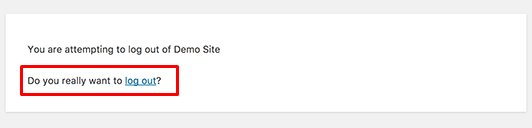
Once clicked, WordPress will ask for confirmation before logging the user out, ensuring security and preventing accidental logout.
Benefits of Adding Login Logout Menu in WordPress:
Adding Login and Logout links to your website’s navigation menu improves both usability and accessibility. Here are some of the benefits,
- Enables easy log in and log out from any page.
- Improves user experience on membership and community sites.
- Removes the need to search for the WordPress login page.
- Provides quick account access for WooCommerce customers and members.
- Ensures secure log out after using shared or public computers.
- Offers cleaner, user-friendly navigation.
- Supports sites with accounts, online courses, forums, or subscriptions.
If your website has regular visitors, adding Login and Logout links to the navigation menu simplifies account management.
How to Add Login Logout in WordPress Menu:
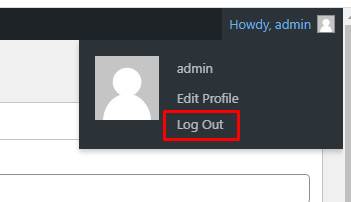
To Add wp logout link To Main Menu, follow the steps below,
Step1: Install WordPress and Login to WordPress Admin Dashboard.
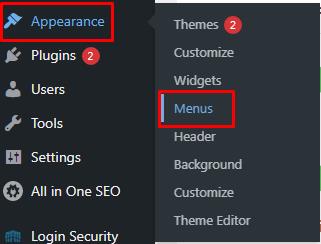
Step 2: Go to Appearance section and then select Menus. This will open the Menu window where you control any menus you have on your site.
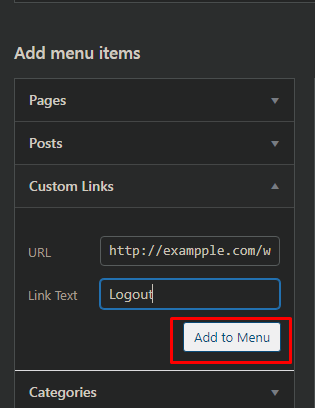
Step 3: Click on the Custom Links tab to expand it and add the logout link in the URL field and Logout in the Link Text.
Once it is done, click on the “Add to menu” button, and you will notice the link appear in the right column.
Step 4: You can adjust its position by simply dragging it up or down on the link to where you would like it like the below image,
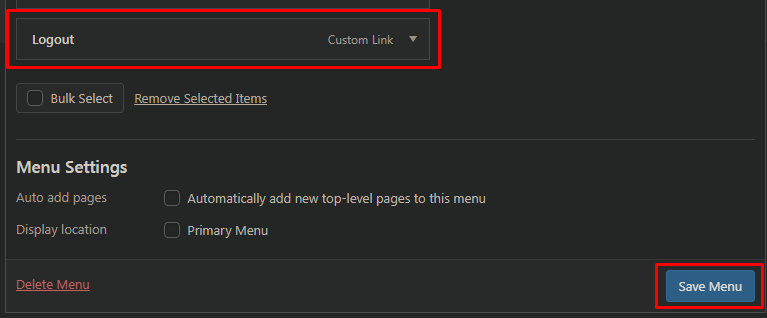
Don’t forget to click on the Save Menu button to save your changes.
Other Method to Logout:
However, if the WordPress admin bar is disabled, you won’t see the Logout option. In that case, simply enter the WordPress logout URL in your browser. Then, click Logout on the confirmation page to securely sign out of your account.
Adding the Login Logout in WordPress Menu in your site’s navigation menu will make it easily accessible from any page on your website.
The Problem with wordpress add login logout link to menu is that it is visible to all users (logged-in as well as logged-out). It only makes good sense to show the logout link to users that are actually logged in.
Hope this article helps you successfully Add Login Logout in WordPress Menu for the website.