
 SeekaHost.com Client Area
  SeekaHost.app
  SeekaHost.co.uk
  SeekaHost.in
How to Add Payment Method for Auto-Pay in SeekaHost Client Area

By Robert Mills
Table of Contents
SeekaHost recently introduced billing options to help customers add and manage their payment methods, such as credit cards and PayPal, making it easier to handle subscriptions and renewals for automatic payments for all active services.
This guide walks you through adding payment methods and setting a default method.
Payment Methods Available:
1. Debit/Credit Card
2. PayPal
Video Reference:
1. Steps to Add Debit/Credit Card:
Step 1: Open Payment Methods
1. Login to Client Area on your SeekaHost Account.
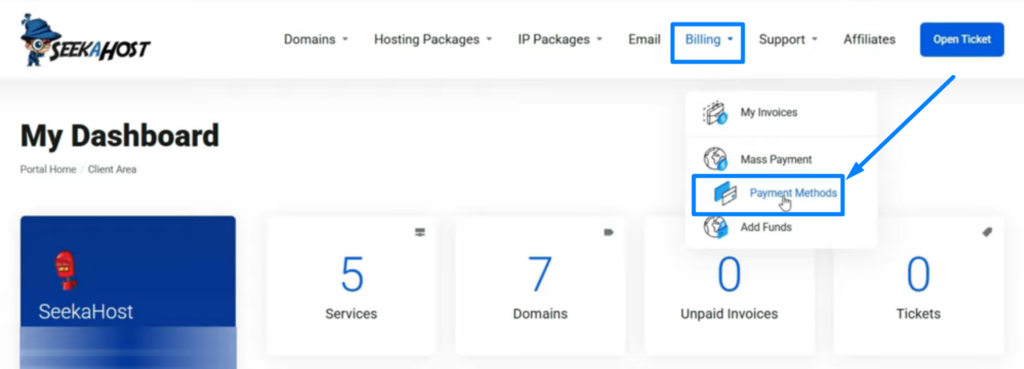
2. Click “Billing” section from the top header and choose “Payment Methods” option.
Step 2: Add a credit card
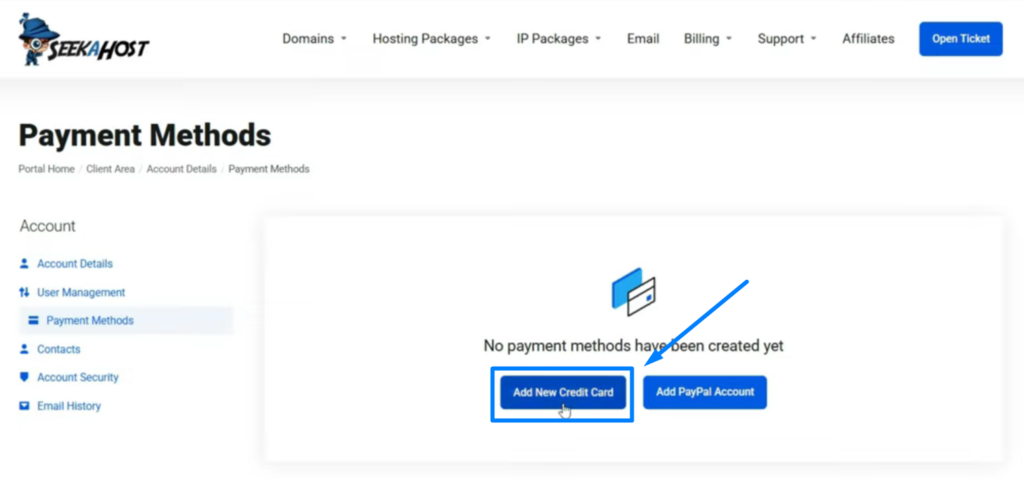
1. In the Payment Methods area, select Add New Credit Card.
2. Enter a descriptive label so you can easily identify the card later (for example, “Personal Visa”).
3. Fill in the card details: card number, expiration date, and CVV.
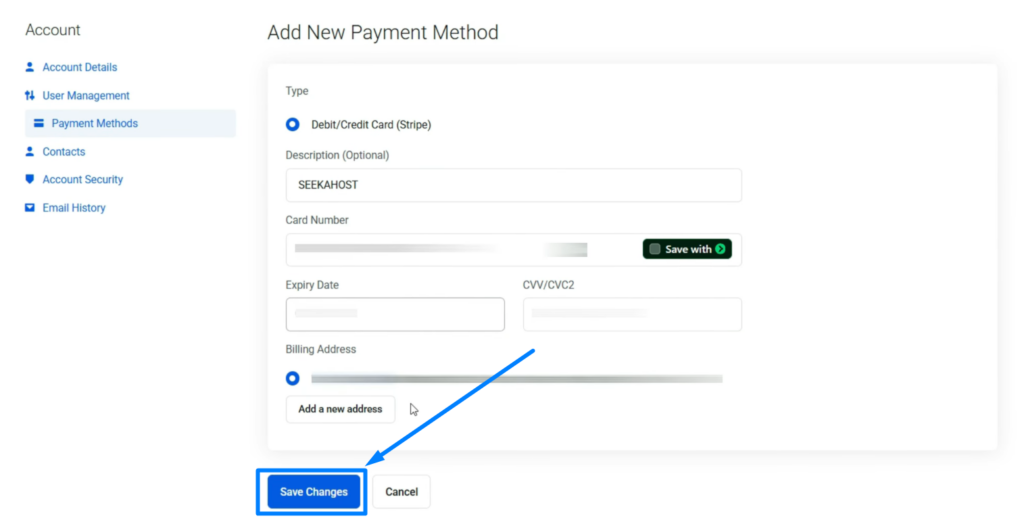
4. If you want to change the billing address, click “Add a new address” button. You can choose whether this address is the same as your existing one or add a new address.
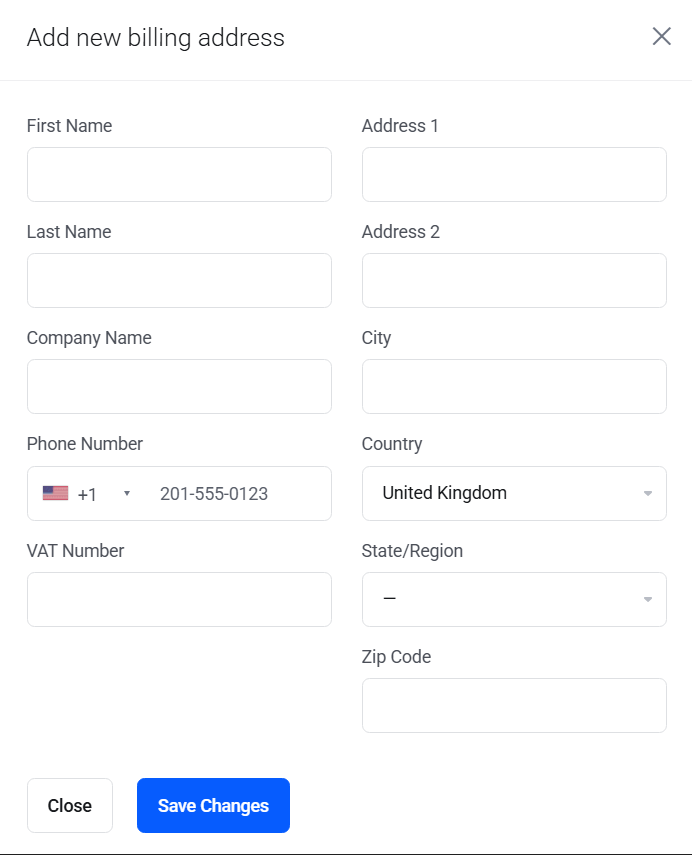
5. Click Save changes. Once validation is successful, the card is added to your account.
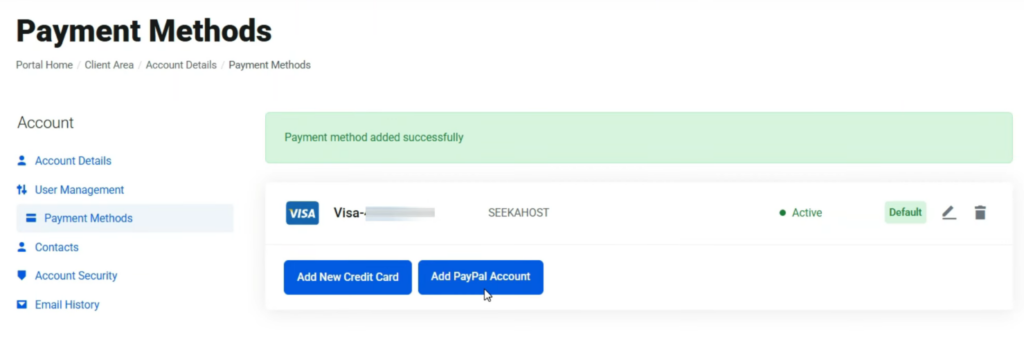
NOTE: The system will validate the card; you may be prompted for OTP or additional verification if required.
2. Steps to Add PayPal Account:
Step 1: Open Payment Methods
1. Login to Client Area on your SeekaHost Account.
2. Click “Billing” section from the top header and choose “Payment Methods” option.
Step 2: Add a PayPal Account
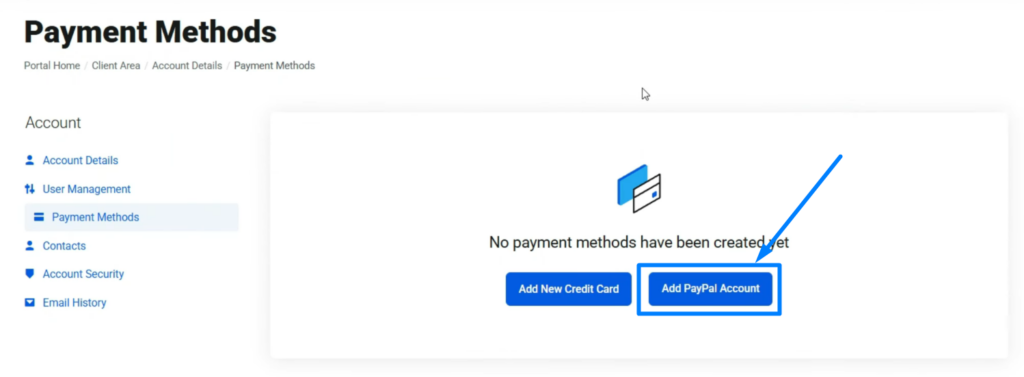
1. In the Payment Methods section, select Add PayPal Account. You will be redirected to PayPal to complete the setup.
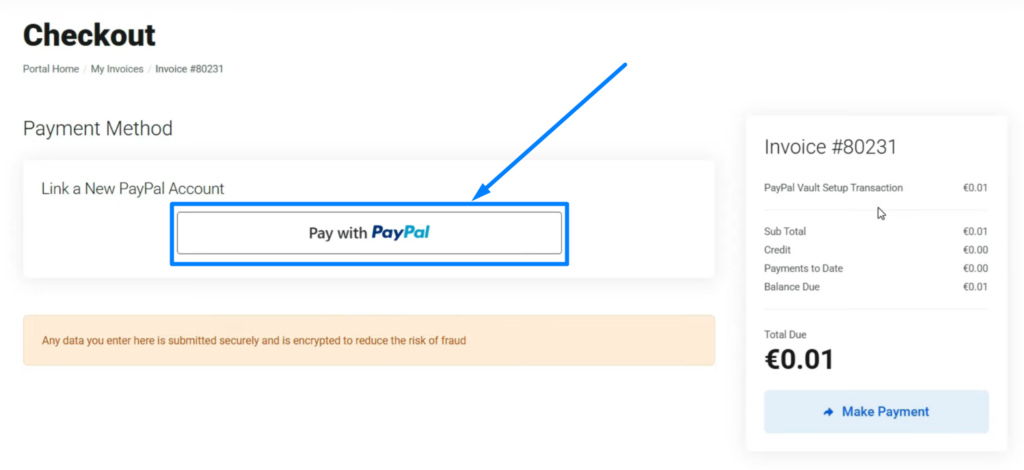
2. Click “Pay with PayPal” button.
3. Now enter the login details of your PayPal account and click “Login” button.
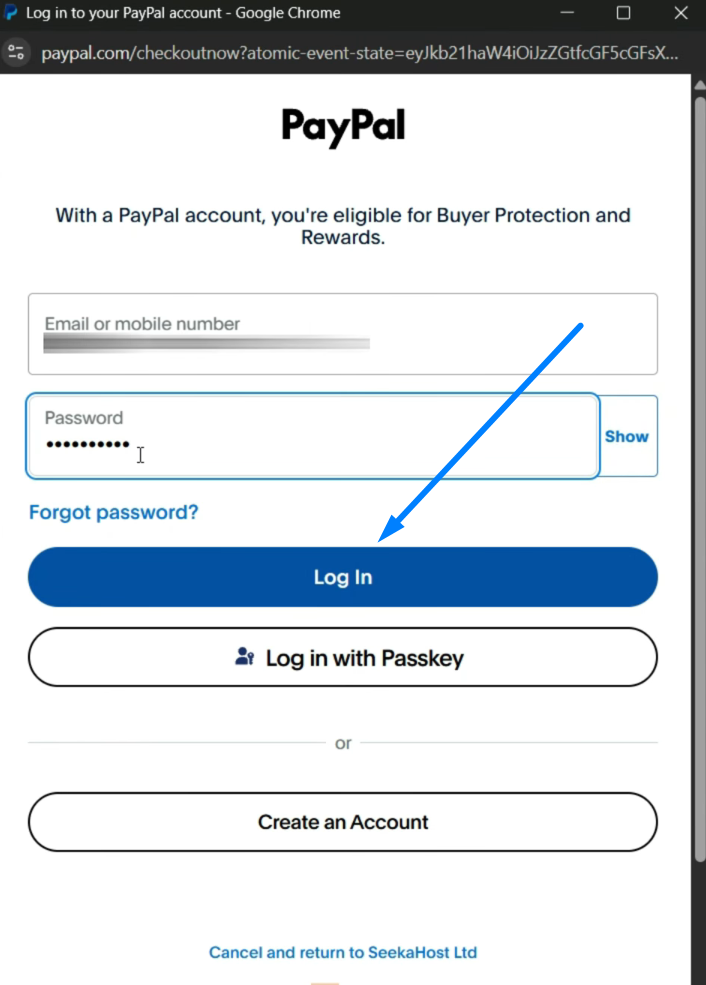
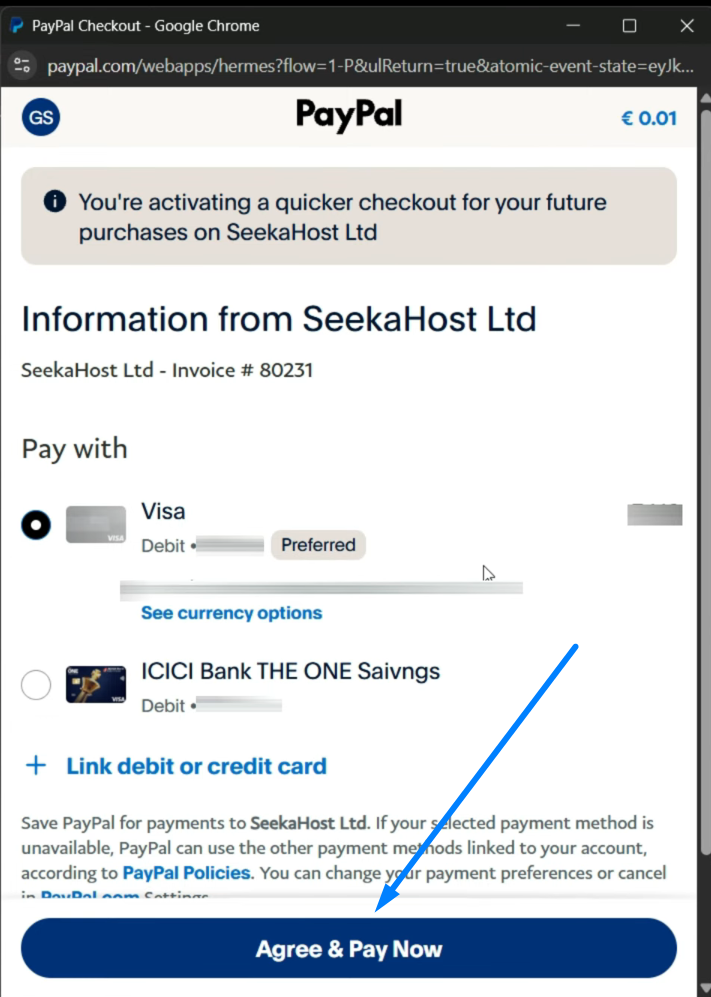
4. To activate quicker checkout for future purchases on SeekaHost Ltd, choose the one from available payment option and click “Agree & Pay Now”.
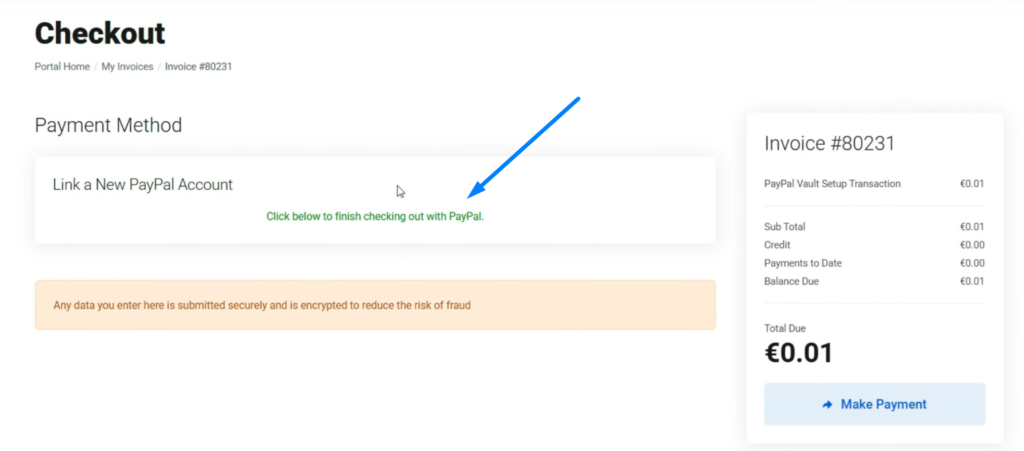
5. Once done, verification process will be processed. You will see “Click below to finish checking out with PayPal” message. (This may require further verification steps as prompted by PayPal).
6. Now Click Make Payment button to process the minimum payment to finalize the PayPal linking. Only after this verification/payment will the PayPal account be fully linked. Your PayPal account will be successfully added.
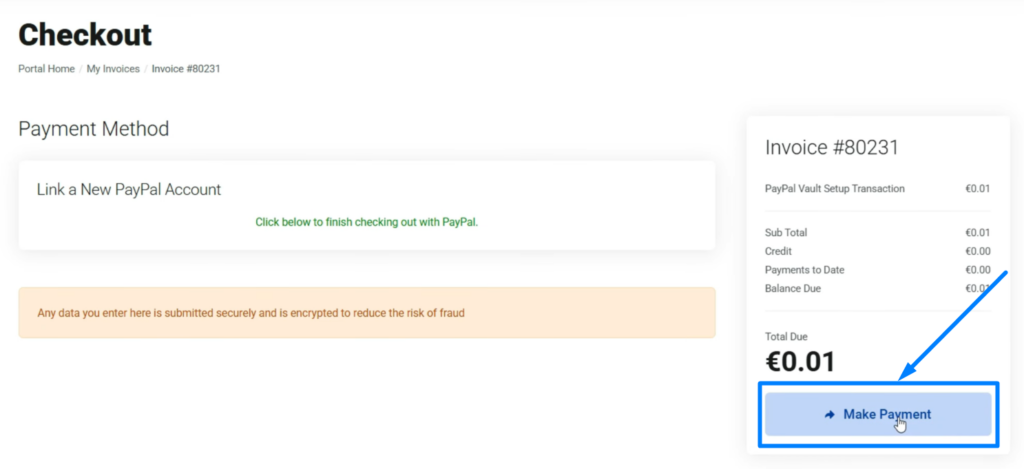
NOTE: This is an invoice or verification asking you to confirm a small transaction (for example, 0.01 in your chosen currency) to verify the PayPal account.
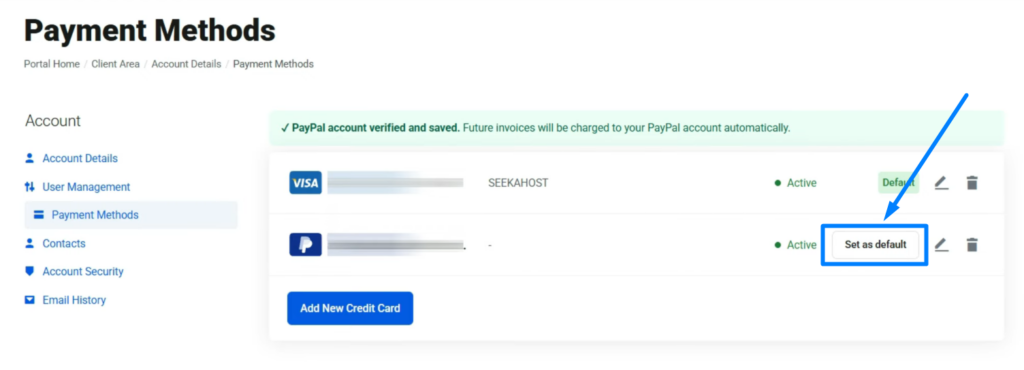
Step 3: Set or Change the Default Payment Method
1. In Payment Methods, locate the payment method you want as default.
2. Click “Set as Default” for that payment method. This determines which method is used automatically for subscription renewals and billing.
Step 4: Viewing your credit balance
1. Any small verification amounts processed through PayPal (or other credit additions) will appear in your account’s credit balance.
2. You can view your credit balance at the top of your account page and add funds in your account.
Step 5: Manage Payment Methods
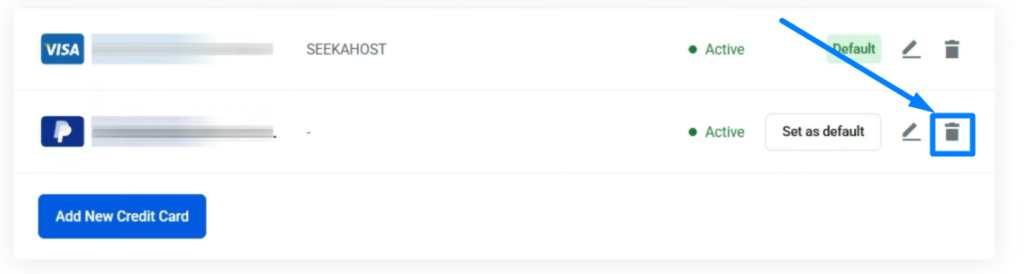
1. You can Add, remove, or change defaults anytime from Billing > Payment Methods section.
2. If you encounter issues, you can contact SeekaHost support via chat or support tickets for assistance.
Important Note:
- The first card added becomes the default payment method by default.
- You can link multiple payment methods (cards and PayPal) and choose which one is default.
- The first card you added remains the default until you switch to another method.
- If you do not want automatic payment deduction for any of your service or need automatic payment only for particular service, then you need to remove the payment method added and then set for particular product while paying the invoice. This applies only to PayPal payment method.
- The Automatic payment will only happen once the invoice is generated on or before the due date for all active service.
Example Scenario:
- Suppose you add a Visa card as your first method (default). Later, you add a PayPal account and verify it.
- You can then set PayPal as the default method for automatic deductions on renewals.
- If PayPal verification requires a small test charge, you’ll need to complete that verification, after which PayPal becomes active as a payment option.
- Your credit balance will reflect any funds added through PayPal’s verification process.