
 SeekaHost.com Client Area
  SeekaHost.app
  SeekaHost.co.uk
  SeekaHost.in
How To Change Permalink Structure In WordPress?

By Robert Mills
Table of Contents
Permalinks are the permanent link for your post or page on your website. Permalinks contain your website name and slug.
Slug is nothing but a URL that comes after your domain name and is used to identify your particular post or page.
By default, WordPress uses the query string format for the URL. It looks like the below,
http://yourdomain.com/?p=123
The Post URL must be easy to understand and have the information about that post. You can change this structure as per your website needs.
Why Are Permalinks Important?
Permalinks play an important role on websites. Both visitors and search engines can use the URL to visit your website and index. The URL must be SEO-friendly.
It is also very useful in Website Branding and User Experience.
Steps To Change Permalink Structure In WordPress
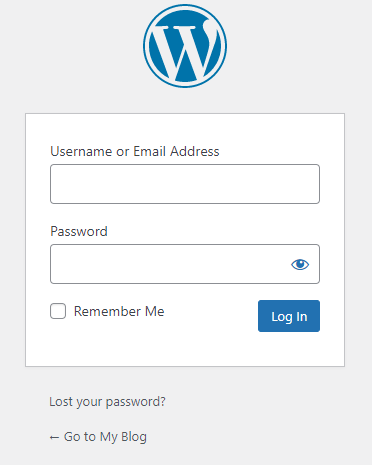
Step 1: Login to your website WordPress admin area.
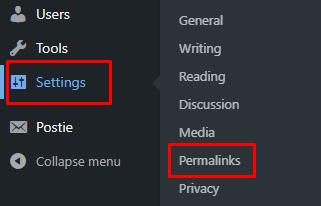
Step 2: In the dashboard, Go to “Settings” and click “Permalinks“.
Step 3: Inside the Permalinks page, you can the multiple options to change the structure. Choose the permalink structure that suits your website’s needs.
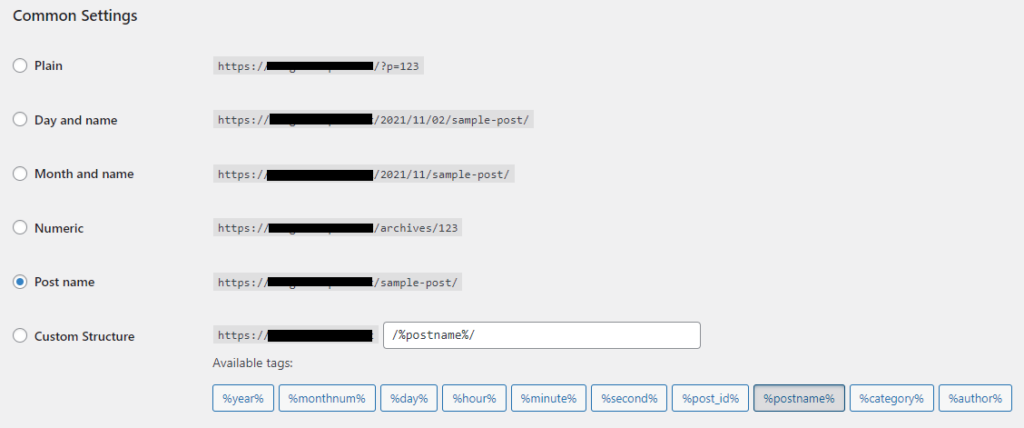
Plain: The Default WordPress URL Structure is https://yourdomain.com/?p=123
Day and name: Post date and name will be in URL.
For example, https://yourdomain.com/2021/11/02/sample-post/
Month and name: Post published month and name will be added in the Post URL.
For example, https://yourdomain.com/2021/11/sample-post/
Numeric: The Post URL contains the numeric value like https://yourdomain.com/archives/123
Post name: The Post name will be included in the URL. For example, https://yourdomain.com/sample-post/
Custom Structure: You can change the structure as per your requirement with help of the “Available tags“.
Step 4: Once you have selected the structure, click “Save Changes” at the bottom of the page.
Note: We recommend this type of structure and it is very SEO-friendly for your website. If you are the change the URL for already published posts then, apply 301 redirections to that post. So that it will not affect your website traffic.
If you are a registered user in SeekaHost and have any queries to be clarified or issues to be sorted, you can raise a ticket through the client area dashboard or email to support@seekahost.com. For immediate interaction or guidelines, contact our support team available in Live Chat at the right bottom corner of the website.