
 SeekaHost.com Client Area
  SeekaHost.app
  SeekaHost.co.uk
  SeekaHost.in
How to Re-Enable Classic Editor WordPress?

By Aravind
Classic Editor is an official plugin maintained by the WordPress team that restores the previous Classic editor WordPress and the “Edit Post” screen. It makes it possible to use plugins that extend that screen, add old-style Meta boxes, or otherwise depend on the previous editor.
In this article, we will see How to Restore the Classic Editor in WordPress.
Steps to Re-Enable Classic Editor WordPress:
Step 1: Install WordPress and Login to WordPress Admin Dashboard.
Step 2: Go to Plugins -> Add New option to add new plugins.
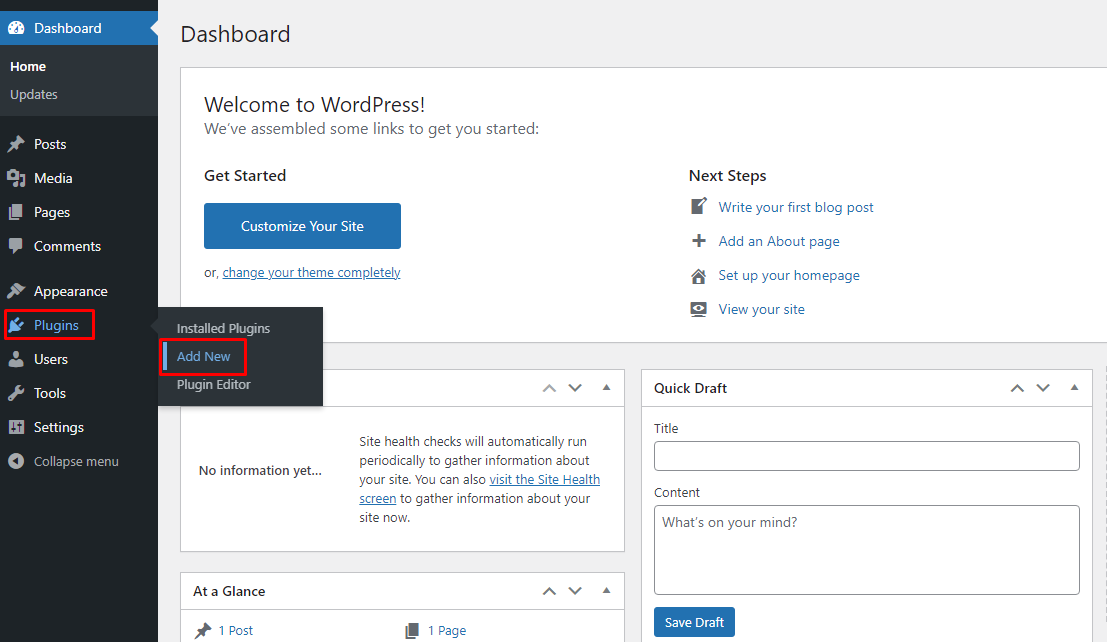
Step 3: Click to the following link and download the Classic Editor Plugin.
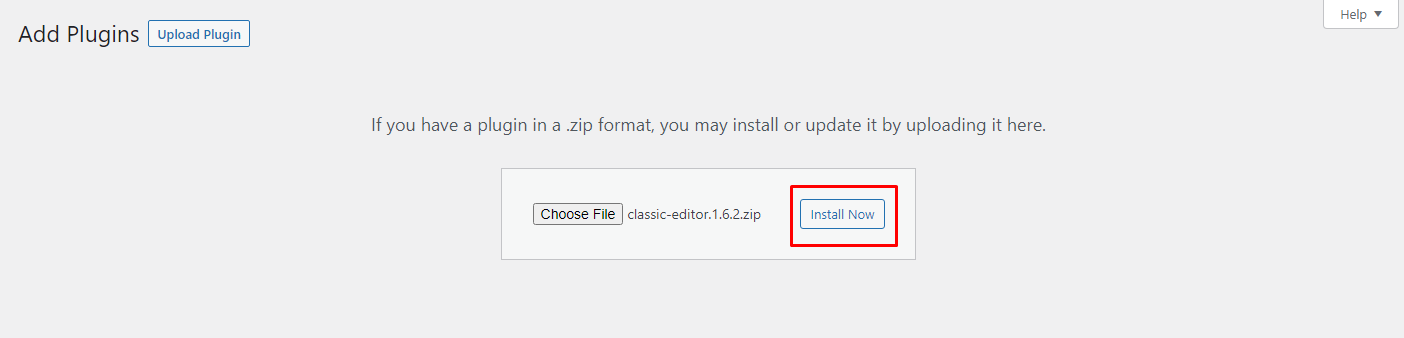
Step 4: Select the Upload Plugin option as shown in the image.

Step 5: Upload the plugin which you have downloaded before and click Install Now.
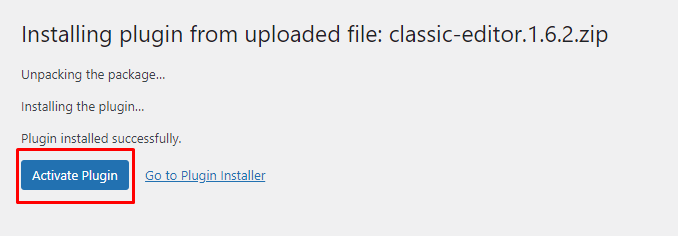
Step 6: After installing the Plugin, Click Activate Plugin.
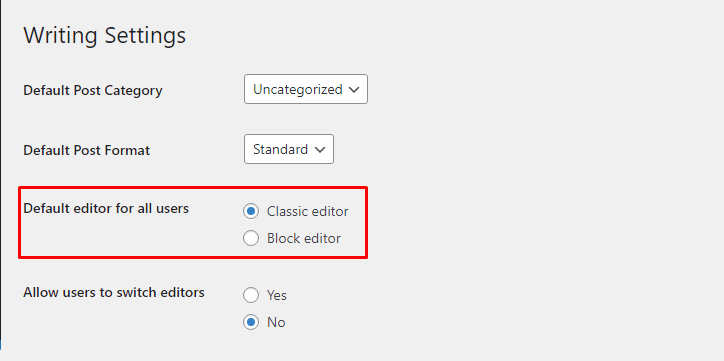
Step 7: If your default editor is not switched to the Classic Editor, Go to WordPress dashboard settings -> Writing.
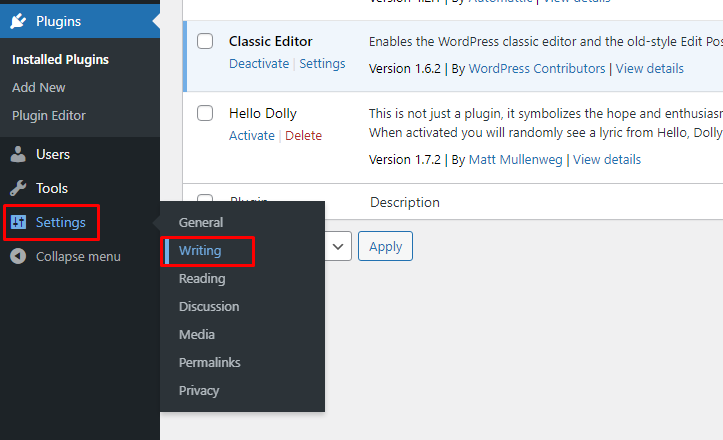
Step 8: Change your default editor for all users by selecting Classic Editor.
Hope you can able to successfully install and re-enable classic editor as your content editor in WordPress.