
 SeekaHost.com Client Area
  SeekaHost.app
  SeekaHost.co.uk
  SeekaHost.in
What is GitHub and how to use it?

By Robert Mills
Table of Contents
With many developers around the world, everyone try to build a website through different platform using code. One such platform is Github. Many might wonder What is GitHub and how to use it since it mostly an alien to anyone who first use it. Github helps you create website hosting files freely and live without any charges.
Let’s help you discover everything about what is github and successfully

What is GitHub?
Github is built on version control system called Git, which is a cloud based platform used by developers to store, manage, and collaborate their code. While Git helps you keep track of every change and manage workflow on the project which allow you to go back to any previous version saved as snapshot, Github acts as a free hosting service with a central place for team collaborate to create and share code,
Key Terms You Must Know
- GitHub Repository (Cloud) – A storage space for your project and its full history of changes. This is where your project lives online.
- Branches – main branch = your stable code and feature branch = a separate version where you try new things
- Commits – Each commit is a snapshot of your code at a specific point of time.
- Pull Request & Merge – Once your feature branch is ready, you create a Pull Request. Team members review it, and then you merge it into main.
- Push & Pull – push = upload your local commits to GitHub and pull = download updates from GitHub to your computer
- Collaborators – Multiple people can work on different branches, then merge changes safely.
Why github is so popular ?
Everyone uses GitHub for the main feature for easily collaborate on code on GitHub. GitHub hosts more than over 100 million repositories, and which are mostly open source projects. With this number, you can get an idea about how popular GitHub is.
Related Article: How to install github in ubuntu
How to Use GitHub?
1. Create a GitHub Repository
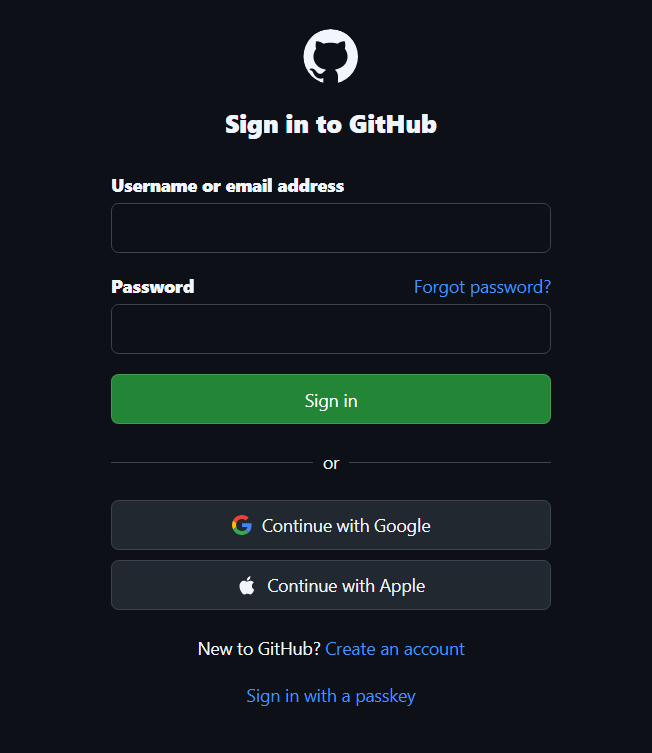
Step 1: Login to github dashboard
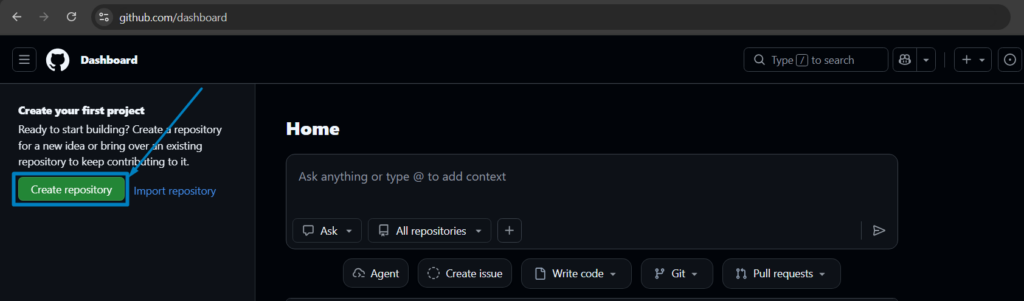
Step 2: Click “Create Repository” button on left side.
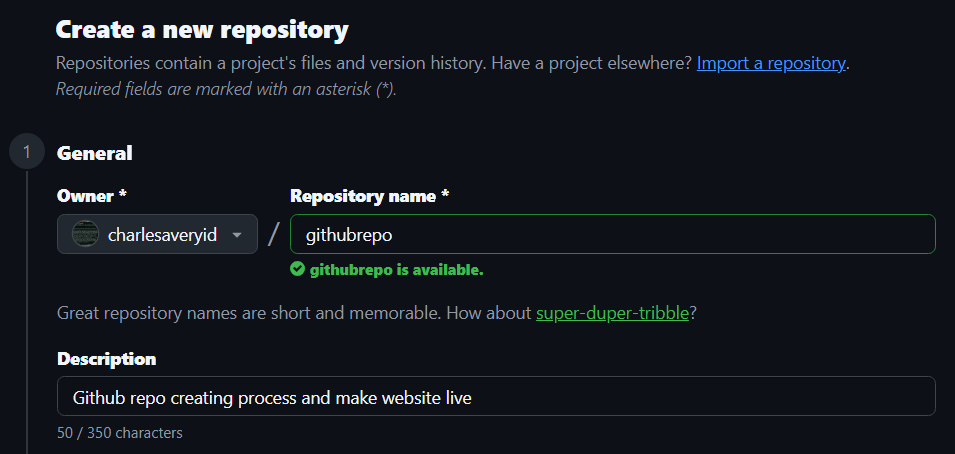
Step 3: Now enter the owner information and description about the repository.
Also, choose the visibility whether public/private and add README file to your repository
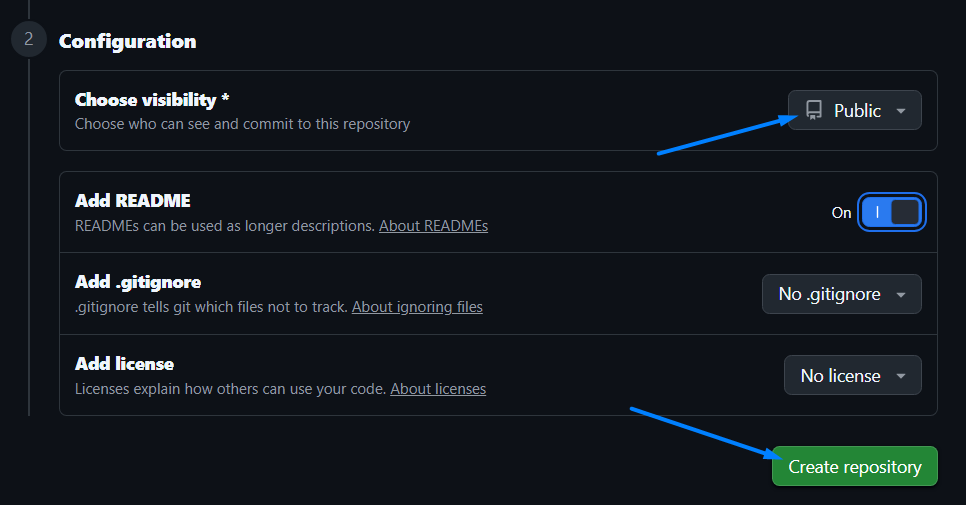
Your Repository is now created that will contain files related to the project.
2. Creating GitHub Branches
Now Create branches apart from main branch much like isolated or separate directory from main branch so that you can make changes, test new ideas, and fix bugs without affecting the main project code.
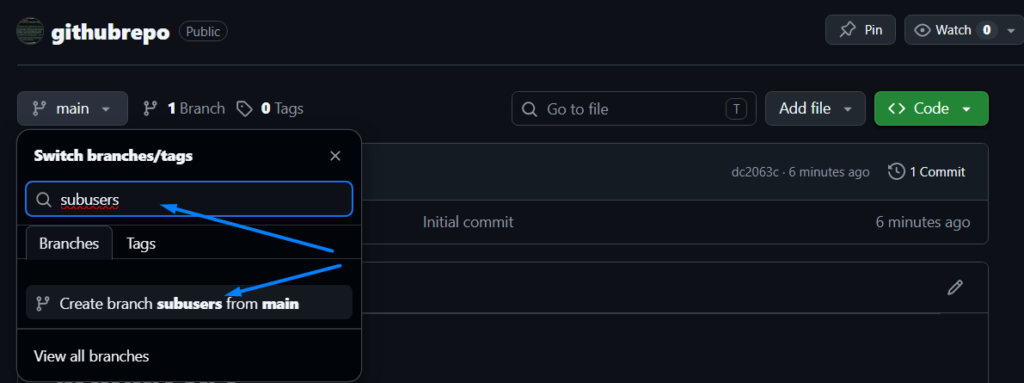
In your new repository, on top click the main button and enter the name of your new branch. Click on Create branch.
3. Understanding GitHub Commits
When you make any changes to your new branch or main files, it will create a commit – a saved snapshot of your project’s files at a specific point in time. You can restore the file from the available commit changes and safely roll back to prior versions if bugs occur.
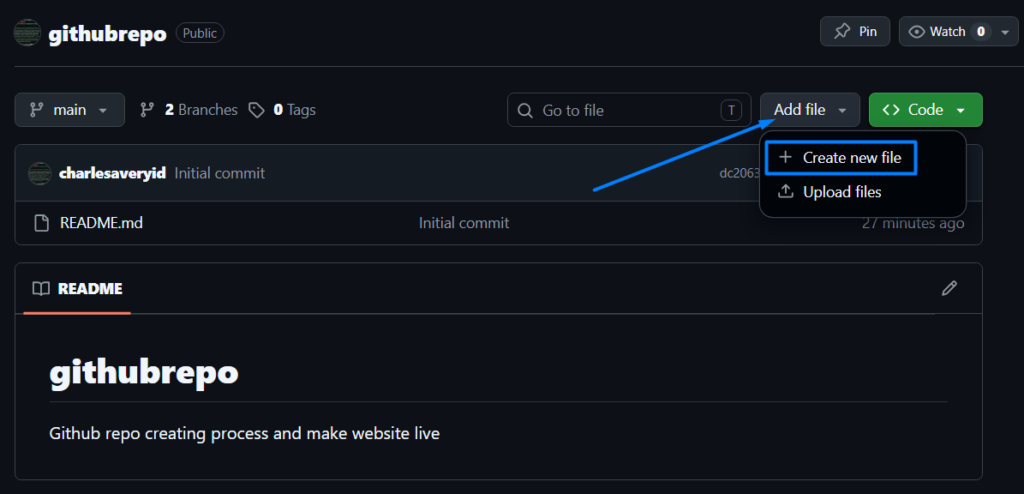
Step 1: Click “Add File” and select “Create new file”.
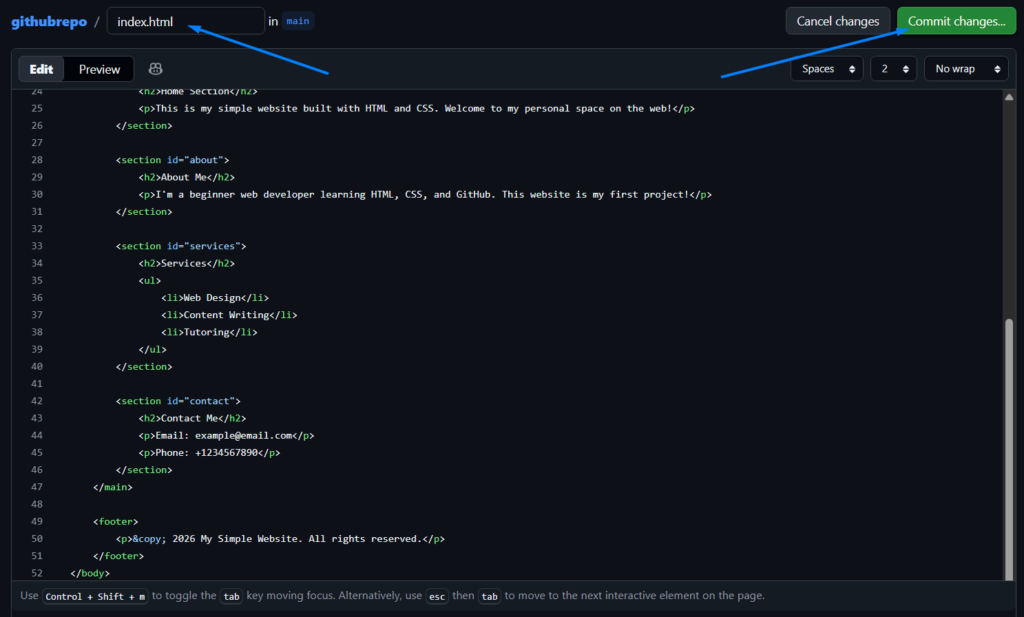
Step 2: Here, enter the file name in top and click “Commit Changes” button once updated the code.
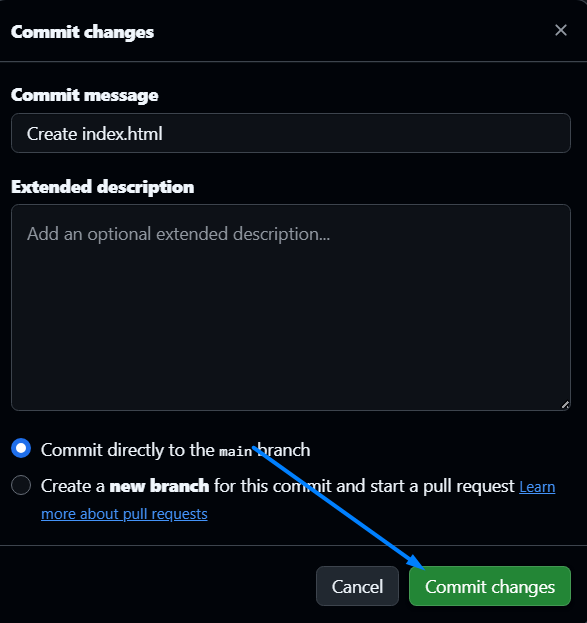
Step 3: Enter the short message on what changes has been done and click “Commit Changes” button to save the file.
Now your file will be created under the branch or main directory.
4. Creating GitHub Pull Requests
A pull request allow you to formally request your other developers on the same project to overview the changes you have made with the current code and merge the pull request upon everyone accepts the changes.
Here, I have made changes to my subuser branch file and going to pull request for main branch for the file.
Step 1: Select “Pull Requests” option on top of the section.
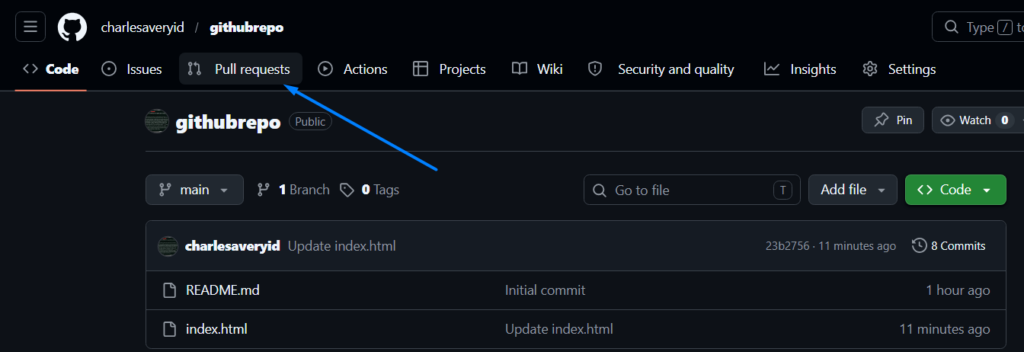
Step 2: Click “New pull request” button on top right corner.
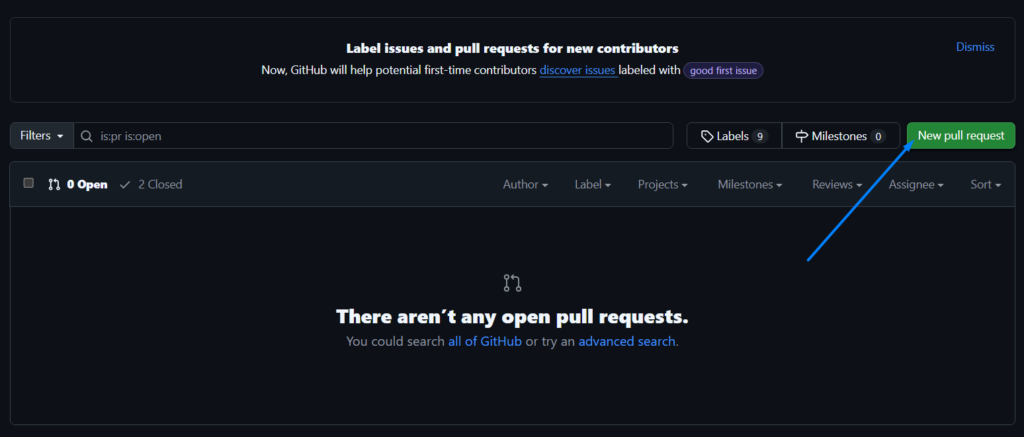
Step 3: From bottom example section, click the sub user link.
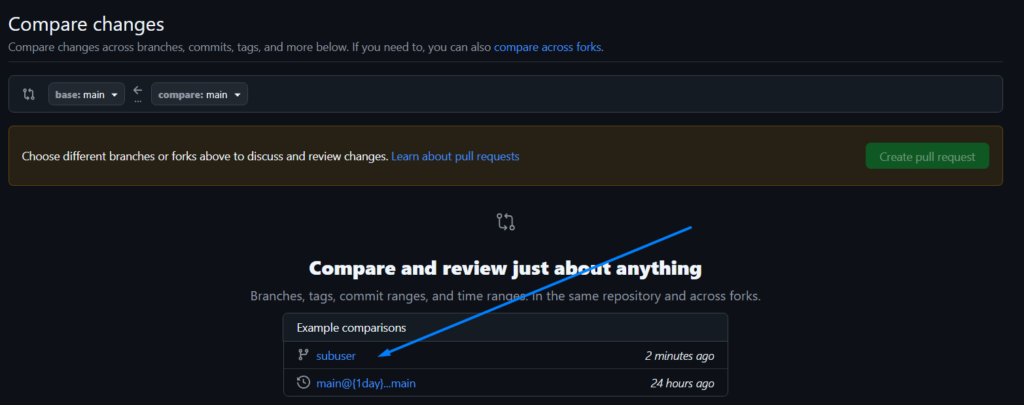
Step 4: After reviewing the changes made, click “Create pull request” button.
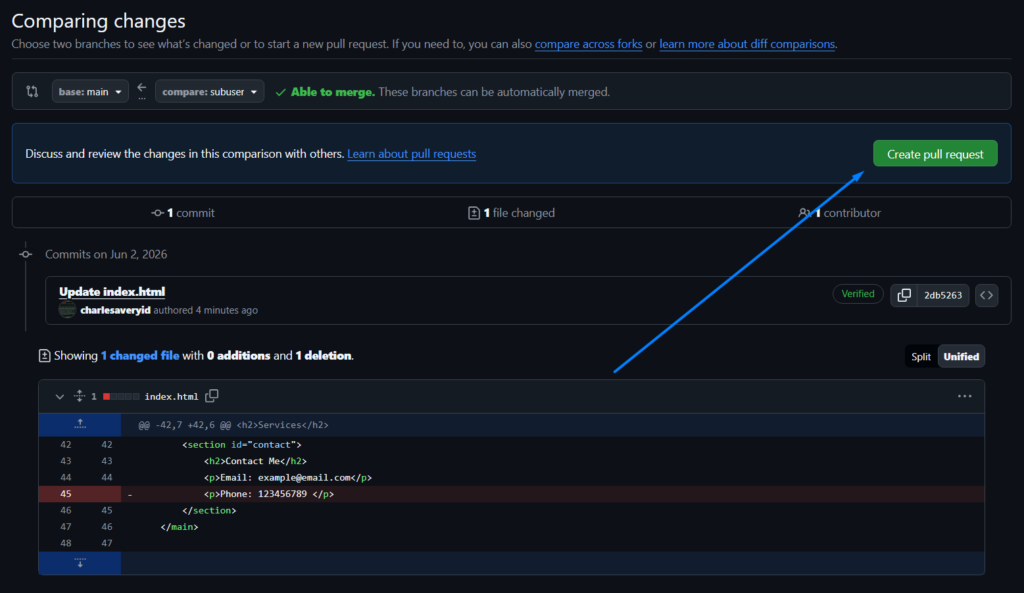
Step 5: Add a description for the changes you have made to understand for other developers and click “Click pull request”.
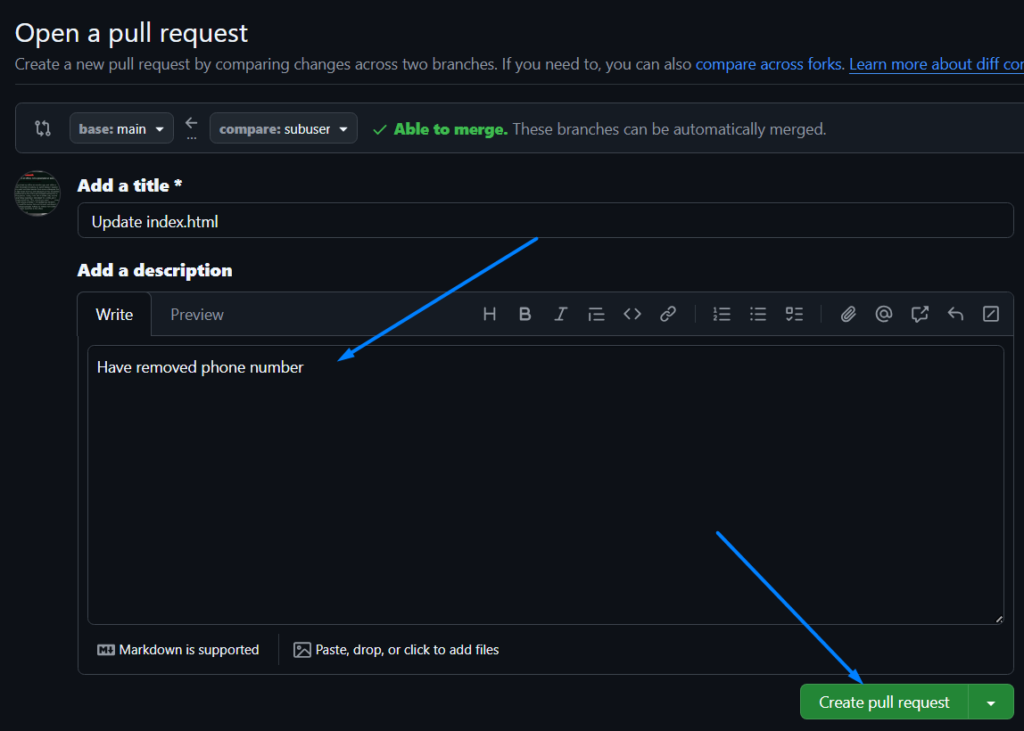
Step 6: Now request to merge pull request for the file code to be updated to the original file with the changes.
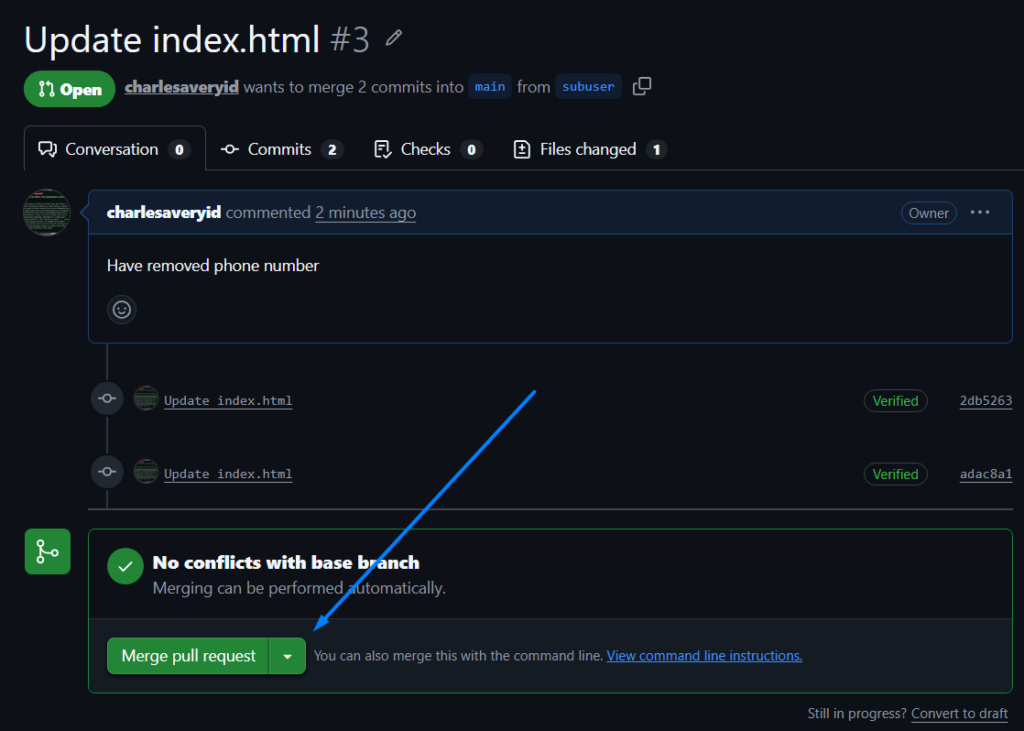
Step 7: Click “Confirm merge” button if updated changes are approved to be merged.
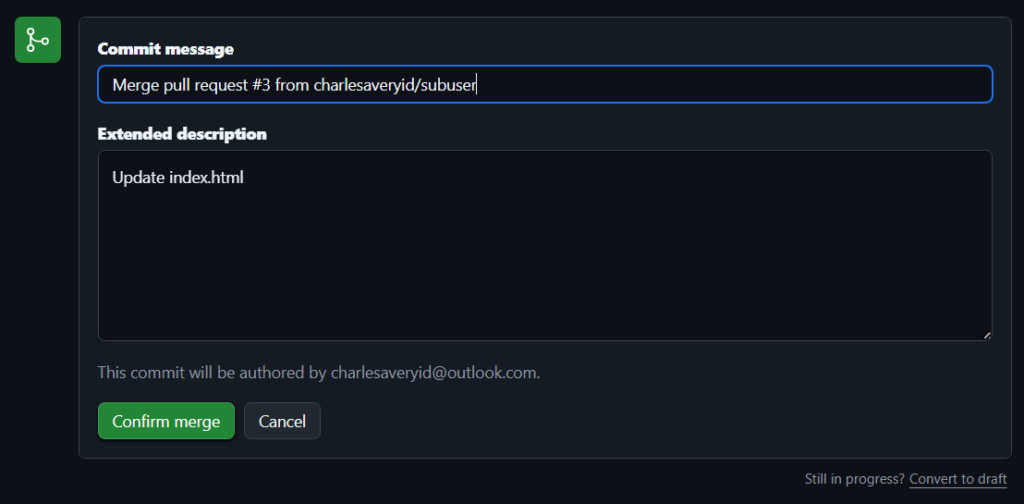
Now other developers will be able to merge the changes you made with the original project files.
Hope through the article “What is GitHub and how to use it?”, you can able to create repository and make the changes to file.