
 SeekaHost.com Client Area
  SeekaHost.app
  SeekaHost.co.uk
  SeekaHost.in
Fix WordPress Updating Failed and Publishing Failed

By Aravind
Table of Contents
WordPress Updating Failed error is one of the most common issues users face while publishing or updating posts in WordPress. It can appear during content creation, SEO updates, or even after a post has been published. This error can be frustrating and may sometimes lead users to contact their hosting provider, which can take time to resolve. However, the good news is that the WordPress Updating Failed issue can often be fixed manually with a few simple troubleshooting steps.
In this article, you will learn how to identify and fix this problem on your own.
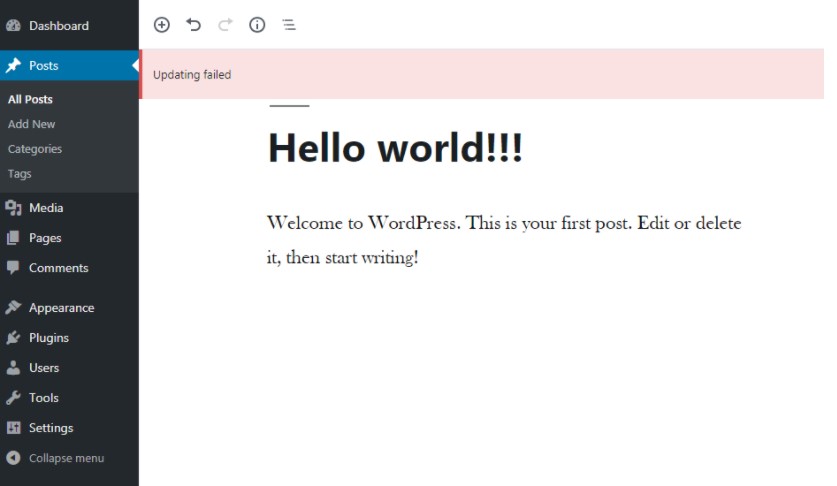
Methods to Fix WordPress Updating Failed:
1. Install Classic Editor Plugin
2. Delete .maintenance File
3. Check and Fix Plugin Conflicts
1. Install Classic Editor Plugin
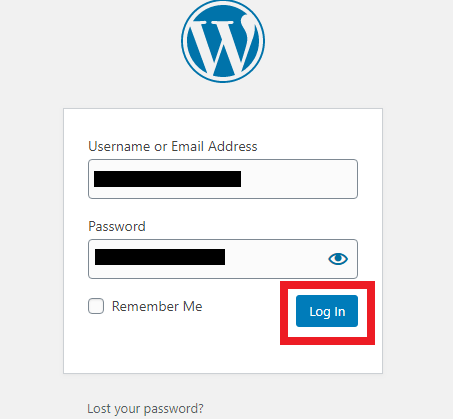
Step 1: At first, login to your WordPress account.
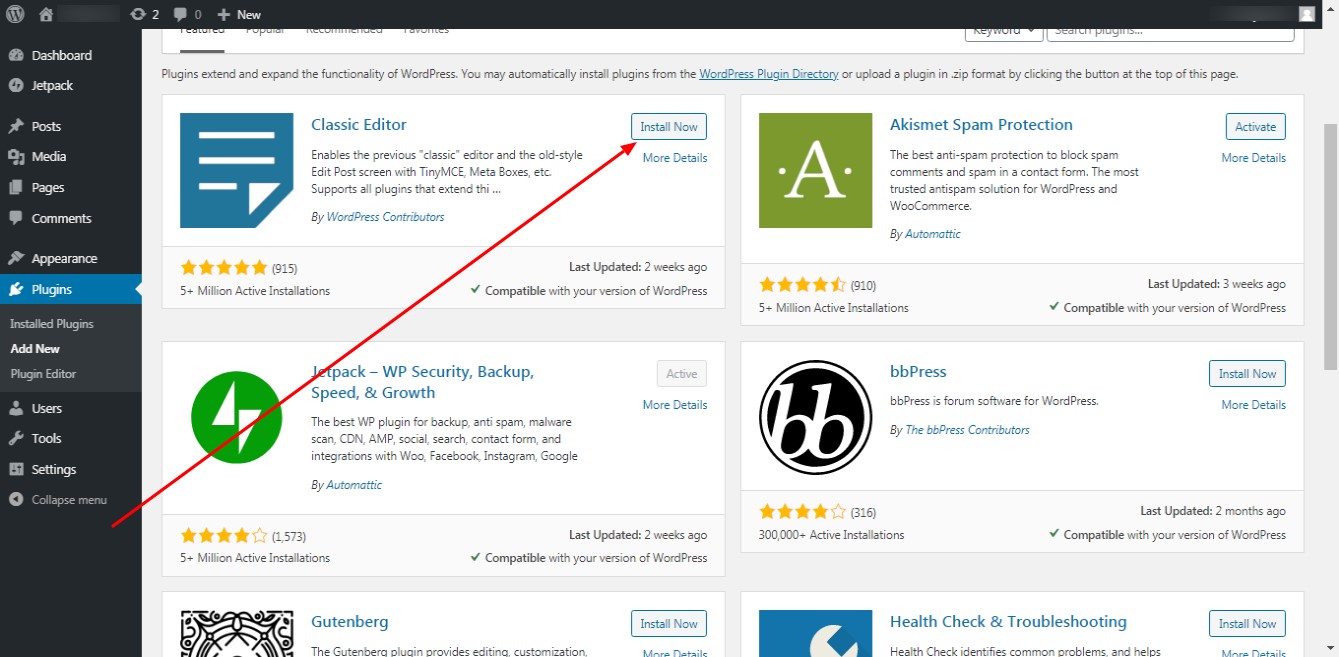
Step 2: Go to Plugins -> Add New
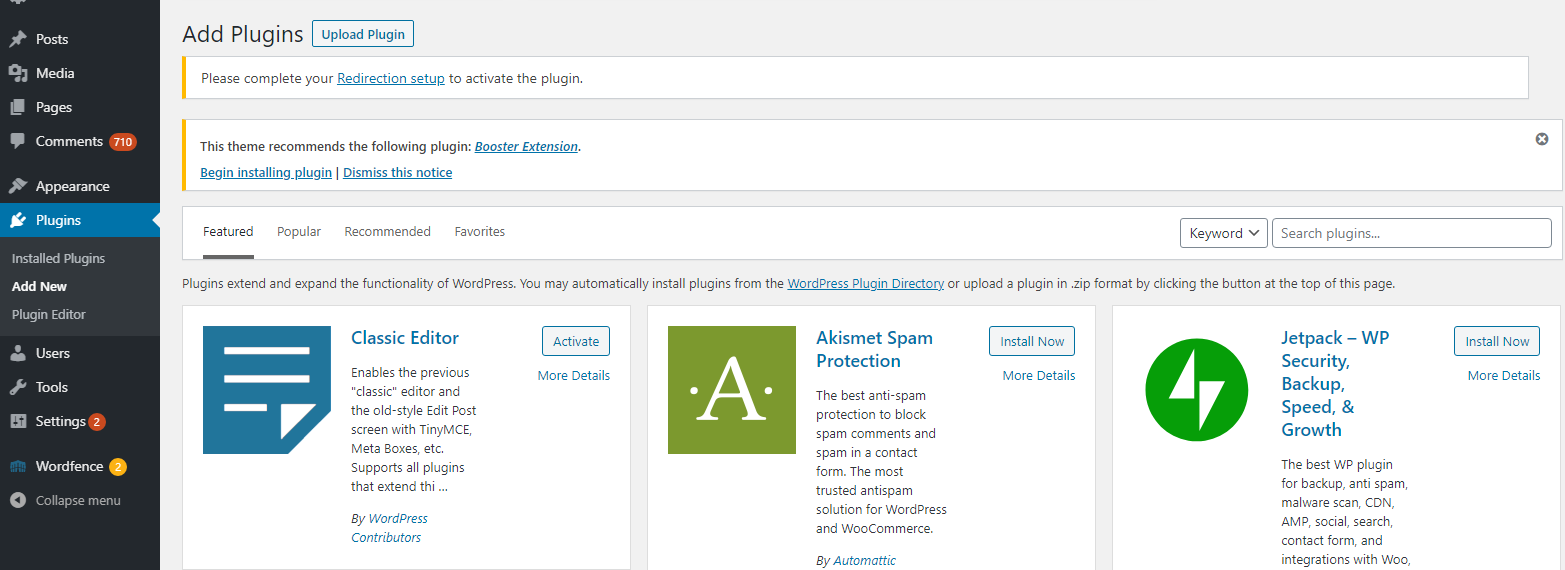
Step 3: Search for ‘Classic Editor’ plugin and click on ‘Install’ and ‘Activate” plugin.
After activation:
Step 4: Go to Settings -> Writing
Step 5: Set Classic Editor as the default editor

Step 6: Click Save Changes
2. Delete .maintenance File
If WordPress is stuck in maintenance mode:
Step 1: Login to cPanel -> File Manager -> public_html directory
Step 2: Look for a file named .maintenance
Step 3: Delete the file
This usually resolves update or publishing issues caused by incomplete updates.
3. Check and Fix Plugin Conflicts
Step 1: Go to Plugins -> Installed Plugins
Step 2: On top from Bulk Actions -> select Deactivate -> Click Apply changes.
Step 3: If issue resolved, Activate plugins one by one.
Step 4: Identify the plugin causing the issue and Replace or remove the problematic plugin
WordPress Specific Errors to Solve:
1. Fix “there Has Been a Critical Error”
2. Fix 503 Service Unavailable Error
3. Handle 404 ‘Not Found’ Errors
The “Updating Failed & Publishing Failed” error in WordPress can usually be fixed by switching editors, removing the .maintenance file, or resolving plugin conflicts. Following these steps helps restore normal publishing and updating functions quickly.
[Tweet “How to fix updating failed and publishing failed in WordPress?”]
If you are a registered user in SeekaHost and have any queries to be clarified or issues to be sorted, you can raise a ticket through client area dashboard or email to support@seekahost.com. For immediate interaction or guidelines, contact our support team available in LiveChat at the right bottom corner of the website.