
 SeekaHost.com Client Area
  SeekaHost.app
  SeekaHost.co.uk
  SeekaHost.in
How To Redirect All Pages To Homepage?

By Robert Mills
Table of Contents
We won’t keep all the pages the same always. Sometimes, we do need to develop the site and move the pages or domain permanently to another page or domain or else redirect all pages to homepage. So, what do we need to do in that situation where we cannot lose the clients, SEO ranking, and traffics? There are different types of redirect. But we choose the best and simple way which ensures a safe way of redirecting.
In this article, we want you to understand fully what a 301 redirect and how it makes your site work after redirect and what exactly you need to do.
Difference of 301 and 302 Redirect:
302 (Temporary) Redirect:
Point an entire site to a different temporary URL. This is useful for SEO purposes when you have a temporary landing page and plan to switch back to your main landing page at a later date.
301 (Permanent) Redirect:
Use a 301 redirect .htaccess to point an entire site to a different URL on a permanent basis. This is the most common type of redirect and is useful in most situations. In this example, we are redirecting to the “example.com” domain.
What is a 301 Redirect?
A 301 is one of the HTTP status codes sent by a web server to a browser and one of the most commonly used for redirect purposes. It signals a permanent Redirect All Pages To Homepage, i.e., all users that request an old URL will be automatically sent to a new URL. A 301 redirect passes all the ranking from old to new URLs.
Simply that, after moving a piece of content from a specific URL without redirecting it, anyone who tries to visit it will show a 404 error – page not found. Now, if you attempt to visit the moved URL after being redirected, the server will send back the 301 – Permanently Moved status code, and then take you to the new URL.
Why Need A 301 Redirect?
- Allows you to Redirect All Pages To Homepage.
- Enables an easy flow transition.
- Protects and transfers all your website’s current backlinks from the old site to the new site.
- Allows web pages in the new site to be indexed easily.
- Less chance of negative impact on user traffic.
How Long Does a 301 Redirect Last?
A permanent HTTP 301 usually lasts for around a year or longer. After that, make sure to check if users are still sent to your new URL or update it.
Check the steps below for safe redirect:
1. Backup Your Website
2. Ensure your HTTP version redirects to your HTTPS
3. Remove 301 redirects from your sitemap
4. Avoid redirect chains and Fix redirect loops
5. Fix your broken redirects
6. Replace 302 redirects with 301
7. Check for 301 redirected pages that receive traffic.
8. Check Your Htaccess Files for Errors in URL Linking
Here we set a single redirect to understand the process. If you want to redirect all pages to homepage or multiple redirects, you can mention one by one as below:
“redirect 301 (source) (destination)”
Here,
Source – Redirect the visitors to another URL if they visit here (typically a 404 Page).
Destination – where you want the visitor to land if they visit the Source URL.
Methods of 301 Redirect Through .htaccess:
Redirect 1: Within a Domain
Redirect 2: From domain to domain
Redirect 3: Using cPanel
Redirect 1: Within a Domain
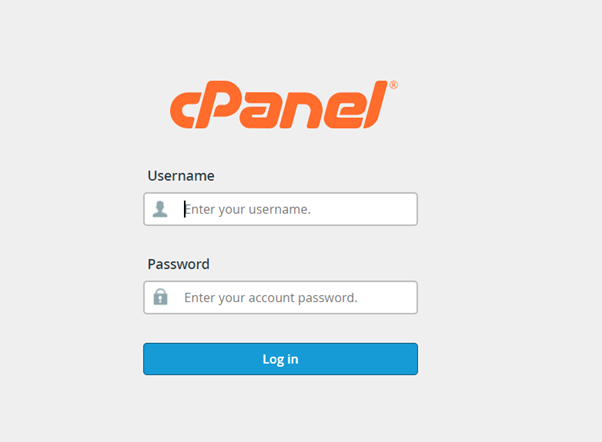
Step 1: Login to cPanel of your website.
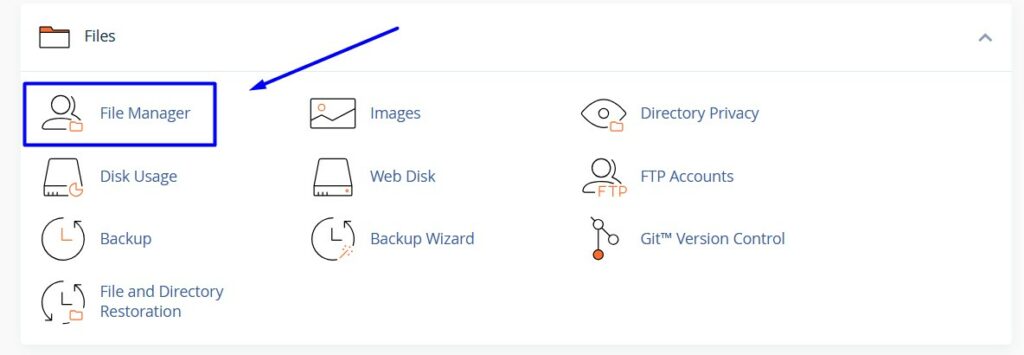
Step 2: Search “File manager” and click it.
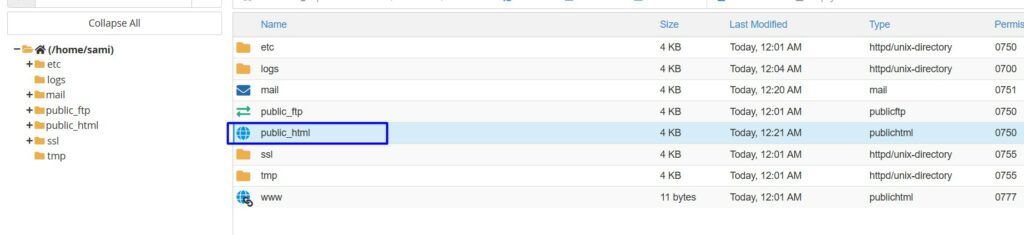
Step 3: Enter public_html directory.
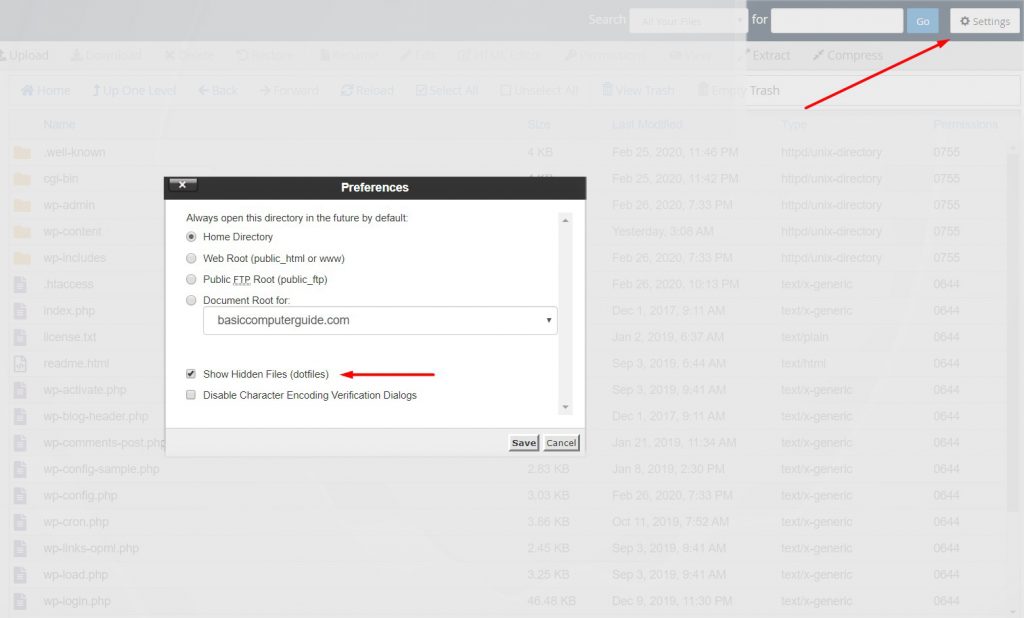
Step 4: Right-click on .htaccess file and edit the file. Ensure the hidden files checkbox from settings is enabled for the website.
Step 5: Paste the below code inside the file and save it. Replace the words “/sports” and https://checking.com” with your respective redirection page name or URL. This allows you to Redirect All Pages To Homepage.
redirect 301 /sports http://checking.com
Place the code as shown in the picture below:
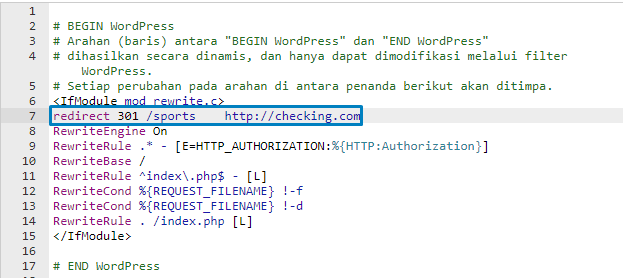
Once done, click “Save changes” button on top right corner.
Redirect 2: From Domain to Domain
The same process like above but change the code as below:
redirect 301 / http://www.google.com
Place the code as shown in the picture below:
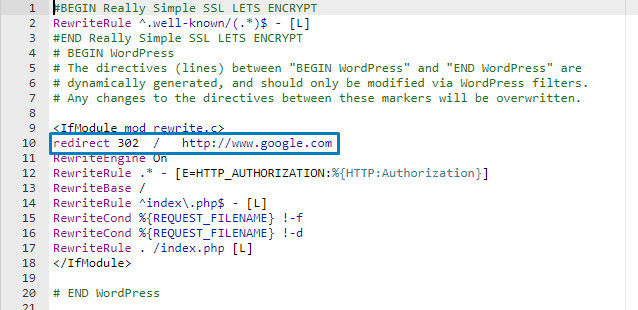
Important Note: Take a backup of the original file before redirecting. As if it fails you can retry and complete the process correctly.
Redirect 3: Using cPanel
Step 1: Login to Cpanel
Step 2: Search Redirects and click the option.
Step 3: In types, choose Permanent 301 option and choose the respective domain name from https:// type
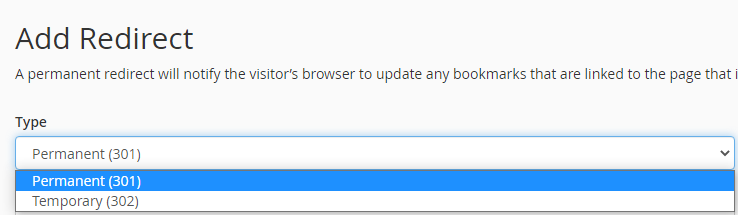
Step 4: In the Redirects to field, type full URL of the website where you want to redirect from the current website.
In the box “ / ”, you can mention the page name if you want to redirect only specific page to the Redirecting website.
Example as below where we made a redirect to “google.com” if anyone tries to visit our website “checking.com”,
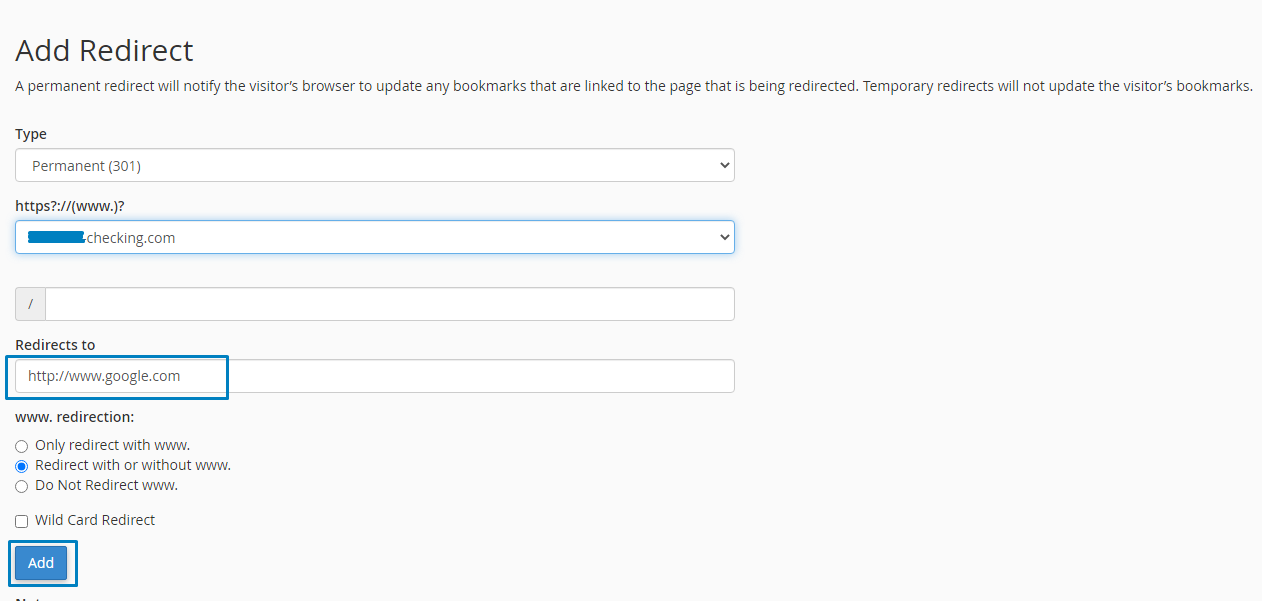
Once done, click “Add” button to successfully add the redirection which you can see as list in the redirects section.
Hope the article helps you successfully redirect All Pages To Homepage and as well domain to domain redirection.