
 SeekaHost.com Client Area
  SeekaHost.app
  SeekaHost.co.uk
  SeekaHost.in
How to Fix WordPress Login Page Refreshing and Redirecting?

By Aravind
Table of Contents
We have created this article only for you guys to relieve some of the head stress facing because of the WordPress Login Page Refreshing and Redirecting process on any of your hosting. This article will come in handy situations for you.
If you entering the login details correctly and still persistently facing this issue then we are locked on admin page because of some issue facing in the backend process that helps to run the website and admin page.
In this article, you’ll learn the common reasons behind the WordPress Login Page Refreshing & Redirecting error and explore step-by-step solutions to restore access to your WordPress admin panel.
Common Things To Always Check with WordPress:
- The Username and Password that you set for the WordPress admin page must be saved in cPanel.
- WordPress is updated to the latest version.
- All the Plugins and Themes are updated to the latest version and check whether the installed is compatible with WordPress’s latest updates or not.
- Always have regular monthly or weekly backup files.
- Ensure security and malware scan Plugins installed to protect your website from hackers
Steps to Fix WordPress Login Page Refreshing and Redirecting:
- Editing wp-config.php File.
- Clearing Your Browser Cache
- Manually Deactivating Plugins
- Reverting Back To Default WordPress Theme
- Create New .htaccess File
1. Editing wp-config.php File
Incorrect WordPress site URLs can sometimes cause the WordPress Login Page Refreshing & Redirecting issue. You can fix this by updating the WP_HOME and WP_SITEURL values in the wp-config.php file.
Follow these steps:
1. Log in to your cPanel.
2. Open File Manager.
3. Navigate to your WordPress installation folder (usually public_html).
4. Locate the wp-config.php file.
5. Right-click the file and select Edit.
6. Add the following code just above the line – “/* That’s all, stop editing! Happy publishing. */
define(‘WP_HOME’,’https://www.domainname.com’);
define(‘WP_SITEURL’,’https://www.domainname.com’);
Note: Replace yourdomain.com with your actual domain name.
7. Save the changes.
8. Try logging in to your WordPress dashboard again.
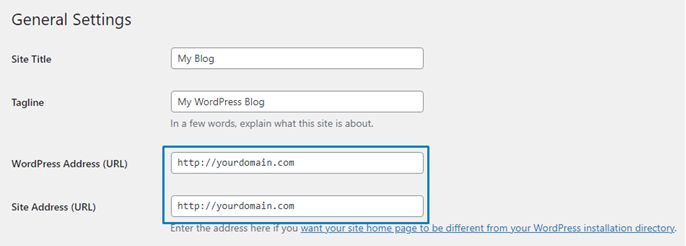
Verify the Site URL in phpMyAdmin:
If updating the wp-config.php file doesn’t resolve the issue, check whether the WordPress site URL stored in the database matches your website address.
Follow these steps:
1. Log in to your cPanel.
2. Open phpMyAdmin.
3. Select your WordPress database from the left sidebar.
4. Open the wp_options table.
- Locate the siteurl and home table on right side.
- Verify that both values match your website URL exactly, including http/https and www (if applicable).
5. If either value is incorrect, click Edit, update it with the correct URL, and click Go or Save to apply the changes.
6. Visit your WordPress login page and check whether the issue has been resolved.
2. Clearing Your Browser Cache
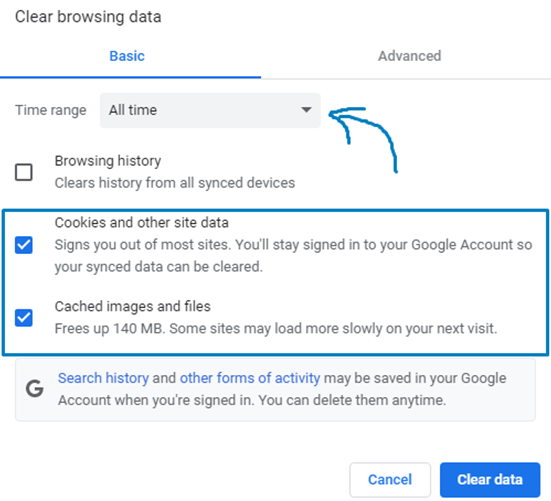
WordPress uses cookies for login authentication. So the first step in troubleshooting is WordPress login issues by clearing your browser cookies and cache.
Step 1: In the top right corner, click the three dots » More » Clear browsing data.
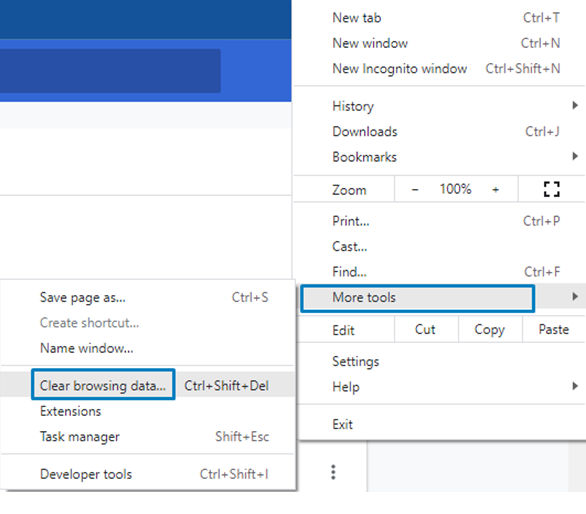
Step 2: Click the check box of cookies and cached images and click “clear data”.
3. Manually Deactivating Plugins
A conflicting or outdated plugin is one of the most common causes of the WordPress Login Page Refreshing & Redirecting issue. If you’re unable to access the WordPress dashboard, you can disable all plugins manually through your hosting account.
Follow these steps:
1. Log in to your cPanel.
2. Open File Manager and navigate to: public_html -> wp-content
3. Locate the plugins folder.
4. Rename the folder from plugins to plugins_backup.
Renaming the folder automatically deactivates all installed plugins.
So, have to disable all your Plugins by renaming the Plugins folder in File Manager as.

Now, try logging in to your WordPress dashboard. If you can log in successfully, it means one of the plugins is causing the issue.
To identify the problematic plugin:
- Rename the folder back to plugins.
- Log in to your WordPress dashboard.
- Activate each plugin one at a time.
- After enabling each plugin, check if the login issue returns.
- Once you identify the conflicting plugin, delete it and install a compatible or updated version.
If disabling all plugins does not resolve the issue, restore the folder name to plugins and continue with the next troubleshooting step.
4. Reverting Back To Default WordPress Theme
A faulty or incompatible theme can also trigger the WordPress Login Page Refreshing & Redirecting issue. If you’re unable to access the WordPress dashboard, you can temporarily disable your active theme through cPanel to check whether it’s causing the problem.
Follow these steps:
1. Log in to your cPanel.
2. Open WordPress Manager by SeekaHost.
3. Click Down Arrow near the website name and click Manage Themes option.
4. Toggle on the another theme from the available themes.
5. If there is no other theme uploaded, select tab “Add themes” and enter the theme name -> Click Install button near the theme name.
Once the changes are saved, try logging in to your WordPress admin dashboard. If you still face the issue, then proceed to next method.
5. New .htaccess File
The .htaccess file is one of the most sensitive files on the WordPress site. Sometimes it can be facing an error which can result to lose access to your wp-admin panels. So, responding to various requests from the server gets disconnected and made to loop the refresh admin page.
Follow these steps to check if the .htaccess file is causing the problem:
1. Log in to your cPanel.
2. Open File Manager -> public_html
3. Locate the .htaccess file.
4. Rename it to .htaccess-backup.
5. Download a copy of the renamed file for backup, but do not delete it.
Now, try logging in to your WordPress admin dashboard.
- If you can log in successfully, the original .htaccess file was likely causing the issue.
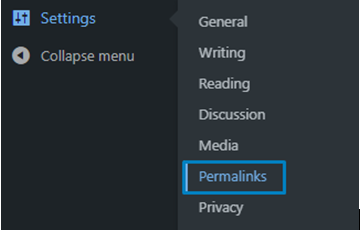
- Go to Settings -> Permalinks in your WordPress dashboard.
- Without changing any settings, simply click Save Changes.
WordPress will automatically generate a new .htaccess file with the default configuration.
If renaming the .htaccess file does not fix the issue, restore the original file by changing its name back to .htaccess and continue with the next troubleshooting step.
The WordPress Login Page Refreshing & Redirecting issue can usually be resolved by checking your WordPress configuration, clearing browser cache, disabling conflicting plugins or themes, and repairing important files like wp-config.php and .htaccess.
Keeping WordPress, plugins, and themes updated, along with maintaining regular backups, can also help prevent similar issues in the future. Following these troubleshooting steps will help you regain access to your dashboard and keep your WordPress website running smoothly.
Additional Tips for safety:
1. Avoid too many failed login attempts. It may block your IP. If unable to recover your password using the ‘Recover Password’ option, you can reset the password through phpMyAdmin.
2. Solve the following errors with our articles for your help:
- HTTP 500 Internal server
- White screen of death
- Error establishing database connection
- PHP Errors(memory limit)
- Reinstall WordPress (If can’t solve using above method)
- Permission Check:
- Files have 644 permissions
- Directories have 755 permissions
If you still facing this issue, contact your hosting provider because this may be a problem that could only be solved by them or from their side.
Here, as a hosting provider, we are providing the best service in terms of hosting and also making them live with our best-trained teams in 24*7-time loop.