
 SeekaHost.com Client Area
  SeekaHost.app
  SeekaHost.co.uk
  SeekaHost.in
7 Must Have Tasks to Automate WordPress

By Frank Carson
Table of Contents
As you know, automation has replaced most manual work by handling repetitive tasks automatically. Instead of doing the works everything manually each time, you can Automate WordPress processes directly within WordPress.
Let’s look at how to automate WordPress in different ways.
What is WordPress automation?
WordPress Automation means automating work instead of repetitive tasks. Some of the tasks are,
- WordPress plugin/theme updates
- Schedule posts
- Automate WordPress Updates
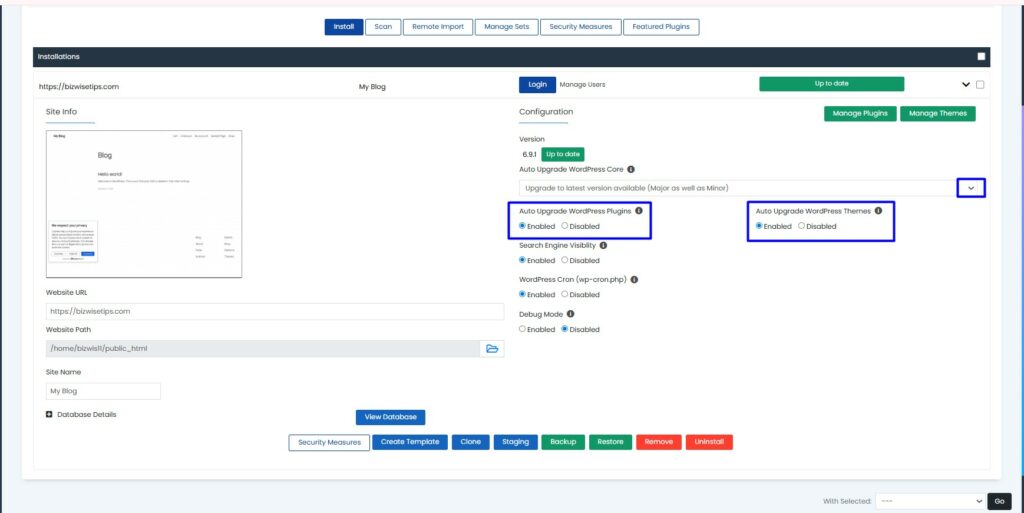
Instead of relying on manual updates every time to save this, you can automate WordPress updates to save time and effort. To automate the WordPress tasks, you should install the WordPress to manage the tasks automation from WordPress.
Key WordPress Automation Tasks Every Site Needs:
1. Auto WordPress updates
Enabling Automate WordPress updates option helps WordPress keep your website secure and up to date without doing it manually every time. You can automatically update the WordPress core, Themes, and Plugins, making sure your site always runs on the latest versions. This reduces maintenance time and minimises the risk of security vulnerabilities caused by outdated software features.
When plugins and themes are not regularly updated, it can lead to conflicts with newer patch updates. For example, if a theme is updated and it conflicts with existing plugins, it could cause your website to break.
2. Automate WordPress Backup
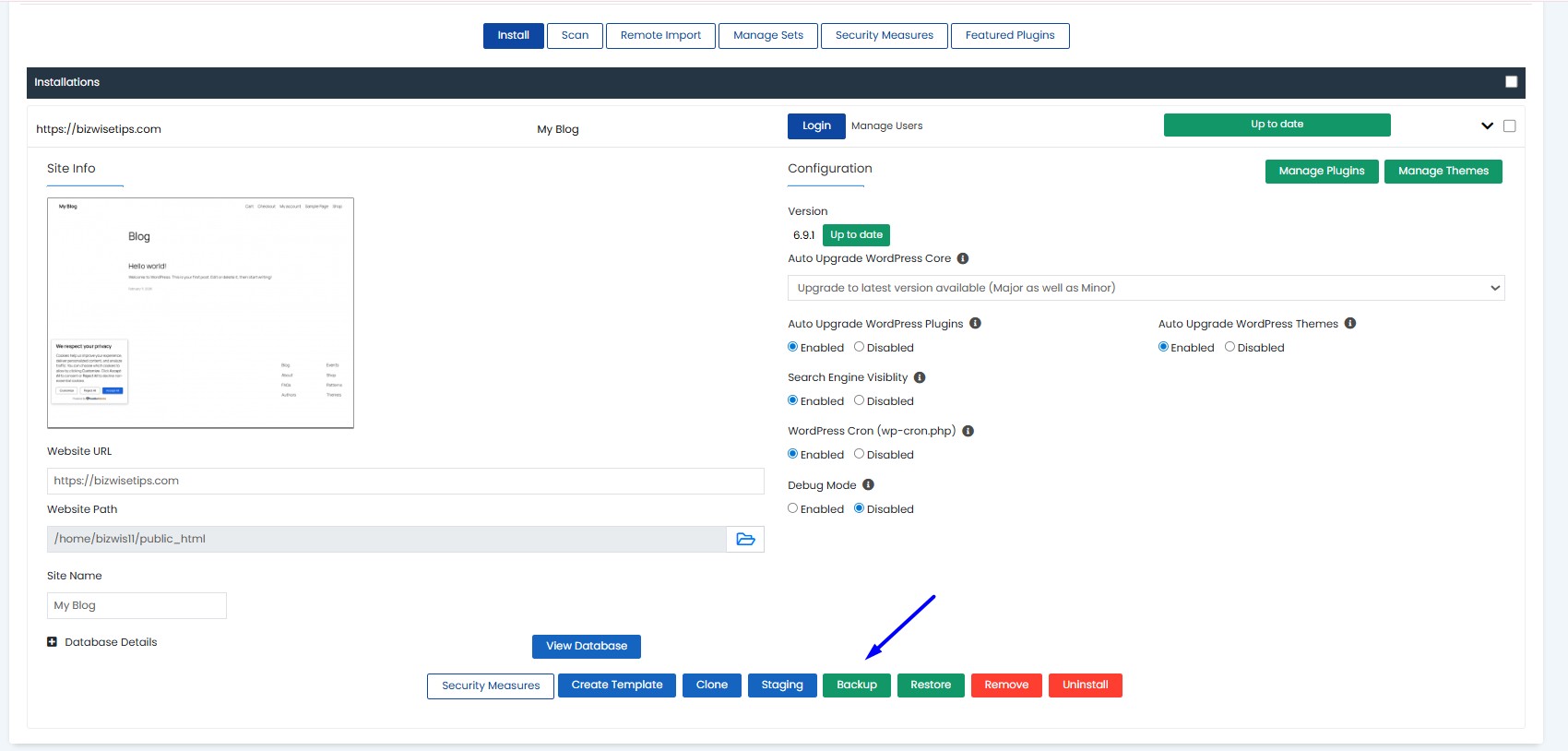
Automate your WordPress site to keep it secure, updated, and protected from future vulnerabilities. With automate WordPress backups, your will website will protect and safe from the one step ahead of potential threats. If your site is ever got hacked or faces a security issue, you can quickly rollback to the previous version and restore everything with minimal downtime. Automation not only strengthens your website security but also gives you your data and content are always protected.
If you want, you can easily take full backup manually in cPanel incase of any immediate backup or automate backup failure.
3. Auto Schedule Post
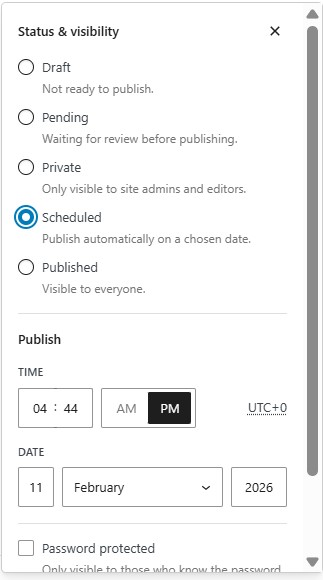
Posting a daily post on specific time and date is little bit difficult task. But with automate WordPress posts, you can plan and schedule a post easily. This is useful for both information or social related websites.
You can also easily add pages in WordPress instead of post for dedicated content for your blog and automate your page publish by scheduling.
4. Automating Website Security Monitoring
Maintaining security of your website is must for the website, you should also carry out regular maintenance from time to time. Website security can be complex and managing everything manually might not be best approach.
One good thing is that many security tasks can be handled automatically by installing some of the best Security Plugins For WordPress. Security plugins helps you to check and monitor your site for suspicious activity, scan for malware threats, and keep an eye on your website’s overall health.
By automate tasks on security plugin, you can log day to day activity of your website interaction between your visitors and servers to your website to monitor and secure all the time.
5. Image compression
Images are the common culprit to make your website slow loading websites and it is always better to compress images for your WordPress before uploading them to your website.
To fix, you can download the image compression plugin like smush and integrate your website fully to your compress the images as automatically.
6.Automating Website Uptime Monitoring
Websites can go down unexpectedly due to high traffic or server overload. It’s impractical to monitor your website every minute. To address this issue, the best solution is to configure your website with an uptime/downtime monitoring plugin that provides regular updates on its status. This way, you can focus on other tasks with peace of mind.
7.Automating Broken Link Detection.
If you’re building a webpage and later deleting it, you might notice that your 404 page is still generating bandwidth usage. If you’re not sure what is page-not-found errors or how to fix them, a simple solution is to redirect all your 404 pages to your homepage. You can also check the broken link checker plugin and fix it based on the issues.
Hope with above automation tips you can easily Automate WordPress Tasks for your website.